EasyManua.ls Logo

Casio CFX-9800G - Page 77

Casio CFX-9800G
206 pages
Print Icon
To Next Page IconTo Next Page
To Previous Page IconTo Previous Page
Loading...
Chapter
6
||l[Using
the
Matrix
Mode
|
This
calculator
provides
you
with
26
variable
matrices
(Mat
A
through
Mat
2)
and
a
spe-
cia!
matrix
answer
memory
(Mat
Ans)
that
you
can
use
to
perform
the
following
types
of
calculations,
Note
that
the
maximum
matrix
dimension
(size)
that
can
be
used
is
255
x
255.
*Addition,
subtraction,
multiplication
_
*Scalar
products
*Determinants
*Transposed
matrices
Inverted
matrices
:
°Squaring
“s
*Row
element
calculations
(modification)
6-1
Before
Performing
Matrix
Calculations
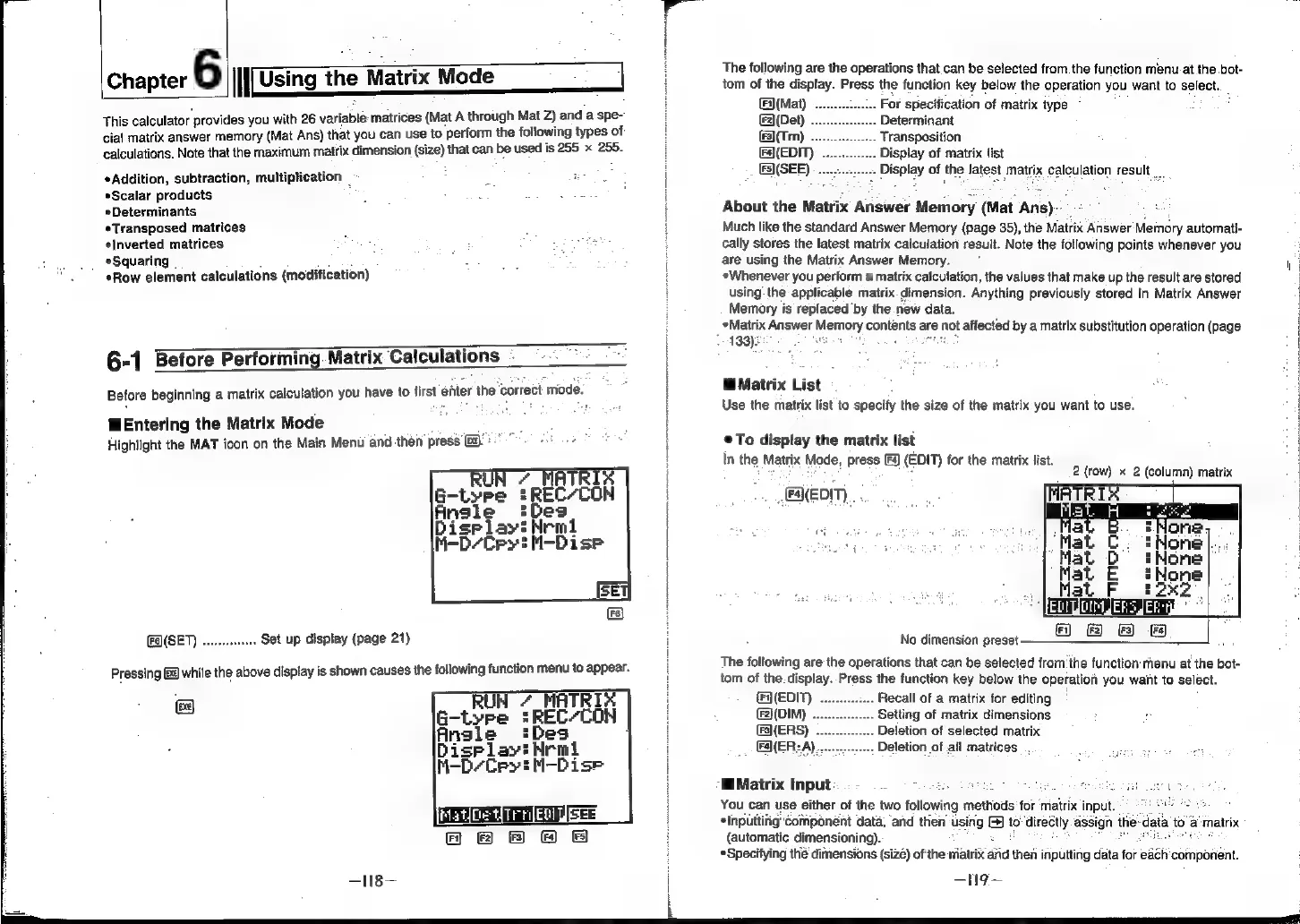
Before
beginning
a
matrix
calculation
you
have
to
first
enter
the
correct
mode.
Entering
the
Matrix
Mode
ee
Highlight
the
MAT
icon
on
the
Main
Menu
and
then
press
@&:-
7”
MATRIX
'REC/CON
Angle
Des
Display!
Nrml
M-D/Cpy!
M-Dise
FE)(SET)
..eeeeessseee
Set
up
display
(page
21)
Pressing
f]
while
the
above
display
is
shown
causes
the
following
function
menu
to
appear.
G
Ansle
'=Des
Display?
Arml
M-D-Cpy?
M-Dise
PA
ISEE
AR
Be
DB
—N8—
|
|
The
following
are
the
operations
that
can
be
selected
from.the
function
menu.
at
the.bot-
tom
of
the
display.
Press
the
function
key
below
the
operation
you
want
to
select.
_
Fi)(Mat)
For
specification
of
matrix
type
~
(F2](Det)
Determinant
(F3)(Trn)
....
Transposition
Fa)(EDIT)
..
Display
of
matrix
list
_
&S)\(SEE)
Display
of
the
latest
matrix
calculation
result
About
the
Matrix
Answer
Memory
(Mat
Ans)--
°°
¢
Much
like
the
standard
Answer
Memory
(page
35),
the
Matrix
Answer’
Memory
automati-
cally
stores
the
latest
matrix
calculation
result.
Note
the
following
points
whenever
you
are
using
the
Matrix
Answer
Memory.
«Whenever
you
perform
a
matrix
calculation,
the
values
that
make
up
the
result
are
stored
using:
the
applicable
matrix.
dimension.
Anything
previously
stored
in
Matrix
Answer
Memory
is
replaced
by
the.
new
data.
Matrix
Answer
Memory
contents
are
not
affected
by
a
matrix
substitution
operation
(page
193):
ee
ae
@
Matrix
List
Use
the
matrix
list
to
specify
the
size
of
the
matrix
you
want
to
use.
©To
display
the
matrix
list
In
the
Matrix
Mode,
press
[Fa)
(EDIT)
for
the
matrix
list.
EDM,
.
2
(row)
x
2
(column)
matrix
|
No
dimension
preset.
The
following
are
the
operations
that
can
be
selected
from'the
function
menu
at
the
bot-
tom
of
the.display.-Press
the
function
key
below
the
operation
you
waht
to
select.
Fy
(EDIT)
Recall
of
a
matrix
for
editing
(DIM)
Setting
of
matrix
dimensions
Deletion
of
selected
matrix
Deletion
of
all
matrices
Matrix
Input
2
Hehe
LATE
é
mauihs
You
can
use
either
of
the
two
following
methods
‘for
matrix
input.
«Inputtirig
‘component
data,
and
then
‘using
@
to
directly
assign
the:
(automatic
dimensioning).
Seer
ne
oe
a
Specifying
thé
dimensions
(size)
of
the
matrix
and
then
inputting
data
for
each'component.
=e
ia
to
@
matrix: