EasyManua.ls Logo

Casio CFX-9800G - Page 78

Casio CFX-9800G
206 pages
Print Icon
To Next Page IconTo Next Page
To Previous Page IconTo Previous Page
Loading...
‘@
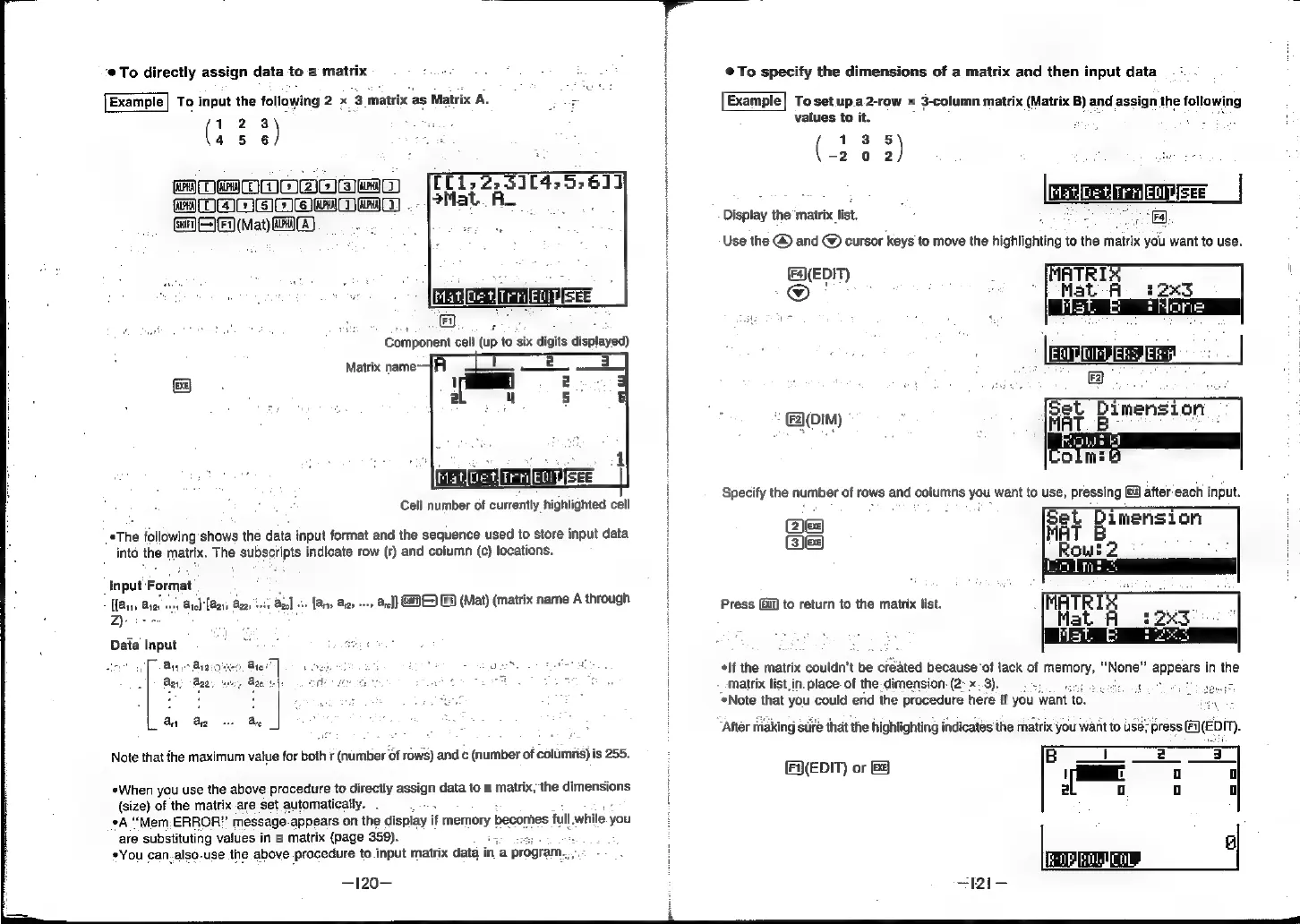
To
directly
assign
data
to
a
matrix
Example!
To
input
the
following
2x
3
matrix
as
Matrix
A.
d
>
(hese)
45
6
OmOOOooee
MOA
Oeaa
GAGE
(May
ow)
&
@
Cell
number
of
currently
highlighted
cell
.*The
following
shows
the
data
input
format
and
the
sequence
used
to
store
input
data
into
the
matrix.
The
subscripts
indicate
row
(r)
and
column
(c)
locations.
input
‘Format
i
[laine
Aras
one
Arch
Aare
Baas
seis
Bzed
«i+
[Arts
Aras
os
Are]}
SHADE
[
2)-
oa
Data
Input
eas
a
=
(Mat)
(matrix
name
A
through
cee
Bn
Brasates
py;
Azo.
Ay
Be
Ae
Note
that
fhe
maximum
value
for
both
r
(number
‘6f
rows)
and
c
(number
of
columris)
is
255.
«When
you
use
the
above
procedure
to
directly
assign
data
to
a
matrix,
the
dimensions
(size)
of
the
matrix
are
set
automatically.
A
“Mem:
ERROR”
message-appears
on
the
display
if
memory
becomes
iull
while
you
are
substituting
values
in
a
matrix
(page
359).
.
St
*You
can-also-use
the
above
procedure
to.input
matrix
data
in
a
program.,
oe
—120—
@To
specify
the
dimensions
of
a
matrix
and
then
input
data
Example|
To
set
up.a2-row
x
3-column
matrix
(Matrix
B)
and
assign
the
following
values
to
it.
(Sige)
-2
0 2
MatioetTrnile
tl
Wer
“FA.
Display
the
‘matrix
list.
.
Use
the
@
and
@
cursor
keys
to
move
the
highlighting
to
the
matrix
you
want
to
use.
(EDIT)
@
*
(01M)
(2)e2)
3)
Ge)
Press
(6)
to
return
to
the
matrix
list.
*lf
the
matrix
couldn't
be
created
because’of
lack
of
memory,
“None”
appears
in
the
matrix
list
in.
place.
of
the.dimension:
(2°
*.3).
sry
frais
i
‘Note
that
you
could
end
the
procedure
here
if
you
want
to.
&
;
(EDIT).
After
making
suire
that
the
highlighting
indicates
the
matrix
you
want
to
ust
(FA(EDIT)
or
121