EasyManua.ls Logo

Casio CFX-9800G - Page 97

Casio CFX-9800G
206 pages
Print Icon
To Next Page IconTo Next Page
To Previous Page IconTo Previous Page
Loading...
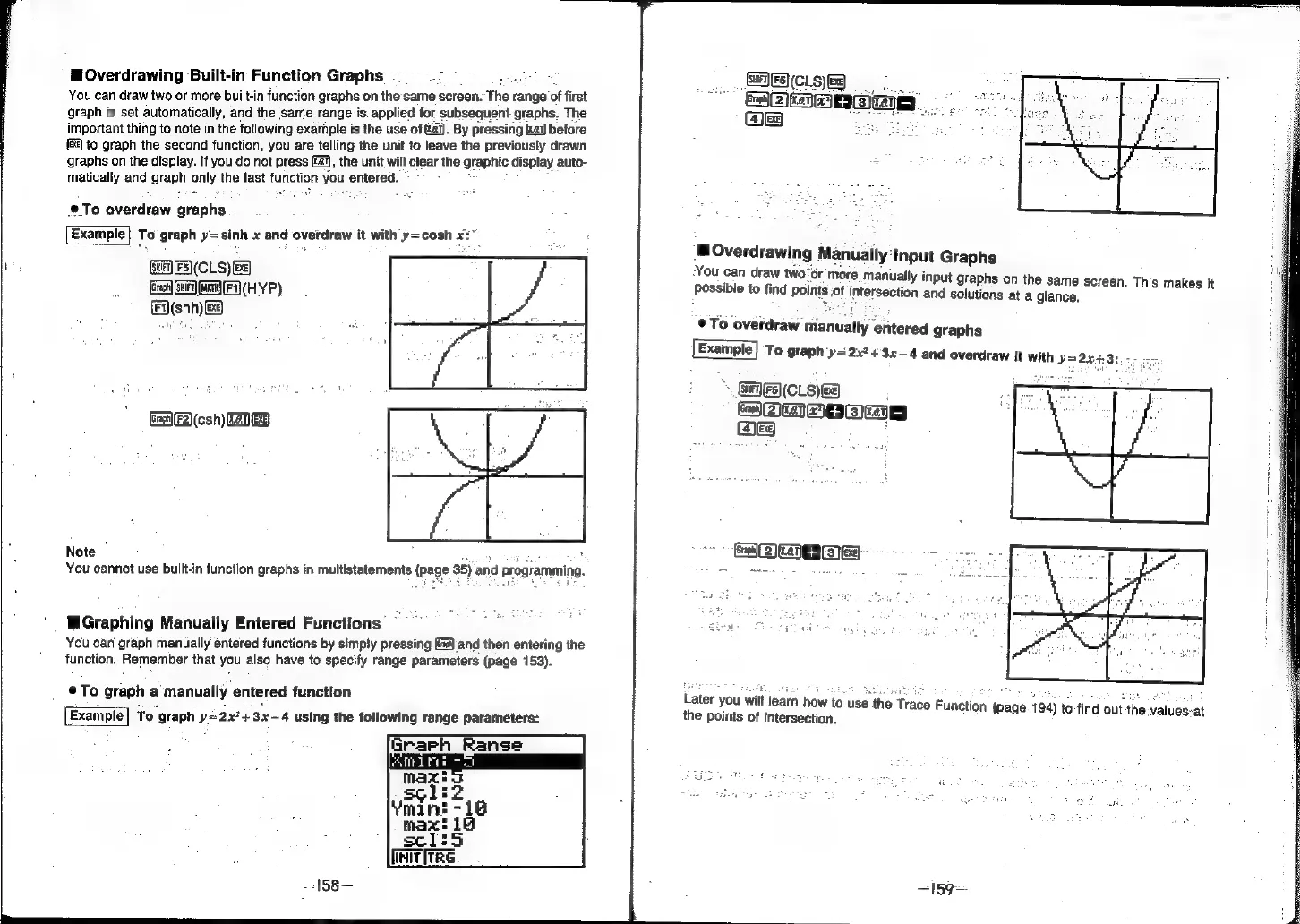
WOverdrawing
Built-in
Function
Graphs
~:
of,
You
can
draw
two
or
more
built-in
function
graphs
on
the
same
screen.
Ther
range
of
first
graph
is
set
automatically,
and
the
same
range
is.
applied
for
subsequent
graphs.
The
important
thing
to
note
in
the
following
example
is
the
use
of
(2).
By
pressing
&a)
before
]
to
graph
the
second
function,
you
are
telling
the
unit
to
leave
the
previously
drawn
graphs
on the
display.
If
you
do
not
press
Eq),
the
unit
will
clear
the
graphic
display
auto-
matically
and
graph
only
the
last
function
you
entered.
©
To
overdraw
graphs
Example|
To'graph
y=sinh
x
and
overdraw
it
with
y=cosh
x:
\
GHA)
FS)(CLS)
8)
(Geant)
(SF
GF
(HY
P)
Fi}(snh)
Ee)
GalF2)(csh)
EES
Note
|
b
You
cannot
use
built-in
function
graphs
in
multistatements
(page
35)
and
programming.
WGraphing
Manually
Entered
Functions
You
can
graph
manually
entered
functions
by
simply
pressing
Ga)
and
then
entering
the
function.
Remember
that
you
also
have
to
specify
range
parameters
(page
153).
@To
graph
a
manually
entered
function
Example
To
‘graph
y
ye
2x4
3x—
4
using
the
following
range
parameters:
marine
SHES
(CLS)e3
Cui
cane
es
:
MOverdrawing
Manually:
Input
Graphs
You
can
draw
two’or
more
manually
input
graphs
on
the
same
screen.
This
makes
it
possible
to
find
points
of
intersection
and
solutions
at
a
glance.
®@To
overdraw
manually
entered
graphs
Example]
To
graph
y=2x243x—4
and
overdraw
it
with
*
GRIES(CLS)
{ea
ea
a]
+
J
Ce)
|
eg
Later
you
will
learn
how
to
use
the
Trace
Function
194)
to-ind
out
thes
‘a
;
age:
194)
to
7
the
points
of
intersection.
pee
}
te-find
out
the:valuasat