Page 2 of 11 Learning Skills @ CSU
2. Calculator Modes
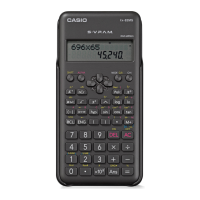
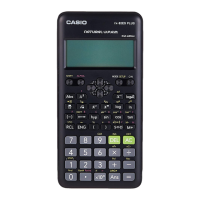
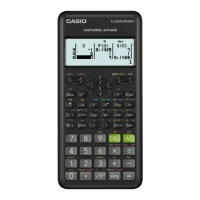
Your calculator can be put into several different modes. Each mode has its own purpose. The 82AU has
two modes that allow you to work out calculations like the ones that we are about to look at here:
Mth I O and Line I O
For simple calculations Line I O mode is the simpler to use.
To put your calculator into Line I O mode press
SHIFT MODE SETUP 2
A small D will appear on the top of the screen.
3. Keys to be familiar with
ON Turns the calculator on
AC Clears the screen. Clear the screen before each new calculation
(-) This is the key you must use when you have a negative number to enter
Example 3.1:
-3 + 4
Calculator steps: (-) 3 + 4 =
Answer = 1
( and ) These are the brackets keys and are used in the same order
as they appear in a sum.
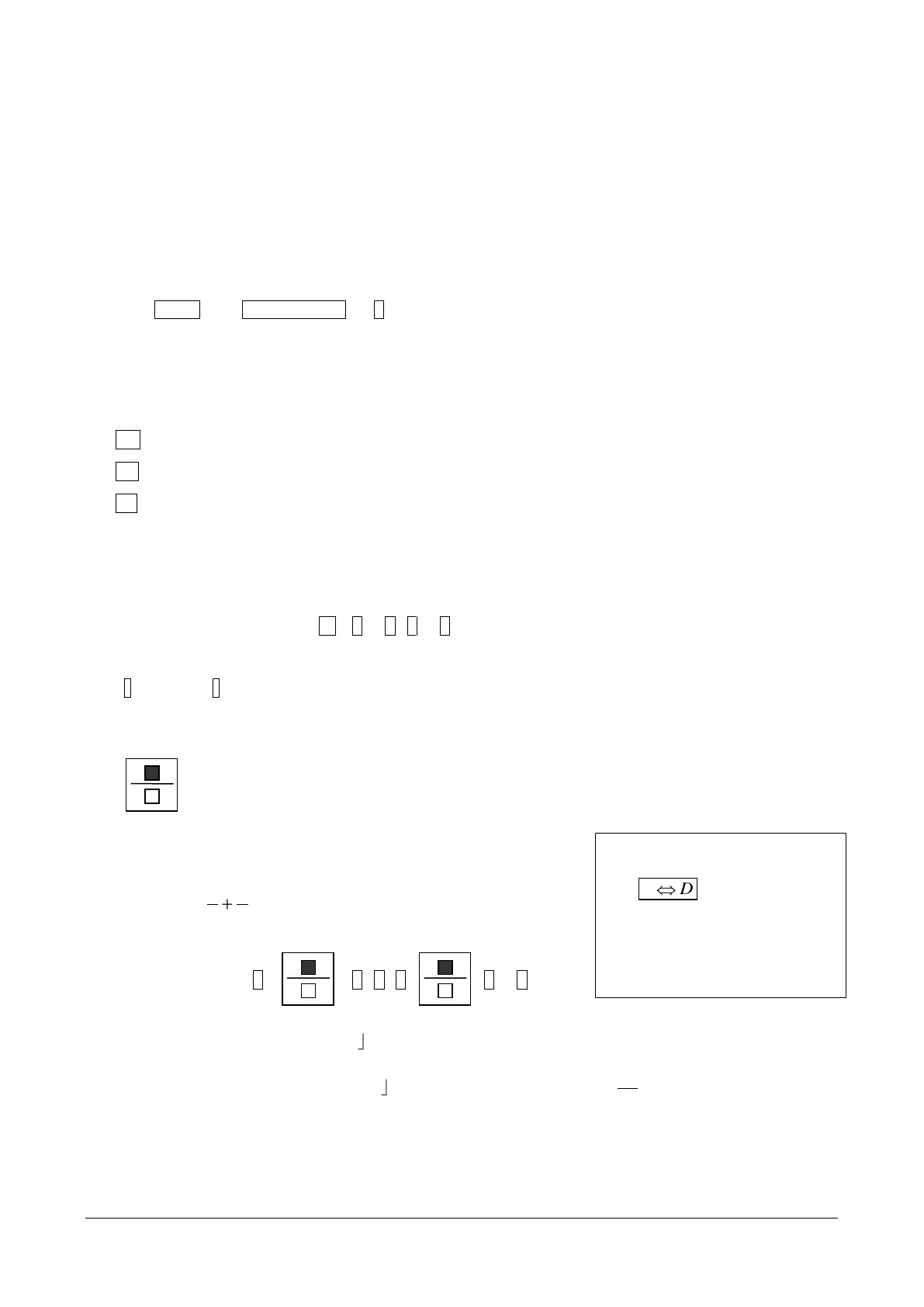
This is the key that allows you to work with fractions.
Example 3.2:
a.
Calculator steps: 1 5 + 3 7 =
The screen display will look like 1 5.
The final answer will be shown as 22 35 which you should read as
Conversion to decimal
The
key which is next
to the M+ key on the bottom
function row allows you to covert
the fraction answer to a decimal
and vice versa



 To Next Page