EasyManua.ls Logo

ccei PF10R08J - User Manual

ccei PF10R08J
10 pages
Print Icon
To Next Page IconTo Next Page
Loading...
Technical instructions
Brio WiL
Bluetooth and Wi-Fi con-
troller for CCEI LED lights
P/N: PF10R08J
Table of Contents
1. Pack contents ............................................................................................................................... 2
2. Technical support ........................................................................................................................ 2
3. Warnings ..................................................................................................................................... 2
4. Technical data ............................................................................................................................. 2
5. Description .................................................................................................................................. 3
6. Installation ................................................................................................................................... 3
6.1. General ............................................................................................................................. 3
6.2. Electrical connections for 12 VAC lights .......................................................................... 4
6.3. Electrical connections with a socket Plug in Pool 24 VDC (PF10R24C) .......................... 5
7. Use of the Brio WiL ................................................................................................................... 6
7.1. Control interface ............................................................................................................... 6
8. iOS / Android app ....................................................................................................................... 7
8.1. App description ................................................................................................................ 7
8.2. Set up an operating time range for your lights .................................................................. 8
8.3. Brio WiL connection ........................................................................................................ 8
8.4. "Connection" light state .................................................................................................... 9
8.5. Voice assistants (Alexa) ................................................................................................... 9
8.6. Compatibility .................................................................................................................. 10
A. Copyright ................................................................................................................................. 10
B. Declaration of conformity ....................................................................................................... 10
Read these instructions carefully before installing, commissioning and using this
product
CONT0035 v1.3EN (12/02/2020)
Question and Answer IconNeed help?

Do you have a question about the ccei PF10R08J and is the answer not in the manual?

Summary

Pack Contents

Technical Support

Safety and Warnings

General Safety Warnings

Crucial safety information regarding installation hazards and electrical shocks.

Technical Specifications

Product Description

Installation Guide

General Installation Requirements

Professional installation recommended; specific placement and mounting guidelines.

12 VAC Lighting Connections

Detailed instructions for connecting 12 VAC CCEI LED lights.

24 VDC Plug-in Lighting Connections

Procedures for connecting 24 VDC pool lights using plug-in sockets.

Using the Brio WiL Controller

Control Interface Overview

Explanation of the Brio WiL's physical interface, buttons, and indicator lights.

Mobile App Control

App Description and Interface

Overview of the iOS/Android app features and user interface elements.

Setting Operating Time Ranges

How to schedule timer, schedule, weekend, and twilight modes for lights.

Brio WiL Device Connection

Steps to connect the Brio WiL device via Bluetooth or Wi-Fi.

Connection Modes and Status

Details on Wi-Fi/Bluetooth connection modes and indicator light states.

Wi-Fi Network Configuration

Guide for setting up the Wi-Fi connection for the Brio WiL.

Connection Status Indicator

Explanation of the LED indicator states for connection status.

Voice Assistant Integration (Alexa)

Instructions for integrating Brio WiL with Amazon Alexa for voice control.

Device Compatibility

Information on the compatibility of CCEI lights with the Brio WiL.

Overview

The Brio WiL is a sophisticated controller designed to manage CCEI LED lights, offering both Bluetooth and Wi-Fi connectivity for remote operation. This device is installed in series with the light transformer and allows users to control the color changes of their LED lights from a distance using a smartphone or tablet. The Brio WiL transmits commands instantly to the connected lights, providing a seamless user experience.

Function Description

The primary function of the Brio WiL is to provide remote control over CCEI LED pool lights. It acts as an intermediary between your smart device and the lights, translating your commands into light adjustments. The controller supports both 12 VAC and 24 VDC power supplies, making it versatile for various lighting setups. It is designed to manage the color changes, dimming, and show speeds of the connected lights.

Usage Features

The Brio WiL offers multiple ways to control your lights: through its integrated control interface and via a dedicated iOS/Android application.

Control Interface:

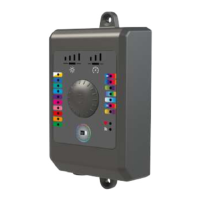
The physical control interface on the Brio WiL unit features a multi-function selection button and 28 indicating lights.

  • Color Selection: Ten lights are dedicated to fixed color selection, allowing users to choose from a range of static colors.
  • Color Show Selection: Seven lights are for selecting different color shows, offering dynamic lighting effects.
  • Favorite Color: One light indicates a favorite color selection, allowing users to quickly recall a preferred setting. To set a favorite color, select a light show, then when the desired color appears, push the button again. To return to this color, click the favorite button.
  • Connection Status: One light indicates the connection status of the device.
  • Dimming Selection: Five lights are for dimming selection, providing four selectable intensity levels. When dimming a solid color or a show, the controller automatically switches to solid cold white to help differentiate the dimming levels.
  • Show Speed Selection: Four lights are for show speed selection, offering three selectable speed levels for color shows. When changing show speed, the controller switches to the "Colourful psychedelic flashes" show, which is ideal for differentiating the speed levels.
  • Rotary Button: The selection button is rotary, allowing users to turn it to navigate options and push it to select. A long click (more than 3 seconds) on the rotary button will turn the lights on or off. The chosen program is saved even after a power shutdown. When a mode is validated, the corresponding code is sent to the light via micro current cut.
  • Cold White / Warm White: Users can choose between cold white or warm white. The first click activates cold white, and a second click activates warm white.

iOS / Android App:

The dedicated "BRIO WiL" or "WiL" app, available on the App Store and Play Store, provides an intuitive and comprehensive control experience.

  • ON/OFF Control: A prominent ON/OFF button indicates the current status of the Brio WiL.
  • Settings Access: Access to settings allows configuration of Wi-Fi connection and integration with voice assistants like Alexa.
  • Light Control Menu: This general menu is used to select light colors and shows.
  • Schedule Menu: This menu allows users to define operating time ranges for their lights.
    • Timer: Program the Brio WiL to turn off after a set period.
    • Schedule: Define a daily operating range for the lights.
    • Weekend Mode: Set a second operating range specifically for Saturday and Sunday.
    • Twilight: Configure lights to turn on at dusk and turn off after a set time.
    • Users can check the scheduled ON/OFF times in the "Light" tab.
  • Fixed Color Choices: A section dedicated to selecting fixed colors.
  • Favorite Color: A button to light up your favorite color.
  • Show Choice: A section for selecting various light shows.
  • Save Favorite Color: During a show, this button allows users to save a color and define it as their favorite.
  • Intensity/Speed Control: This feature allows users to choose the intensity of the light. During a show, a sub-menu appears to modify the speed of the show.
  • Connection: Only one device (phone/tablet) can be connected to the Brio WiL at a time, and Bluetooth must be activated on the phone.
    • When the app opens, it scans for Brio WiL devices. If only one is found, connection is automatic (Bluetooth first, then Wi-Fi if previously connected). If multiple devices are found, a list appears. If no device is detected, the app displays "No Brio WiL detected."
    • If connection issues persist, ensure Bluetooth Low Energy (4.x) compatibility, try connecting closer to the Brio WiL, or try another device. A center screen button can launch a new search, and the app may suggest switching to Wi-Fi.

Connection Modes (Wi-Fi or Bluetooth):

The app establishes a Wi-Fi or Bluetooth connection upon launch. The current connection mode can be verified in the settings.

  • First Wi-Fi Connection: For the first Wi-Fi connection, a router must be set up. This is done through the app's settings under "Connection." The Brio WiL uses Bluetooth to set up the Wi-Fi connection. It is compatible with 802.11 b/g/n (2.4 GHz) and "dual band" Wi-Fi networks but not with 802.11 a/ac/ad (5 GHz).
  • Network Configuration: Select "To a new WiFi network," enter the router's SSID (network name) and password. The SSID will default to the one your phone is connected to. Each new network configured is saved for future access via "Get saved credentials." Once Wi-Fi is connected, the phone can be used normally.
  • "Connection" Light State: The physical light on the Brio WiL indicates its status:
    • Blue flash every 2 seconds: Device configured in Bluetooth, waiting for smartphone connection.
    • Steady blue: Smartphone connected to the device in Bluetooth.
    • Green flash every 2 seconds: Device configured in Wi-Fi and connected to the router, waiting for smartphone connection.
    • Steady green: Smartphone connected to the Wi-Fi.
    • Green flash 2 times per second: SSID Configuration in progress, password needed to connect to the network.
    • Fast green flash: Connection issue (SSID mistake or unreachable router).

Voice Assistants (Alexa):

The Brio WiL can be integrated with Amazon Alexa.

  • Users need an Amazon Alexa account.
  • After installing the "Vigipool NA skill," users can link their Brio WiL account.
  • Alexa associates pool lights with the name "Brio."
  • Voice Commands: Examples include "Alexa, Light Brio in blue," "Alexa, Sets Brio's brightness to 50%," "Alexa, Light up Brio in Rainbow," "Alexa, Set the scrolling speed to 75%," and "Alexa, Turn Brio on / off."

Compatibility:

All CCEI lights are compatible with the Brio WiL.

Maintenance Features

The Brio WiL is designed for durability and ease of maintenance.

  • Water Resistance: The casing is resistant to water splashes, but it should not be installed in areas prone to flooding.
  • Installation: The device should be placed on a flat, stable surface and screwed to the wall using the provided hardware.
  • Program Saving: In case of a power shutdown, the chosen lighting program is automatically saved, eliminating the need for reprogramming.
  • Troubleshooting: The "Connection" light state provides visual cues for troubleshooting connection issues, guiding users to check Bluetooth activation, Wi-Fi network status, or password entries.
  • Professional Installation: While the device is user-friendly, the manual strongly recommends professional installation to avoid electrical hazards and ensure proper functioning and longevity of the product and connected equipment.

The Brio WiL aims to provide a reliable, flexible, and user-friendly solution for controlling pool lighting, enhancing the ambiance and convenience for pool owners.

ccei PF10R08J Specifications

General IconGeneral
Brandccei
ModelPF10R08J
CategoryController
LanguageEnglish

Related product manuals