6 I ENGLISH
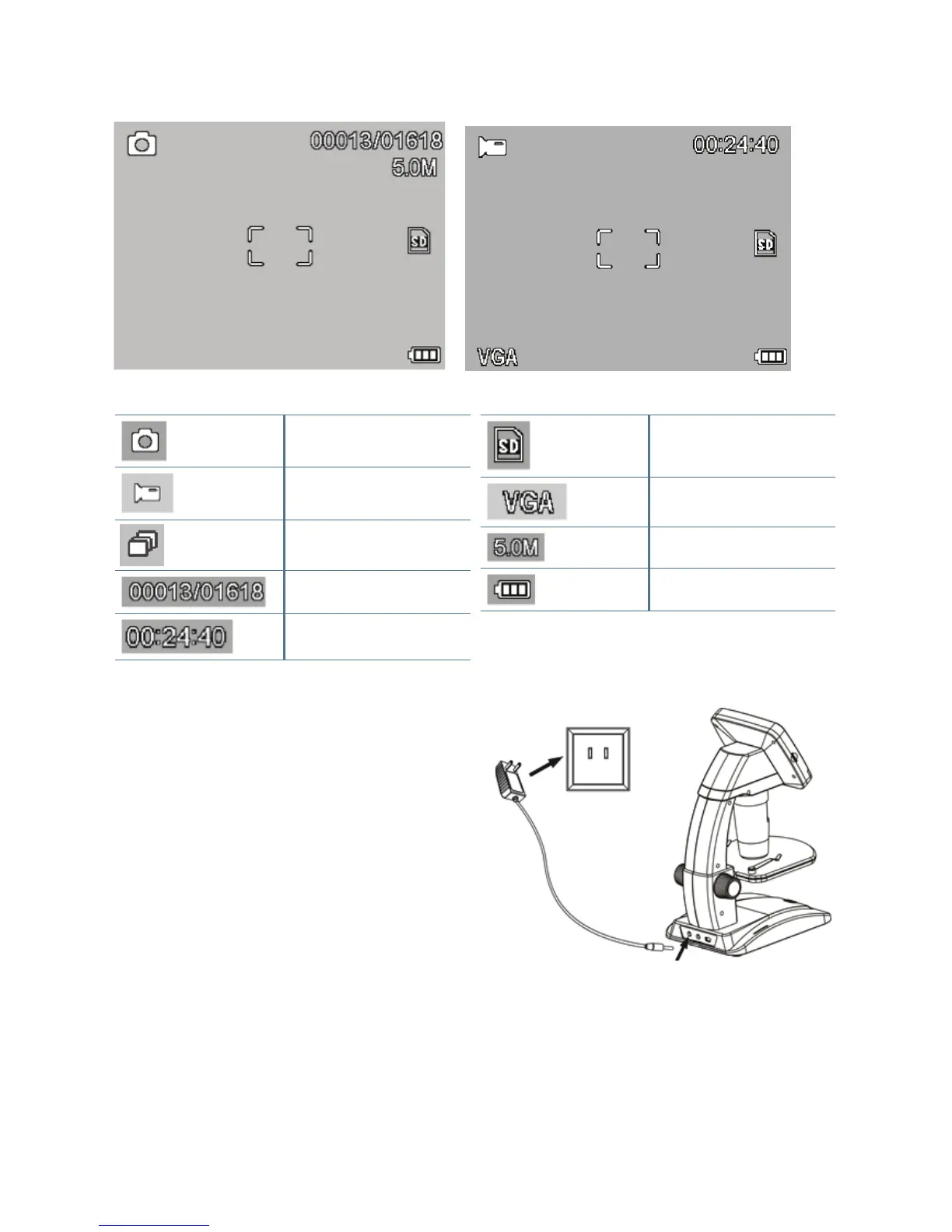
dIsplAY ICONs
NOTE: The Display Icons can be turned off by pressing the Zoom Button (10) inward.
MicroSD Card Recognized
Video Capture Setting
Current Resolution Setting
Battery Power Indicator
ChArGE ThE BATTErY
+
Plug the small end of the power adapter into the DC
In port (11) located on the back of the unit.
+
Plug the other end into a standard AC wall outlet.
+
The Battery Charge Indicator LED (15) will light up
red to show the battery is charging.
+
When battery is fully charged, the Battery Charge
Indicator LED will turn off and you can unplug the unit.
+
You can now use Infi niView™ without an external
power source continuously for up to 2 hours.
+
You can monitor the battery power level on the LCD
screen. Look for the Battery Power Indicator Icon
described above.
NOTE: If you purchased your Infi niView™ outside of North America (item 44361),
you will notice that the AC adapter has 3 interchangeable plug heads. Refer
to section 9 to see how to change the plug heads.
Small Image Capture
Video Capture
Time Lapse Capture
Number of Images Taken/Number of
Images Remaining
Video Capture Time Remaining
(Hours:Minutes:Seconds)


 To Next Page