EasyManua.ls Logo

CEN-TECH CAN IBD II - User Manual

CEN-TECH CAN IBD II
16 pages
Print Icon
To Next Page IconTo Next Page
Loading...
Visit our website at: http://www.harborfreight.com
Email our technical support at: productsupport@harborfreight.com
Owners Manual & Safety Instructions
Save This Manual Keep this manual for the safety warnings and precautions, assembly,
operating, inspection, maintenance and cleaning procedures. Write the product’s serial number in the
back of the manual near the assembly diagram (or month and year of purchase if product has no number).
Keep this manual and the receipt in a safe and dry place for future reference.
When unpacking, make sure that the product is intact
and undamaged. If any parts are missing or broken,
please call 1-888-866-5797 as soon as possible.
Copyright
©
2014 by Harbor Freight Tools
®
. All rights reserved.
No portion of this manual or any artwork contained herein may be reproduced in
any shape or form without the express written consent of Harbor Freight Tools.
Diagrams within this manual may not be drawn proportionally. Due to continuing
improvements, actual product may differ slightly from the product described herein.
Tools required for assembly and service may not be included.
Read this material before using this product.
Failure to do so can result in serious injury.
SAVE THIS MANUAL.
REV 15f
Brought to You by www.snapwhole.comBrought to You by www.snapwhole.com

Questions and Answers

Overview

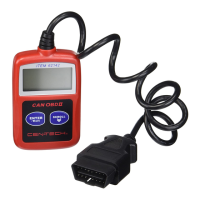
The device is an OBD II & CAN Code Reader with Multilingual Menu, designed to diagnose fault conditions in OBD II compliant vehicles. It connects to the vehicle's computer system to capture information that helps identify fault conditions and displays Diagnostic Trouble Codes (DTCs).

Function Description

The code reader serves as an early warning system for monitoring engine, transmission, and emissions control components by performing specific diagnostic tests. When a fault condition is detected, the system captures important data and activates the "Check Engine" light. The device allows users to:

  • Read Codes: View current, pending, and permanent Diagnostic Trouble Codes (DTCs) stored in the vehicle's computer system. DTCs are five-digit alphanumeric identifiers for fault conditions.
    • Pending DTCs: Identified during a Drive Cycle but do not yet meet criteria to activate the Malfunction Indicator Lamp (MIL). If the fault occurs during two consecutive Drive Cycles, it becomes a Stored DTC and activates the MIL.
    • Stored DTCs: Occur when a fault condition meets enough criteria to activate the MIL.
    • Permanent DTCs: Can only be cleared by the OBD II system after repairs are made and a set number of Driving Cycles are completed.
  • Erase Codes: Clear DTCs from the vehicle's computer memory. Caution: Erasing codes will reset monitors to an incomplete status, requiring a Drive Cycle to be completed before performing an I/M Readiness test. Clearing codes does not repair the vehicle; repairs must be made first.
  • View Freeze Frame Data: Display the vehicle's operating conditions at the moment a DTC was stored. This data includes parameters like DTC, Fuel System status, and Load Percentage.
  • I/M Readiness: Check emissions readiness status, which is crucial before a state Emissions Test. This feature indicates whether various monitors (e.g., Misfire Monitor, Fuel System Mon, Catalyst Mon, EVAP System Mon) have completed their diagnostic routines.
    • OFF: Check Engine light off, no stored DTCs present.
    • OK: The monitor has completed its diagnostic routine and is ready.
    • INC: The monitor has not completed its diagnostic routine and is not ready. A Drive Cycle needs to be performed, and the test repeated.
    • N/A: The monitor is not supported on the vehicle.
  • Vehicle Information: Access vehicle-specific information such as Calibration ID, Calibration Verification Number (CVN), and In-use Performance Tracking.

The device supports all OBD II compliant vehicles, including those equipped with a CAN bus. OBD II was installed in some 1994 and 1995 model year gasoline vehicles; users can verify compliance by checking the Vehicle Emissions Control Information label in the engine compartment.

Important Technical Specifications

  • Display Screen: Backlit LCD (128 x 64 pixels) for clear visibility.
  • Operating Temperature: 32°F to 140°F (0°C to 60°C).
  • Storage Temperature: -4°F to 158°F (-20°C to 70°C).
  • Power: 8V to 18V, supplied by the vehicle battery via the DLC.
  • Connectivity: 16-cavity Data Link Connector (DLC) cable.
  • Code Types Supported: Generic (SAE: P0, P2, P3, U0) and Manufacturer Specific (P1, P3, U0).
  • Monitors: Supports both Continuous (Misfire, Fuel System, Comprehensive Components) and Non-Continuous (Catalyst, Heated Catalyst, Evaporative System, Secondary Air System, Oxygen Sensors, Oxygen Sensor Heater, EGR System, NMHC Catalyst, NOx Aftertreatment, Boost Pressure System, Exhaust Gas Sensor, PM Filter) monitors, depending on the vehicle.

Usage Features

  • Multilingual Menu: The device offers a multilingual menu, allowing users to select their preferred language (e.g., Deutsch, Dutch, English, Espanol).
  • Unit of Measure: Users can select between English and Metric units for data display.
  • Contrast Adjustment: The LCD contrast can be adjusted for optimal viewing.
  • Simple Navigation: Features "ENTER/Exit" and "SCROLL" buttons for easy menu navigation and selection.
  • Power Source: Powered directly by the vehicle's battery through the OBD II cable, eliminating the need for external batteries.
  • User-Friendly Interface: The device displays system status, diagnostic menus, and code descriptions in a clear, organized manner.
  • Safety Precautions: Emphasizes critical safety guidelines, such as operating in a well-ventilated area due to poisonous exhaust gases, wearing ANSI-approved safety goggles, and avoiding connection/disconnection while the ignition is on or engine is running. It also warns against using the tool while driving.

Maintenance Features

  • Inspection: Before each use, inspect the Scan Tool for any cracked or damaged cable, broken parts, or any other condition that might affect its safe operation.
  • Cleaning: After use, clean the Scan Tool with a mild detergent on a clean cloth. Avoid using solvents on the keyboard or soaking the device. Be careful not to apply excessive pressure on the display screen.
  • Storage: Store the Scan Tool and its accessories in a dry, locked area, away from direct sunlight and out of reach of children.
  • Troubleshooting: Includes a troubleshooting guide for common issues like the Scan Tool not powering up or linking errors. Solutions involve verifying cable connections, checking DLC pins, ensuring adequate battery voltage (at least 8V), confirming OBD II compliance, and verifying ignition status.
  • Qualified Technician: Procedures not specifically explained in the manual should only be performed by a qualified technician. If linking errors persist, the Scan Tool should be inspected by a qualified technician.
  • Product Labels and Nameplates: Maintain product labels and nameplates, as they carry important safety information. Contact Harbor Freight Tools for replacements if unreadable or missing.

CEN-TECH CAN IBD II Specifications

General IconGeneral
BrandCEN-TECH
ModelCAN IBD II
CategoryBarcode Reader
LanguageEnglish

Related product manuals