7
EN
●Activating WiFi and opening the browser
The Tablet connects to the selected network.
●The Applications menu
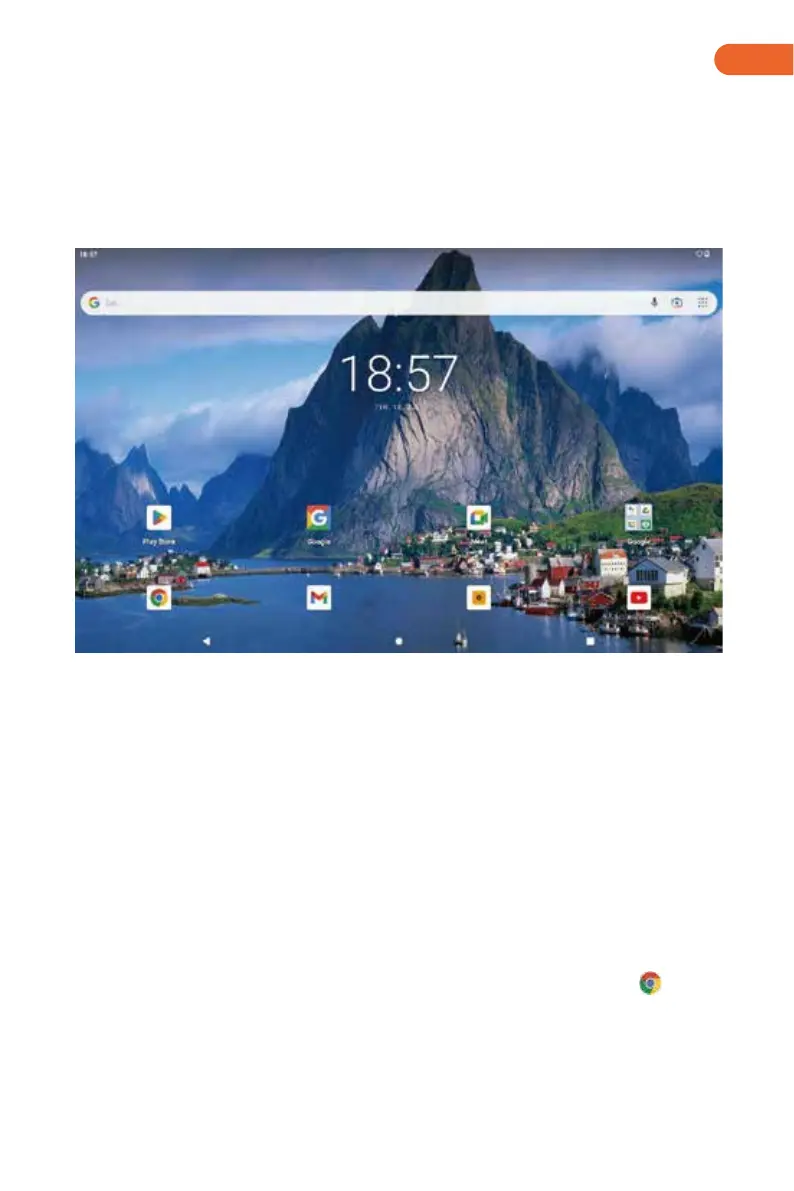
The Applications menu contains all the important functions of your Tablet. Here you can
nd all the applications and widgets installed on your Tablet.
a. Open the settings.
b. In the settings, tap „Network and Internet“ → „Wi-Fi“.
c. Use the tip of your nger to move the slider for WiFi (in the upper right corner of the
screen) from left to right. The word „On“ now appears in the upper left corner of the screen.
→ The Tablet searches for all available wireless networks nearby and then displays them as
a list.
d. Tap the network that you wish to connect to.
e. Enter the network key (password) if necessary.
f. Tap „Connect“.
→ The browser is an app located in the Applications. It uses the following icon:
Tap the icon to open the browser. To enter an Internet address (URL), tap the search bar
displayed centrally at the top of the window.
Downloading and installing apps via Google Play™
You must be connected to the Internet to be able to download apps. You also need a
Google™ account.


 To Next Page