Need help?
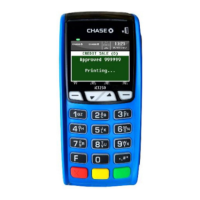
Do you have a question about the Chase Ingenico ict220 and is the answer not in the manual?
Initiate a sales transaction using credit, debit, or contactless payment methods.
Access various transaction types beyond standard sales via hot keys.
Access the clerk/server management functions via the Admin menu.
Review detailed or summary reports of transactions processed in a batch.
Enable and perform tip adjustments for transactions where applicable.
Perform the settlement operation manually by initiating it from the main menu.
Allow the terminal to automatically settle transactions at a predetermined time.
Utilize the terminal's capability to accept tap-to-pay transactions.
Process transactions using cards with embedded microprocessor chips.
Details on initiating sales, pre-authorizations, returns, and voids using credit cards.
Information on performing debit sales and returns using debit cards and PINs.
Process Electronic Benefits Transfer (EBT) transactions for food stamps and cash benefits.
Create new clerk or server profiles with unique IDs and passwords.
Remove existing clerk or server profiles from the terminal.
Generate a report listing all currently signed-on clerks/servers.
Configure automatic addition of clerks/servers during transactions.
Enable or disable prompts for clerk/server ID entry during transactions.
Customize the terminal's display text for clerk, server, or cashier roles.
Access various transaction and totals reports, including detail, summary, and error logs.
View detailed and summary reports specific to gift card transactions.
Add value to a gift card account for new cards or reloads.
Create gift card accounts or activate cards with initial value.
Process gift card usage for purchases, decreasing the stored value.
Cancel a gift card transaction within the current batch.
Print a receipt showing the available balance on a gift card.
Perform a transaction when host communication fails, using an approval code.
Process a tip amount for a gift card redemption transaction.
Explanation of EMV chip technology and its role in payment security.
Information on the continued compatibility with magnetic stripe card processing.
Step-by-step guide for processing chip card transactions and understanding prompts.
Details on how chip technology reduces fraud and chargebacks for businesses.
Guidance for customers on correctly using chip cards for the first time.
Instructions on how to properly insert a chip card into the terminal reader.
Advice to always follow on-screen prompts for transaction processing.
Understanding PIN entry versus signature requirements for verification.
Guidance on handling customer PIN issues and seeking bank assistance.
Procedures for managing situations where a customer's PIN is locked.
Information that procedures for declined transactions remain unchanged.
Instructions on how to process refunds by inserting the card.
 General
| Brand | Chase |
|---|---|
| Model | Ingenico ict220 |
| Category | Payment Terminal |
| Language | English |

 To Next Page