On dial mode, tap the center of the dial to change dial style. 3 styles available.
3 How to Use
3.1 Download Sync Application
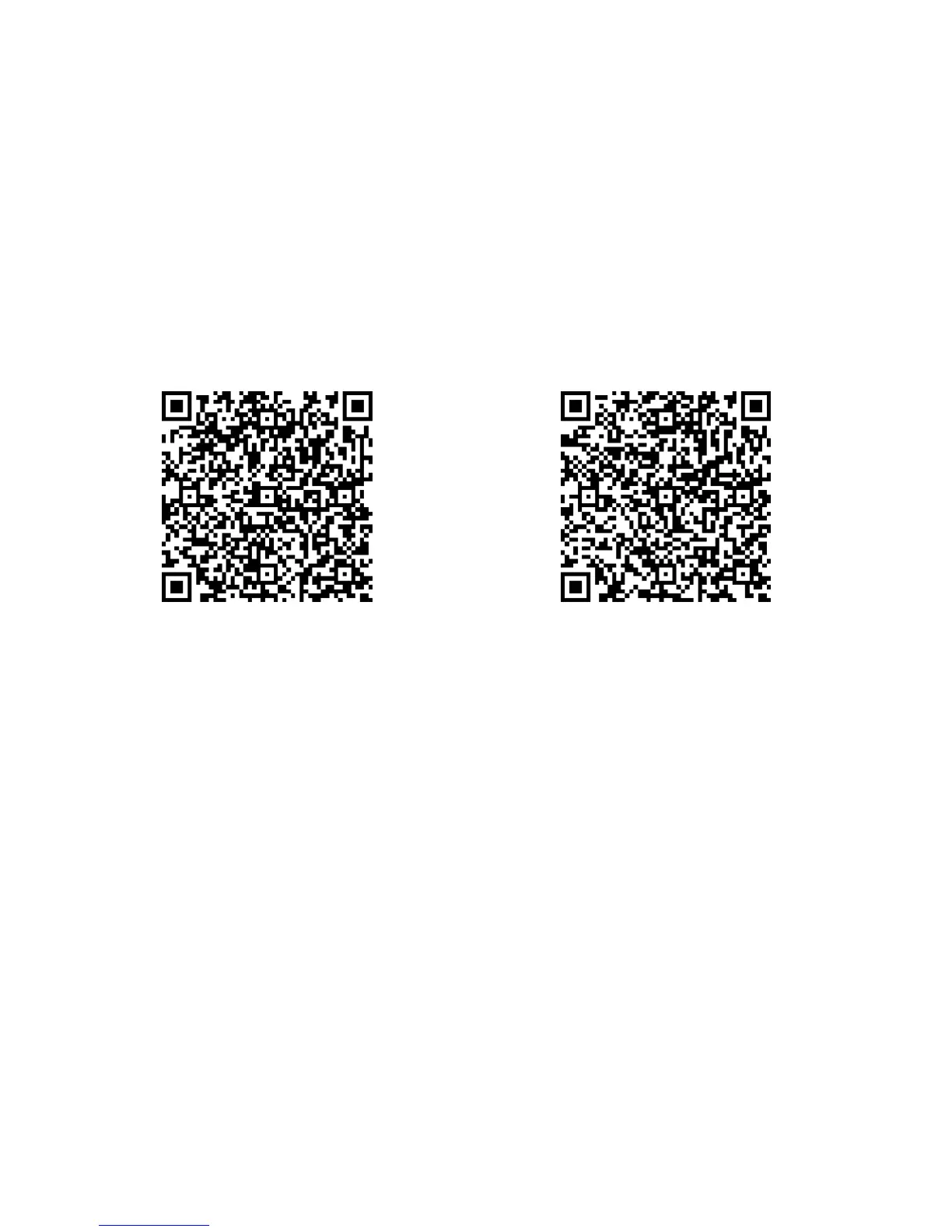
DĞƚŚŽĚϭKƉĞŶYZŽĚĞŽŶsmart watch, scan the QR code to download the sync
APP.
DĞƚŚŽĚϮ^ĞĂƌĐŚDĞĚŝĂdĞŬ^ŵĂƌƚĞǀŝĐĞ;ŶĚƌŽŝĚϱϬĂŶĚůĂƚĞƌͿ
^ŵŝůĞEŽƚŝĨŝĐĂƚŝŽŶ;ŶĚƌŽŝĚϱϬĂŶĚĞĂƌůŝĞƌͿŽŶ'ŽŽŐůĞWůĂLJƚŽŝŶƐƚĂůůŝƚ
Method 3: Scan the blow QR code to download it. This APP only use for
synchronization between smart watch and smartphone. It will not consume data traffic.
For Android 5.0 and Earlier For Android 5.0 and Later
Please update the sync application timely in order to enjoy better use experiment.
3.2 lnstall and Use Sync Application
* The sync APP is for Android only.
Method: After install sync APP, enter Settings -> Accessibility -> BT Notification, enable
it. Run BT Notification, go to ^ĞƚƚŝŶŐƐƚŽĞŶĂďůĞ^D^ƐĞƌǀŝĐĞĐĂůůƐĞƌǀŝĐĞĂŶĚ
notification bar switch. ŶƚĞƌƉƉůŝĐĂƚŝŽŶ^ǁŝƚĐŚƚŽƐĞůĞĐƚƚŚĞĂƉƉƐǁŚŝĐŚLJŽƵǁĂŶƚ
to receive notifications.
Note: The APP may shut by system management application or power saving
application. Please turn on it in time.
3.3 Bluetooth Connection and Synchronization
Method 1: Connect smartphone to smart watch:
On smartphone, enter Settings -> turn on the Bluetooth -> search for device -> tap
Ϭϵto pair with it.
Method 2: Connect smart watch to smartphone:
On smart watch, enter dŝĂůĞƌ-> search new device -> find your smartphone ->
tap to connect.
When connected, the smart watch will send a request to smartphone to read the
phone book and call history (personal privacy will involve, some smartphones do not


 To Next Page