10
1 Connecting the mouse
via Bluetooth
If the mouse is already connected to
another device, you cannot make a
parallel connection. Switch off the first
device or deactivate the connection.
1 Start the search for Bluetooth devices
on your PC/laptop (for example by
calling up Start > Settings > Devices >
Bluetooth).
2 Follow the instructions in the software.
Detailed operating manual
can be found under:
www.cherry.de > Downloads.
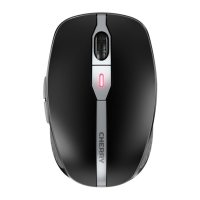
3 Set the switch on the bottom of the
mouse to BT.
4 Activate the Bluetooth connection of
the mouse by pressing the button on
the bottom of the mouse.
The blue LED on the mouse flashes
quickly.
If the blue LED does not flash:
• There is already a connection
between the mouse and another PC/
laptop. Switch off this PC/laptop or
deactivate the connection on this PC/
laptop.
5 Follow the instructions in the software.
If the red LED of the mouse flashes
quickly, the connection has failed.
• Try to establish the connection again.
QUICK START GUIDE
64410026-00_DE-EN-FR-ES-IT-NL_KA-MW8Advanced.fm Seite 10 Dienstag, 29. Mai 2018 5:24 17


 To Next Page