5
Congratulations ...
CHERRY has developed and produced innovative
input systems for computers since 1967. You can
now experience the difference in quality, reliability
and design with your new favorite accessory.
Always insist on original CHERRY products…
For information on other products, downloads and
much more, visit us at www.cherry.de.
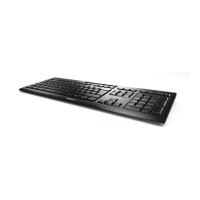
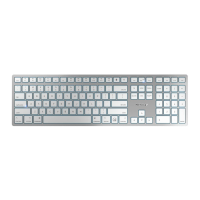
Your CHERRY STREAM 3.0 stands out especially
due to the following characteristics:
• Abrasion-proof laser key cap inscription
• Whisper keystroke for low-noise typing
1 Connecting keyboard
• Connect the keyboard to the USB port of the
PC/laptop.
The keyboard is ready to use without installing
any software.
2KeyM@n software
You can configure the F-keys and Hotkeys (except
standby) using KeyM@n software (as a free
download at: www.cherry.de -> Help & Support ->
Downloads -> CHERRY STREAM 3.0).
Try it and see!
3Tips
3.1 Cleaning the keyboard
1 Switch off the PC.
2 Clean the keyboard with a slightly damp cloth
and some mild cleaning agent (e.g. dishwashing
liquid).
3 Dry off the keyboard with a soft, lint-free cloth.
CAUTION: Damage may be caused by
harsh cleaning agents or liquids in the
keyboard
• Do not use solvents such as gasoline or alco-
hol and scouring agents or scouring sponges
for cleaning.
• Prevent liquids from entering the keyboard.
• Do not remove the keycaps of the keyboard.
3.2 RSI syndrome
3.3 Troubleshooting
• To make sure that the keyboard is not defective,
test it if possible with another PC/laptop.
• Use another USB port on the PC/laptop.
• Set the option "USB Keyboard Support" or "USB
Legacy Mode" to enabled in the BIOS of the PC.
4 Disposal
Dispose of the used device at an official
collection point for electronic waste or at
your local dealer.
RSI stands for "Repetitive Strain
Injury". RSI arises due to small
movements continuously repeated
over a long period of time.
Typical symptoms are discomfort in the fingers or
neck.
• Set up your workspace ergonomically.
• Position the keyboard and mouse in such a
manner that your upper arms and wrists are
outstretched and to the sides of your body.
• Take several short breaks, with stretching
exercises if necessary.
• Change your posture often.
OPERATING MANUAL
CHERRY STREAM 3.0 – Corded Multimedia Keyboard
EN







 To Next Page