Chevrolet Express Owner Manual - 2012 - crc - 11/11/11
In Brief 1-17
Portable Audio Devices
This vehicle may have an auxiliary
input located on the radio faceplate
and a USB port located on the
instrument panel. External devices
such as an iPod
®
, laptop computer,
MP3 player, CD changer, or USB
storage device can be connected to
the auxiliary port using a 3.5 mm
(1/8 in) input cable or the USB port
depending on the audio system.
See "Using the Auxiliary Input Jack"
and "Using the USB Port" in
Auxiliary Devices on page 7‑17.
Bluetooth
®
For vehicles with a Bluetooth
system, it allows users with a
Bluetooth‐enabled cell phone to
make and receive hands-free calls
using the vehicle’s audio system
and controls.
The Bluetooth‐enabled cell phone
must be paired with the Bluetooth
system before it can be used in the
vehicle. Not all phones will support
all functions. For more information,
visit www.gm.com/bluetooth.
For more information, see Bluetooth
on page 7‑22.
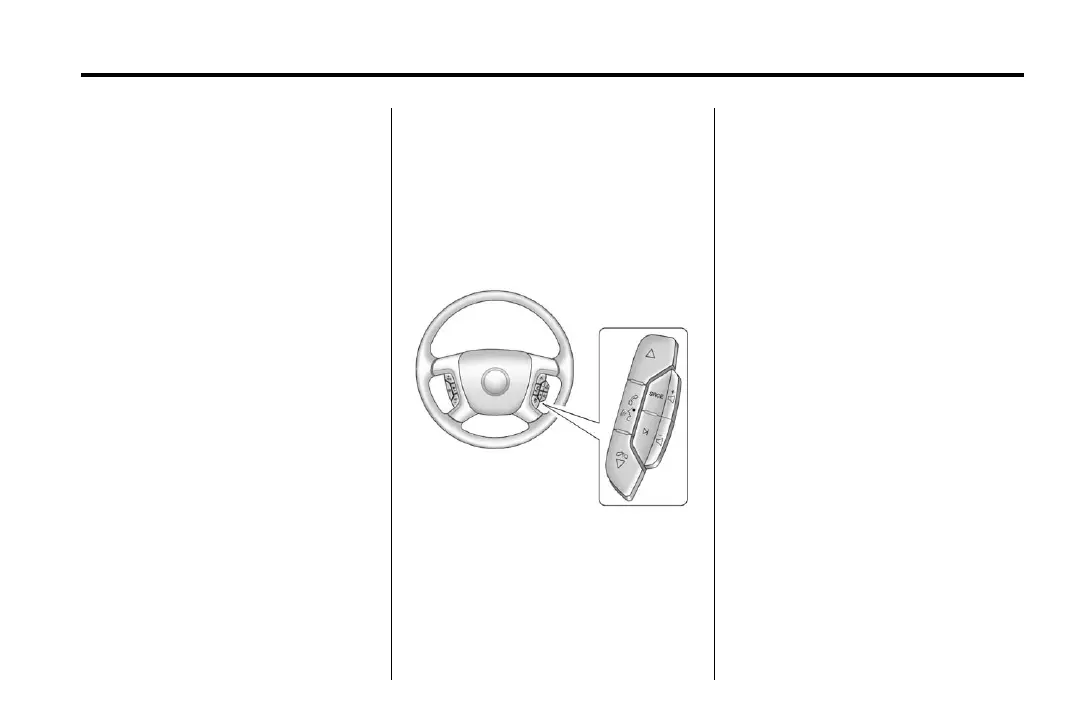
Steering Wheel Controls
For vehicles with audio steering
wheel controls, some audio controls
can be adjusted at the steering
wheel.
w : Press to go to the next favorite
radio station, track on a CD,
or folder on an iPod
®
or USB
device.
c / x : Press to go to the
previous favorite radio station, track
on a CD, or folder on an iPod
®
or
USB device. Also press to reject an
incoming call, or end a current call.
b / g : Press to silence the vehicle
speakers only. Press again to turn
the sound on. Press and hold longer
than two seconds to interact with
OnStar
®
or Bluetooth systems,
if equipped.
+
e : Press to increase volume.
−
e : Press to decrease volume.
SRCE: Press to switch between
the radio and CD, and for equipped
vehicles, the front auxiliary.
¨ : Press to seek the next radio
station, the next track while sourced
to the CD, or to select tracks and
folders on an iPod
®
or USB device.












 To Next Page