Infotainment System 49
.
J (Straight-Line
Distance) — Shows the
route's straight-line distance
to destination.
.
W (Toll Road) — Shows
the distance traveled on toll
roads.
.
c (Freeway Travel) —
Shows the distance
traveled on freeways.
.
b (Ferry) — Shows the
distance traveled by ferry.
.
{ (Time Restricted
Roads) — Shows the
distance traveled on
time-restricted roads.
2. Press the Quick, Normal,
or Short screen button.
A map screen appears with the
destination marked.
3. Press the Guide screen button
to start route and voice
guidance.
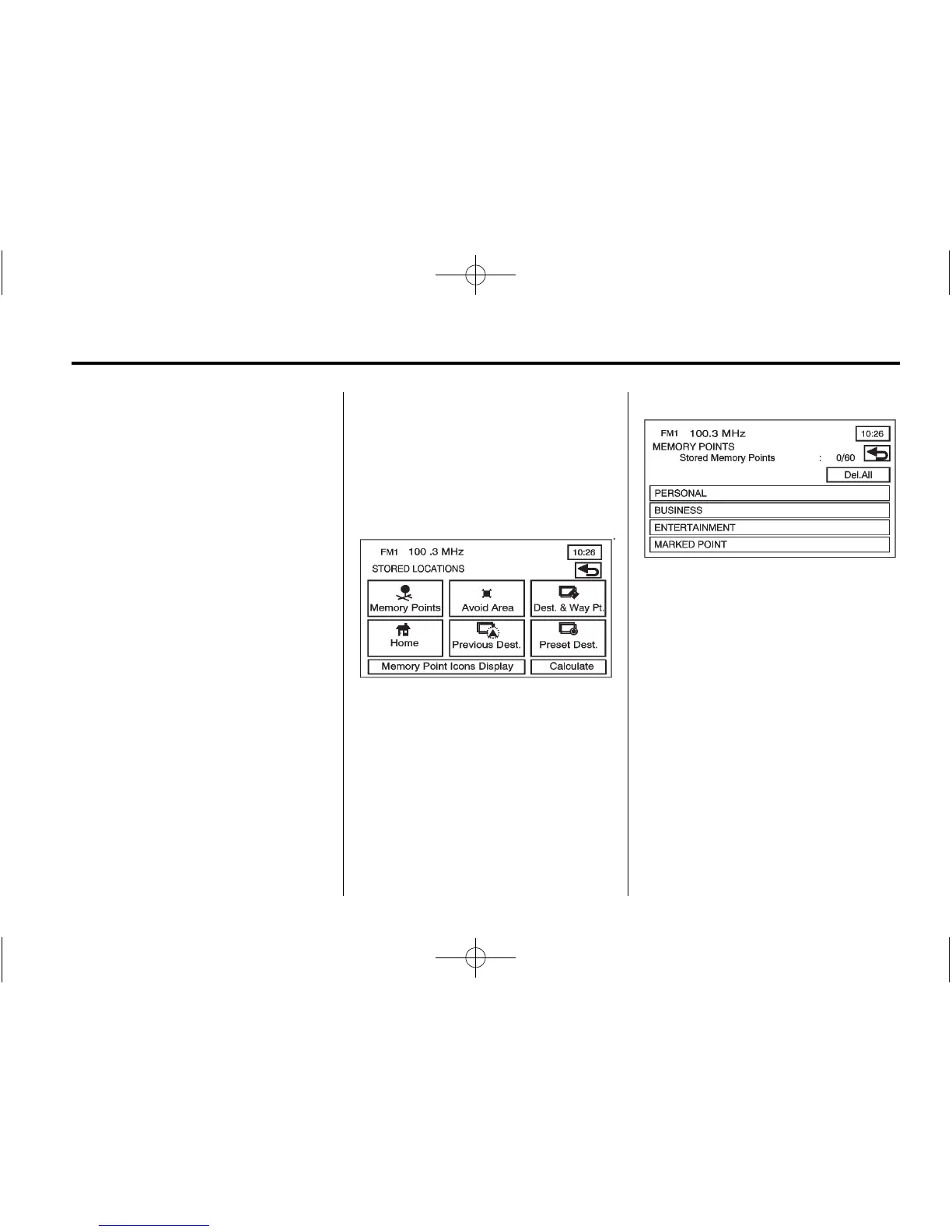
Stored Locations
Press NAV. MENU to access the
STORED LOCATIONS screen.
From this screen, you can access
the following options:
Memory Points
N Memory Points: This feature
can store memory points in these
four categories: PERSONAL,
BUSINESS, ENTERTAINMENT, and
MARKED POINT. The category
names can be changed.
To store a point:
1. Press
N from the STORED
LOCATIONS screen.
2. Select one of the folders/
categories listed.
3. Press the Add screen button.
4. Select the desired method of
entering a destination to enter
the memory point. See Enter
Destination on page 35 for more
information. A map screen
appears displaying the selected
memory point location.













 To Next Page