EasyManua.ls Logo

CHORTAU B-T13 - User Manual

CHORTAU B-T13
23 pages
Print Icon
To Next Page IconTo Next Page
Loading...
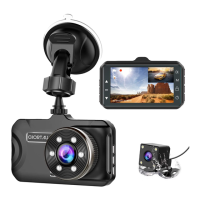
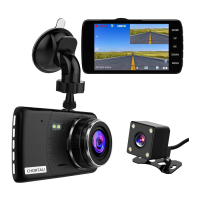
CHORTAU dual dash cam B-T13
Question and Answer IconNeed help?

Do you have a question about the CHORTAU B-T13 and is the answer not in the manual?

Summary

Rear Camera Installation

Rear Camera Wire Routing Options

Illustrates two methods for routing the rear camera wire within the vehicle.

Rear Camera Installation Locations

Shows options for mounting the rear camera, either inside or outside the car.

Fix Rear Camera on License Plate

Provides visual guidance on mounting the rear camera onto the vehicle's license plate.

Rear Camera Connection Scenarios

Situation 1: No Built-in Reverse System

Connects the red wire to the reversing lamp positive terminal for cars without a reverse display.

Situation 2: With Built-in Reverse System

Ignores the red wire for cars with an existing reverse display system; shows dual view.

Video Storage and Playback

Video Storage Folders Explained

Explains the file structure for front and rear camera videos, including normal and locked recordings.

View Playback Video on Dash Cam

Guides users on accessing recorded footage directly from the dash cam interface.

View Playback on Laptop (Method 1: Card Reader)

Describes using a card reader to transfer and view recorded videos on a computer.

View Playback on Laptop (Method 2: USB Cable)

Details connecting the dash cam to a laptop via USB cable to access video files.

Initial Setup and Settings

Before Use: SD Card, Charging, and Formatting

Outlines essential steps before initial operation, including SD card requirements and charging.

How to Format Micro SD Card

Provides step-by-step instructions for formatting the SD card through the dash cam interface.

How to Enter Setting;Menu Page

Explains how to navigate to the dash cam's settings and menu options.

Frequently Asked Questions (FAQ)

Dash Cam Says Card Full

Explains causes for the 'card full' message and suggests disabling certain features.

Dash Cam Turns Off Randomly

Addresses random shutdowns due to unstable power or a full memory card, recommending formatting.

Dash Cam On;Off While Driving

Troubleshoots intermittent power issues, suggesting checks on power connection and charger.

Camera Says Insert C6 Card

Discusses issues with card speed/quality or insertion timing, offering solutions.

Camera Could Not Turn On

Lists reasons for the camera failing to power on, including power supply, reset, and card issues.

Rear Camera Does Not Work

Covers troubleshooting for the rear camera, focusing on connection and potential defects.

Warranty and Support

Product Warranty Information

States that the CHORTAU B-T13 Dual dash cam comes with a full 1-year warranty.

Customer Support Contact

Provides contact information (email) for questions and support within 24 hours.

About CHORTAU Company

Describes CHORTAU's commitment to product improvement and customer experience, encouraging feedback.

Overview

The CHORTAU dual dash cam B-T13 is a car camera system designed to record video from both the front and rear of a vehicle. It offers features for installation, video storage, and playback, along with troubleshooting and warranty information.

Function Description:

The CHORTAU B-T13 is a dual dash camera system that records video from two perspectives: the front of the car and the rear. The front camera is typically mounted on the windshield, while the rear camera can be installed either inside or outside the vehicle. It is designed to continuously record driving footage, providing evidence in case of accidents or other incidents. The system supports a reverse function, where the display screen can switch to a full-screen view of the rear when the car is in reverse, particularly useful for vehicles without a built-in reverse system monitor. For cars that already have a reverse system monitor, the dash cam can still record rear view, and the display will show a picture-in-picture view of both front and rear.

Important Technical Specifications:

The manual highlights the importance of using a 32GB, Class 10 micro SD card for optimal performance. While specific video resolutions are not explicitly listed for both cameras, the front camera is shown with "1080FHD" on its display, suggesting Full HD recording capabilities. The dash cam requires 2-3 hours of charging before initial use.

Usage Features:

  • Installation:

    • Front Camera: The front camera is installed on the windshield, and its power cable is routed and hidden within the car's interior panels.
    • Rear Camera: The rear camera offers two installation methods for running the wire (illustrated with diagrams showing cable routing along the car's interior or exterior) and two mounting options: inside the car (e.g., on the rear window) or outside the car (e.g., near the license plate).
    • Reverse Function Wiring (Situation 1): If the car does not have a built-in reverse system monitor, the red wire of the rear camera cable needs to be connected to the car's reversing lamp positive terminal. This enables the dash cam to display a full-screen rear view when reversing.
    • No Reverse Function Wiring (Situation 2): If the car already has a reverse system monitor, the red wire of the rear camera cable can be ignored. The dash cam will record the rear view and display a picture-in-picture view of both front and rear cameras during driving.
    • License Plate Mounting: The rear camera can be fixed to the license plate for external mounting.
  • Video Storage:

    • Videos are stored on a micro SD card in specific folders: DCIMA for front camera video and DCIMB for rear camera video.
    • Within these folders, LOCA and LOCB denote locked videos (likely triggered by G-sensor events), while MOVA and MOVB denote normal videos for the front and rear cameras, respectively.
  • Operation:

    • Initial Setup: Before use, the dash cam should be charged for 2-3 hours. A 32GB, Class 10 micro SD card must be inserted into the card slot until it clicks.
    • Formatting: The micro SD card must be formatted on the dash cam itself. This involves stopping recording (if active), entering the menu page, navigating to settings, and selecting the format option.
    • Menu Navigation: To enter the setting/menu page, if no card is inserted, the menu button can be clicked directly. If a card is inserted, recording must be stopped first by clicking the OK button, then the menu button can be clicked to enter the menu page.
  • Video Playback:

    • On Dash Cam: To view playback on the dash cam, recording must be stopped. The menu button can then be used to navigate through stored videos (MOVA for front, MOVB for rear, LOCB for locked rear videos).
    • On Laptop (Method 1 - Card Reader): The micro SD card can be removed from the dash cam, inserted into a card reader, and then the card reader connected to a laptop to view the video files.
    • On Laptop (Method 2 - Direct USB): The dash cam can be connected directly to a laptop using the included mini USB data cable. On the dash cam, "Mass Storage" should be selected, and "OK" clicked to allow the laptop to access the stored video files.
    • Recommended Player: It is suggested to download VLC media player for smoother playback of videos on a PC.

Maintenance Features:

  • SD Card Management:
    • "Card Full" Issue: If the dash cam indicates "card full," it might be due to too many locked files if the G-sensor and parking mode are enabled. Turning off these features can resolve this.
    • Regular Formatting: It is recommended to format the SD card monthly to extend its lifespan and prevent issues like the camera turning off randomly due to lack of storage space.
  • Troubleshooting:
    • Random Turn Off: This could be due to an unstable power connection or a full SD card. Ensuring a stable power supply and regular formatting are key.
    • Keeps On and Off While Driving: This indicates an unstable power connection. Users should ensure the car charger is tightly connected to the cigar lighter socket. If the issue persists despite a good connection, the power cord car charger might be defective, and a replacement should be sought from customer support.
    • "Please insert a C6 card" Error: This typically occurs if a low-speed or bad quality SD card is used, or if the card is inserted while the camera is already on. The solution is to use a high-speed, good quality card and to insert the card when the camera is off, then turn the camera on.
    • Camera Not Turning On: Possible reasons include lack of continuous power supply (check connection), needing a reset (connect power, click reset button), or a defective SD card (take out or replace card).
    • Rear Cam Not Working: This could be due to a loose connection of the rear cam wire (check all connections) or a defective rear cam/wire (contact support for a replacement).

Warranty & Support:

The CHORTAU B-T13 dual dash cam comes with a full 1-year warranty. For any questions or support, customers are advised to contact support@chortau.cc with their order ID for assistance within 24 hours. CHORTAU emphasizes its commitment to improving products and customer experience, welcoming constructive feedback and suggestions.

CHORTAU B-T13 Specifications

General IconGeneral
BrandCHORTAU
ModelB-T13
CategoryDash Cameras
LanguageEnglish

Related product manuals