Vehicle User Guide
Access your Owner’s Information – right through your
Uconnect 4C or 4C NAV touchscreen radio — If
Equipped.
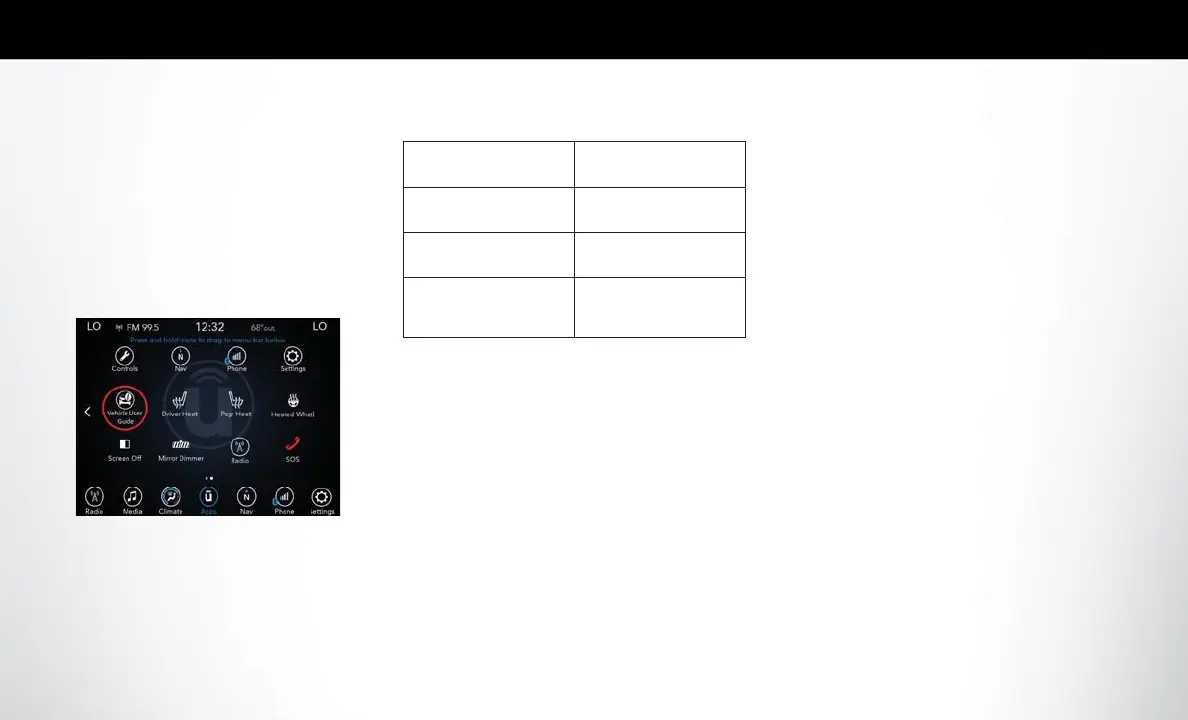
To access the Vehicle User Guide on your Uconnect
Touchscreen: Push the Uconnect Apps button, then
push the Vehicle User Guide icon on your touch-
screen. No Uconnect registration is required.
NOTE:
Vehicle User Guide features are not available while the
vehicle is moving. If you try to access while the vehicle
is in motion, the system displays: Feature not available
while the vehicle is in motion.
Pre-Installed Features
• Your User Guide —
Updated in real-time
• Available when and
where you need it
• Touchscreen conve-
nience
• Customizable inter-
face
• Maintenance sched-
ules and information
• Multilingual
• Comprehensive icon
& symbol glossary
NOTE:
Uconnect screen images are for illustration purposes
only and may not reflect exact software for your ve-
hicle.
Adaptive Cruise Control
(ACC) — If Equipped
If your vehicle is equipped with Adaptive Cruise Con-
trol, the controls operate exactly the same as the
standard cruise control, with one difference. You can
set a specified distance you would like to maintain
between you and the vehicle in front of you.
• If the ACC sensor detects a vehicle ahead, ACC
will apply limited braking or acceleration automati-
cally to maintain a preset following distance while
matching the speed of the vehicle ahead.
NOTE:
Your vehicle will not exceed the cruise speed you have
set.
• If the sensor does not detect a vehicle directly
ahead of you, it functions like a standard cruise
control system, maintaining the speed you set.
Vehicle User Guide Touchscreen Icon
VEHICLE USER GUIDE
— IF EQUIPPED
SPEED CONTROL












 To Next Page