Video Music
Images
Texts
Return
◄
C
D
►
!
Note
!
Note
The picture on the left is only a
sketch for operation instructions.
Due to the continuous optimization
of human- computer interaction,
the software interface of this
product will be maintained and
updated from time to time. If
there are any changes, it is not
subject to prior notice. Please
refer to the actual product and
thanks for your kind support.
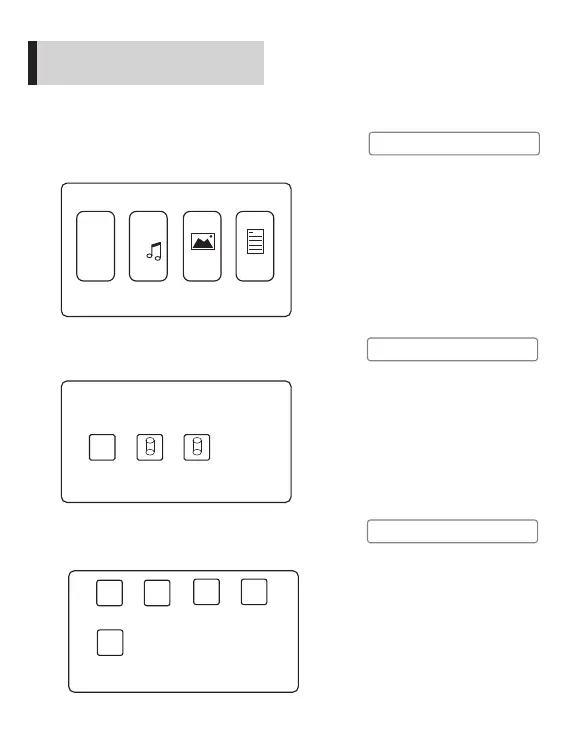
Different storage devices are in
the form of disks
, such as C and
D shown in the figure on the ,
which represent SD card and
USB respectively.
left
Play texts
Start to use
!
Note
Play the text files on the storage
according to the following steps
1. To open a text file, firstly select “Texts” on the
home screen, and press the “OK” button on the
projector panel or remote control.
2. Press “ ”“ ”on the projector panel or remote
control, choose the device that stores the text
file, and press “OK” to the next step.
◄ ►
3. Press “ ”“ ”on the projector panel or remote
control, choose the text file (or folder to the next
level of directory), and press “ ” to open.
◄ ►
►ǁ
(PLAY)
Return
Folder 1
Folder 2 Texts 1
Texts 2
Press the selected text file for more
than 3 seconds to preview i
ts
contents.
Pressing “ ” on the projector
panel when a text file is opened
equals to “Return”
13


 To Next Page