The AP may face issues while booting if you use an unterminated console cable
(not plugged into any device or terminal) or a console cable that is more than one
meter in length.
Note
We recommend that you make a site map showing access point locations so that you can record the device
MAC addresses from each location and return them to the person who is planning or managing your wireless
network.
Mounting the Access Point
Mounting Hardware
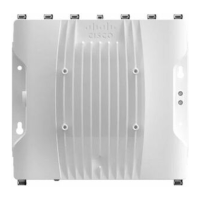
The Catalyst IW9167E access point has built-in mounting flanges. You can also use the following mounting
hardware:
• DIN rail mounting bracket
• Pole mounting bracket
Required mounting hardware depends on the mounting location:
• For ceilings or hard ceilings or walls, directly mount the access point using the built-in mounting flanges.
The mounting flanges are on the sides of the access point that are without ports.
• For electrical cabinets or network boxes, directly mount the access point using the mounting flanges or
use the DIN rail mounting bracket.
• For pole mounting, use the pole mounting bracket.
Mounting Bracket Part Numbers
These brackets do not ship with the access point, but you can order them separately.
Note
Table 1: Mounting Bracket Part Numbers
Cisco Part NumberMounting Bracket
AIR-ACCDMK3700=DIN Rail Mounting Bracket
AIR-ACCPMK3700=Pole Mounting Bracket (for 2”–3.2” diameter pole)
AIR-ACCPMK3700-2=Pole Mounting Bracket (for 2”–16” diameter pole)
Installation Overview
4
Installation Overview
Mounting the Access Point





 To Next Page