Need help?
Do you have a question about the Cisco CBS250-8FP-E-2G and is the answer not in the manual?
Provides steps for configuring the switch via a web browser, including default IP and login.
Connects to a wireless network for setup using a mobile app.
Connects a computer via Ethernet to configure using the web UI.
Provides steps for configuring the switch via a web browser, including default IP and login.
Connects to a wireless network for setup using a mobile app.
Connects a computer via Ethernet to configure using the web UI.
The Cisco Business 250 Series Smart Switches are designed to provide a reliable and efficient networking solution for small to medium-sized businesses. These switches are engineered to be operational right out of the box, functioning as standard switches in their default configuration. This means that upon powering up, the switch will automatically forward packets between connected devices, simplifying initial setup and deployment. The series offers a range of models, each with specific features and port configurations to cater to diverse business needs.
The primary function of the Cisco Business 250 Series Smart Switches is to facilitate network connectivity and data transfer within a local area network (LAN). They act as central hubs, allowing multiple devices such as computers, servers, printers, and other network-enabled equipment to communicate with each other and share resources. These are "smart" switches, meaning they offer more advanced features than unmanaged switches, including basic security, quality of service (QoS), and network management capabilities, without the complexity of fully managed enterprise-grade switches.
Key functional components include:
The Cisco Business 250 Series Smart Switches are designed for ease of use and flexible deployment.
The switches offer two primary methods for initial setup:
The switches come with a rack-mount/wall-mount kit, offering flexibility in deployment. They can be installed in a standard server rack or mounted on a wall, depending on the available space and network infrastructure requirements. Detailed mounting instructions are provided in the "Get Support" section, which directs users to online documentation.
While not as extensive as fully managed switches, the Cisco Business 250 Series Smart Switches provide essential management features through their web UI and mobile app. These include basic security settings, VLAN support for network segmentation, and Quality of Service (QoS) to prioritize critical network traffic, ensuring optimal performance for applications like voice and video.
Each switch package typically includes:
To set up the switch, users will require:
The Cisco Business 250 Series Smart Switches are designed for reliable operation with minimal ongoing maintenance, but they do incorporate features that support long-term stability and troubleshooting.
The comprehensive set of LED indicators (System, LINK/ACT, PoE/Gigabit) provides immediate visual feedback on the switch's operational status, port activity, and power delivery. This allows administrators to quickly diagnose common issues such as link failures, traffic congestion, or power problems without needing to access the management interface.
While not explicitly detailed in the provided snippets, Cisco switches typically support firmware updates. These updates are crucial for enhancing security, fixing bugs, and introducing new features, ensuring the switch remains current and performs optimally over its lifespan. The USB port can often be used for local firmware upgrades.
The ability to back up and restore configurations is a standard feature in smart switches. This allows administrators to save the switch's settings, which can be quickly restored in case of a device replacement or a need to revert to a previous configuration, minimizing downtime and simplifying management. The USB port might also facilitate this.
The web UI and potentially the mobile app offer basic diagnostic tools that can help identify and resolve network issues. Combined with the visual cues from the LEDs, these tools provide a foundational level of troubleshooting capability.
The inclusion of "Technical Support Contacts" in the box highlights Cisco's commitment to providing assistance. Users can access Cisco support and additional documentation, including detailed mounting instructions and the Administration Guide, via the provided URL (https://cisco.com/go/cbs250). This online resource serves as a central hub for comprehensive information and assistance, crucial for both initial setup and ongoing maintenance.
In summary, the Cisco Business 250 Series Smart Switches are robust and user-friendly devices that offer essential networking capabilities for small and medium-sized businesses. Their plug-and-play functionality, flexible configuration options (mobile app or web UI), and clear status indicators make them easy to deploy and manage, while features like PoE and various mounting options provide versatility for different environments. The availability of comprehensive support resources further ensures a smooth user experience.
 General
| Device Type | Managed Switch |
|---|---|
| Layer | Layer 2 |
| Switching Capacity | 20 Gbps |
| Forwarding Rate | 14.88 Mpps |
| Jumbo Frame Support | 9216 bytes |
| DRAM | 512 MB |
| Flash Memory | 256 MB |
| Management | Web-based, CLI, SNMP |
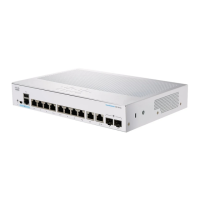
| Ports | 8 x 10/100/1000 PoE + 2 x 1G SFP |
| MAC Address Table Size | 8K |
| Dimensions (W x D x H) | 44 mm |
| Power Supply | AC power |
| Operating Temperature | 0 to 40 °C |
| Operating Humidity | 10% to 90% (non-condensing) |


 To Next Page