Need help?
Do you have a question about the Cisco Linksys RangePlus WPC100 and is the answer not in the manual?
Insert the Setup Wizard CD into your computer's CD-ROM drive to start the installation process.
Click the 'Click Here to Start' button on the Welcome screen to initiate the setup wizard.
Steps to take when the wireless network does not have security enabled.
Instructions for networks with wireless security enabled, guiding through different screens.
Enter the Passphrase (8-63 characters) for WPA2-Personal connection and click Connect.
Enter the Passphrase for WPA-Personal connection and click Connect.
Enter WEP Key or Passphrase for connection, following specific character requirements.
Press the router's Wi-Fi Protected Setup button and click the corresponding button on screen.
Enter the required security key or passphrase for your network type.
This document provides a Quick Installation Guide for the Linksys RangePlus Wireless Notebook Adapter, Model WPC100, a device designed to enable wireless network connectivity for notebook computers. The adapter facilitates access to wireless networks, allowing users to connect to the internet and other network resources without the need for physical cables.
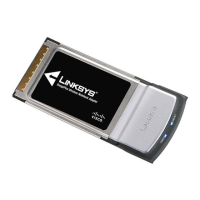
The Linksys RangePlus Wireless Notebook Adapter (WPC100) serves as a crucial component for establishing wireless network connections on notebook computers. It is specifically designed to be inserted into an available PCMCIA or CardBus slot on a laptop, thereby extending the computer's capabilities to include wireless communication. The primary function of this adapter is to detect and connect to existing wireless networks, whether they are secured or unsecured, and to facilitate data exchange over these networks.
The adapter supports Wi-Fi Protected Setup (WPS), a feature that simplifies the process of connecting to a secure wireless network. When a router supports WPS, the adapter can establish a secure connection with minimal user input, often by simply pressing a WPS button on both the router and the adapter's setup interface. This streamlines the configuration process, making it easier for users to join secure networks without manually entering complex security keys.
For networks that do not support WPS or for users who prefer manual configuration, the adapter also allows for traditional setup methods. This involves scanning for available wireless networks, selecting the desired network from a list, and then providing the necessary security credentials, such as WEP keys or WPA/WPA2 passphrases, if the network is secured. Once connected, the adapter maintains the wireless link, enabling continuous access to network resources.
The device is compatible with both Windows XP and Windows Vista operating systems, with specific installation procedures outlined for each. The installation process involves using a Setup Wizard provided on a CD-ROM, which guides the user through the necessary steps, including driver installation and initial network configuration. After installation, a Wireless Network Monitor utility becomes available, allowing users to view network status, find available wireless networks, and modify the adapter's configuration settings. This utility typically resides in the system tray, providing quick access to network management functions.
In essence, the RangePlus Wireless Notebook Adapter acts as a bridge between a notebook computer and a wireless network, translating wireless signals into data that the computer can understand and vice versa. It is an essential tool for users who require mobility and flexibility in their network access, allowing them to connect to wireless hotspots, home networks, or office networks from various locations within range.
The Linksys RangePlus Wireless Notebook Adapter (WPC100) offers several user-friendly features designed to simplify its installation and operation.
The installation process is guided by a Setup Wizard on a CD-ROM. Users are instructed to insert the CD-ROM first and follow the on-screen prompts before physically inserting the adapter into their computer. This sequence is crucial to ensure correct driver and software installation. The wizard begins with a "Welcome" screen, prompting users to click a "Click Here to Start" button to initiate the setup.
During installation, users will encounter a License Agreement, which they must accept to proceed. The wizard then guides them to insert the adapter into an available PCMCIA or CardBus slot on their notebook. The adapter is designed to lock into place once correctly inserted.
For Windows XP users, the setup differentiates between networks that support Wi-Fi Protected Setup (WPS) and those that do not. If a network supports WPS, a "Connect to a Network" screen appears, allowing users to utilize the WPS feature. This typically involves pressing a WPS button on both the router and the adapter's setup interface within a two-minute window. This method significantly simplifies secure network connections by eliminating the need to manually enter security keys.
If the network does not support WPS, or if the user chooses to skip WPS, the setup proceeds to a "No Wi-Fi Protected Setup" section. Here, users can view a list of "Available Wireless Networks." They can select their desired network and click "Connect." If the network is unsecured, a "Connect Anyway" option is presented. For secured networks, users will be prompted to enter the appropriate security key (Passphrase for WPA/WPA2-Personal or WEP Key for WEP encryption). The guide specifies the required character lengths and formats for these keys (e.g., 8-63 characters for WPA/WPA2 Passphrase, 10 or 26 hexadecimal characters for WEP).
Upon successful connection, a "Congratulations!" screen appears, indicating that the setup is complete. For Windows XP, a Wireless Network Monitor icon will appear in the system tray. This monitor allows users to check network status, find other available networks, and change adapter configurations. The guide advises referring to the User Guide on the CD-ROM for detailed information on using the monitor.
For Windows Vista users, the initial installation steps are similar, including accepting the License Agreement and inserting the adapter. After the "Congratulations!" screen, the Windows Vista Wireless Network Configuration utility appears. Users select their network and click "Connect." If the network is unsecured, they click "Connect Anyway." For secured networks, they enter the security key (WEP key or passphrase).
After connecting, Vista users may see a "Set Network Location" screen, prompting them to choose between "Home," "Work," or "Public" locations to apply appropriate network settings. Once these steps are completed, the Windows Vista Wireless Network Configuration utility icon appears in the desktop's system tray, providing access to wireless settings. The guide recommends consulting Windows Vista Help and Support for assistance with this utility.
The adapter's design emphasizes ease of use, with clear, step-by-step instructions and visual cues (like screenshots) provided throughout the installation process. The distinction between WPS and non-WPS setup, as well as the tailored instructions for different Windows versions, highlights the adapter's adaptability to various user environments and network configurations. The inclusion of a network monitor utility ensures that users can manage and troubleshoot their wireless connections effectively after the initial setup.
The Linksys RangePlus Wireless Notebook Adapter (WPC100), like most network adapters, requires minimal direct physical maintenance. Its design as an internal component (inserted into a PCMCIA/CardBus slot) means it is largely protected from external wear and tear. However, its effective operation relies heavily on software and environmental factors.
Software maintenance is primarily handled through the operating system and the provided Linksys utilities. The Quick Installation Guide emphasizes the importance of the Setup Wizard CD-ROM for initial installation, which includes necessary drivers and the Wireless Network Monitor software. Keeping these drivers up-to-date is crucial for optimal performance and compatibility with evolving operating systems and network standards. While the guide doesn't explicitly detail driver update procedures, it implies that users should refer to the User Guide on the CD-ROM for more advanced information, which would typically cover such topics. Linksys's website and FTP site, listed in the support section, are common resources for obtaining the latest drivers and firmware updates.
The Wireless Network Monitor (for Windows XP) and the Windows Vista Wireless Network Configuration utility serve as key tools for ongoing software-related maintenance. These utilities allow users to:
Regular checks of these utilities can help ensure the adapter is operating efficiently and connected to the desired network with the correct security settings. If connectivity issues arise, these tools are the first line of defense for diagnosis.
Environmental considerations also play a role in the adapter's longevity and performance. While the adapter itself is robust, ensuring the notebook's PCMCIA/CardBus slot is clean and free of debris can prevent connection issues. Avoiding physical damage to the adapter when inserting or removing it is also important.
Security maintenance is another critical aspect. The guide instructs users on how to configure WEP, WPA, or WPA2 security during setup. It is essential for users to maintain strong, unique security keys for their wireless networks to protect against unauthorized access. Periodically reviewing and updating these security settings, especially if there are concerns about network compromise, is a good practice. The Wireless Network Monitor or the Windows Vista utility would be used to modify these settings if necessary.
In summary, maintenance for the Linksys RangePlus Wireless Notebook Adapter primarily revolves around:
The comprehensive support information provided (24-hour technical support, website, FTP site, sales information) indicates that Linksys offers resources for users to address any maintenance or troubleshooting needs that extend beyond the scope of the Quick Installation Guide.
 General
| Interface Type | PCMCIA |
|---|---|
| Connectivity Technology | Wireless |
| Wireless Standards | IEEE 802.11b, IEEE 802.11g |
| Frequency Band | 2.4 GHz |
| Data Transfer Rate | Up to 54 Mbps |
| Security | WEP, WPA, WPA2 |
| Antenna Type | Internal |
| Compliant Standards | IEEE 802.11b, IEEE 802.11g |
| Operating Systems Supported | Windows 2000, Windows XP |
| Device Type | Network adapter |
| Form Factor | PC Card |

 To Next Page