EasyManua.ls Logo

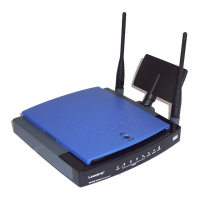
Cisco Linksys WRT300N - User Manual

Cisco Linksys WRT300N
92 pages
Print Icon
To Next Page IconTo Next Page
Loading...
Model No.
Broadband Router
Wireless-N
WRT300N
User Guide
WIRELESS
GHz
2.4

Table of Contents

Questions and Answers

  • P
    Pamela SmithAug 18, 2025
    How to reset a forgotten password on a Cisco Network Router?
    • M
      matthew14Aug 18, 2025
      If you forgot your Cisco Network Router password or are repeatedly prompted when saving settings, reset the Router to factory defaults by pressing the Reset button for five seconds. If the password prompt persists, access the Router's web-based utility at http://192.168.1.1, enter the default password 'admin,' and go to Administration => Management. Enter a new password in the Router Password field and confirm it, then save the settings.
  • J
    James TaylorAug 20, 2025
    How to reset Cisco Linksys WRT300N Network Router to factory defaults?
    • J
      Joseph HernandezAug 20, 2025
      To reset your Cisco Network Router to factory defaults, hold the Reset button for five seconds and then release it. This action will restore the password, forwarding configurations, and other settings to their original factory default values.
  • C
    colemansherryAug 23, 2025
    What to do if firmware upgrade failed on Cisco Linksys WRT300N Network Router?
    • J
      Jessica RobinsonAug 23, 2025
      If a firmware upgrade fails on your Cisco Network Router and/or the Power LED is flashing, use the TFTP program (downloaded with the firmware). Open the PDF included with the firmware and TFTP program and follow its instructions. Also, set a static IP address on your PC, using the specified IP address settings, and then perform the upgrade using the TFTP program or the Administration tab of the Router’s web-based utility.
  • D
    Danielle LeeAug 26, 2025
    What to do if my Cisco Linksys WRT300N Network Router is not getting an IP address?
    • J
      Jose BoyerAug 26, 2025
      To troubleshoot your Cisco Network Router when you're not getting an IP address, first, ensure you have connectivity by referring to the steps for testing your Internet connection. If you need to register your Ethernet adapter's MAC address with your ISP or clone it onto the Router, consult the relevant appendices or configuration sections. Verify you're using the correct Internet connection settings (DHCP, Static IP Address, or PPPoE) by contacting your ISP and checking the Router's setup. Ensure you have the correct cable connected to the Router's Internet port and that the Status page shows a valid IP address from your ISP. Finally, try turning off the computer, Router, and modem for 30 seconds before turning them back on, then check the Router's Status page again.
  • C
    Cindy SmithAug 28, 2025
    What to do if Cisco Linksys WRT300N Network Router gives time-out error?
    • M
      mjenkinsAug 28, 2025
      If you encounter time-out errors or retry prompts when entering a URL or IP address, first check if other PCs on the network are working. If they are, verify that your workstation's IP settings (IP Address, Subnet Mask, Default Gateway, and DNS) are correct and restart the problematic computer. If issues persist, check the Cisco Network Router to ensure it's connected and powered on, then verify its settings. If the Router is correctly configured, examine your Internet connection (DSL/cable modem) to confirm it's functioning correctly; you might remove the Router temporarily to test a direct connection.
  • A
    Ashley PearsonAug 30, 2025
    How to set a static IP address on a PC using a Cisco Linksys WRT300N?
    • A
      Andrew JordanAug 31, 2025
      To set a static IP address on a PC connected to a Cisco Network Router: For Windows 98SE and Me: 1. Go to Start, Settings, and Control Panel, then double-click Network. 2. Select the TCP/IP associated with your Ethernet adapter and click Properties. 3. In the TCP/IP properties, select 'Specify an IP address'. Enter a unique IP address not used by any other computer on the network. 4. Click the Gateway tab, enter 192.168.1.1 (the Router's default IP), and click Add. 5. Click the DNS tab, ensure DNS Enabled is selected, enter Host and Domain names, and provide the DNS entry from your ISP. 6. Click OK in the TCP/IP properties window and Close or OK for the Network window. 7. Restart the computer when prompted.
  • R
    rangelpaulSep 2, 2025
    What to do if my Internet game isn't working with my Cisco Linksys WRT300N Network Router?
    • S
      Sara CurtisSep 2, 2025
      If you're having trouble getting an Internet game, server, or application to work with your Cisco Network Router, consider using DeMilitarized Zone (DMZ) hosting to expose one PC to the Internet. This is useful when an application needs too many ports or when you're unsure which port services to use. Be sure to disable all forwarding entries for DMZ hosting to work correctly, as forwarding takes priority.
  • H
    Harry KellerSep 4, 2025
    What to do if Cisco Linksys WRT300N shows '404 Forbidden' error?
    • R
      Ruth WalshSep 4, 2025
      If you encounter a '404 Forbidden' error when trying to access the Cisco Network Router's web-based utility, and you're using Windows Explorer, ensure 'Work Offline' is not checked under the File menu. Then, press CTRL + F5 for a hard refresh to load new webpages instead of cached ones. Next, go to Tools, Internet Options, Security tab, and click the 'Default level' button, ensuring the security level is Medium or lower.
  • C
    Chris BrockSep 7, 2025
    Why does my Cisco Linksys WRT300N Network Router keep disconnecting from PPPoE?
    • K
      Kyle HuffmanSep 7, 2025
      If your DSL service's PPPoE connection is frequently disconnecting with your Cisco Network Router, remember that PPPoE isn't a dedicated, always-on connection. Your DSL ISP may disconnect the service after inactivity, similar to a dial-up connection. There's an option to 'keep alive' the connection, but it may not always work, so you might need to re-establish the connection periodically.
  • A
    Andrew PetersonSep 9, 2025
    Why is the power LED flashing on my Cisco Linksys WRT300N?
    • Y
      yfloresSep 9, 2025
      When the Power LED on your Cisco Network Router flashes, it indicates the Router is booting up and checking its operation. If the LED continues to flash after this, the Router isn't working correctly. Try flashing the firmware by assigning a static IP address (192.168.1.50) and Subnet Mask (255.255.255.0) to your computer, then upgrade the firmware.

Summary

Chapter 1: Introduction

Welcome

Standard greeting and introduction to the router's capabilities.

Whats in this User Guide?

Outlines the manual's structure and content.

Chapter 2: Planning Your Wireless Network

Network Topology

Explains wireless network structures and terminology.

Ad-Hoc vs. Infrastructure Mode

Details the two primary wireless network configurations.

Network Layout

Describes how the router fits into a network environment.

Chapter 3: Getting to Know the Wireless-N Broadband Router

The Back Panel

Identifies and describes ports and buttons on the router's rear.

The Front Panel

Details the LEDs and indicators on the router's front.

The Top Panel

Mentions the reserved button on the router's top.

Chapter 4: Connecting the Wireless-N Broadband Router

Hardware Installation

Provides step-by-step instructions for physical connection.

Chapter 5: Configuring the Wireless-N Broadband Router

Overview of Configuration

Introduces the chapter's scope and navigation.

How to Access the Web-based Utility

Guides users on launching the router's interface.

Setup Tab

Covers internet connection and network settings.

Wireless Tab

Details wireless network settings and security.

Appendix A: Troubleshooting

Common Problems and Solutions

Offers solutions for common installation and operational issues.

Frequently Asked Questions

Addresses common user queries about the router.

Appendix B: Wireless Security

Security Precautions

Lists essential steps for securing a wireless network.

Security Threats Facing Wireless Networks

Describes common vulnerabilities and hacker methods.

Appendix C: Upgrading Firmware

Appendix D: Windows Help

TCP;IP Configuration

Explains the importance of TCP/IP for network communication.

Shared Resources and Network Places

Describes how Windows features aid network resource sharing.

Appendix E: Finding the MAC Address and IP Address for Your Ethernet Adapter

Windows 98 SE or Me Instructions

Step-by-step guide for finding adapter addresses on older Windows.

Windows 2000 or XP Instructions

Step-by-step guide for finding adapter addresses on Windows 2000/XP.

Appendix F: Glossary

Appendix G: Specifications

Appendix H: Warranty Information

Limited Warranty Details

Outlines the terms and conditions of the product's warranty.

Appendix I: Regulatory Information

FCC Statement and Safety Notices

Details FCC compliance, radiation limits, and safety warnings.

Industry Canada Information

Provides Canadian regulatory compliance information.

Appendix J: Contact Information

Cisco Linksys WRT300N Specifications

General IconGeneral
ModelWRT300N
Device TypeWireless Router
Frequency Band2.4 GHz
Maximum Wireless Speed300 Mbps
Wireless Standards802.11b, 802.11g, 802.11n
Antennas2
Ethernet Ports4 x 10/100 LAN, 1 x 10/100 WAN
Security FeaturesWPA/WPA2, WEP

Related product manuals