22
Prole Series, Codec C Series and Quick Set C20 / C20 Plus Getting started guide
D14639.03 Prole Series, Codec C Series and Quick Set C20/C20 Plus Getting Started Guide TC4.1, Feb 2011.
Copyright © 2010-2011 Cisco Systems, Inc. All rights reserved.
www.cisco.com
The Call page
Making calls from the
web interface
Sometimes, e.g. when you are conguring
the system from a remote location, it is
convenient to be able to make calls from the
video system to ensure everything works as
expected.
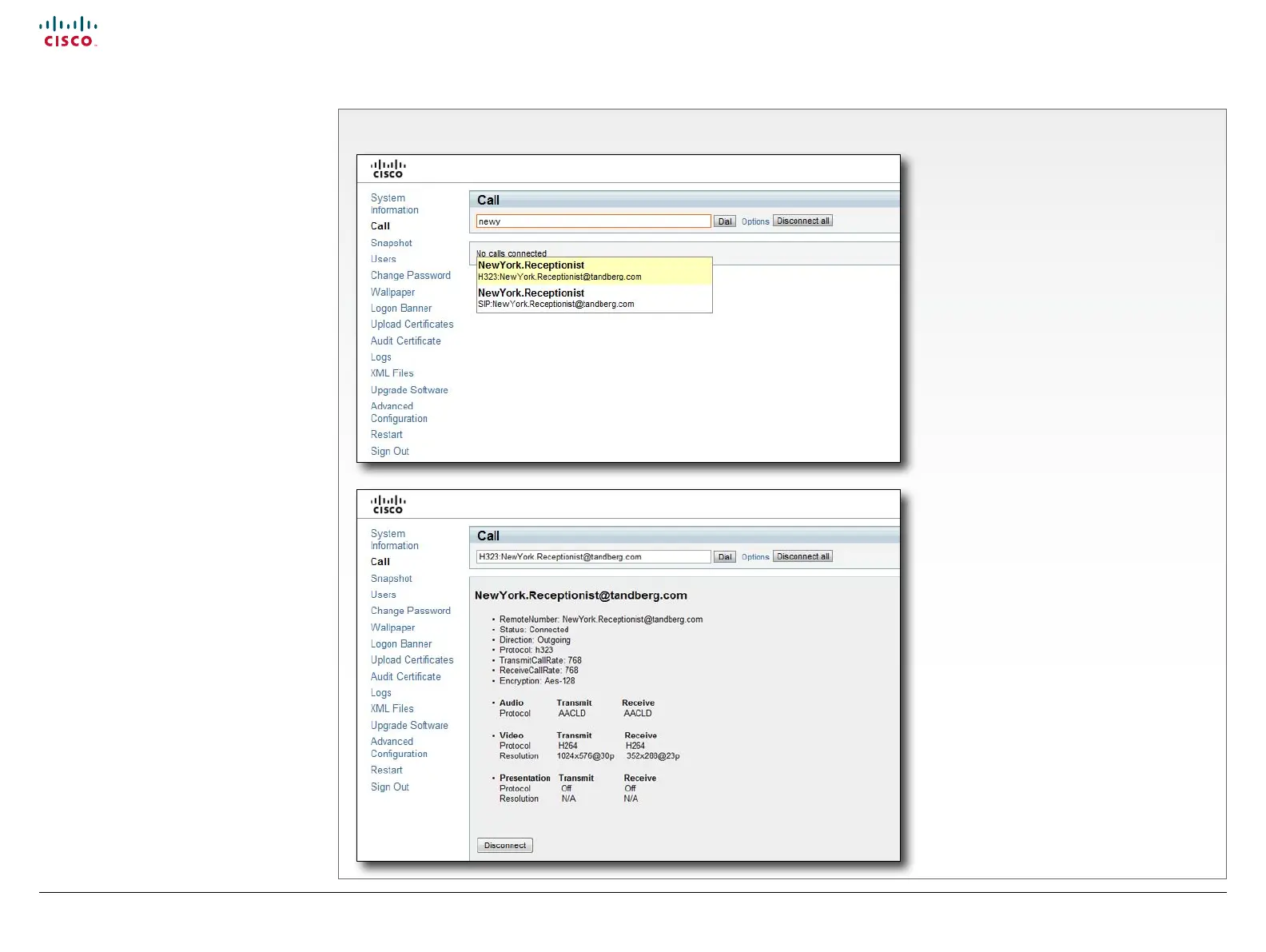
Make a call
Input eld: Enter one or more characters
in the input eld, until the name you want
to call appears in the dynamic search list;
or, enter the complete name or number.
Dial: Press Dial to initiate the call.
Disconnect all: Press Disconnect all to
end all calls.
Options: Click Options to change the bit
rate for this call. Select the Call rate in the
drop down list.
The call status page
The call status page appear when
you make a call. Please allow for
approximately 30 seconds after the call is
up before checking call details
You will nd the following information on
the call status page:
• Remote number
• Status: Connected
• Direction: Incoming/Outgoing
• Protocol: H323/SIP
• Transmit and receive call rates
• Encryption
• Audio: Transmit and receive protocols
• Video: Transmit and receive protocols
and resolutions
• Presentation: Transmit and receive
protocols and resolutions


 To Next Page
 Loading...