4
Quick Start Guide
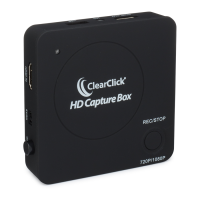
1. IMPORTANT: Read the note page #3 before
continuing!
2. Connect a USB flash drive (not included) to the port
marked “USB” on the HD Capture Box™. Your HD
Capture Box™ will save recordings on the flash drive.
NOTE: We highly recommend starting with a fresh, brand-
name USB drive. We recommend “SanDisk” brand USB
flash drives. For best results, use a USB flash drive that is
128 GB or smaller.
3. Power your HD Capture Box™ using the included
power adapter. Turn on the HD Capture Box™ by
pressing the “ON/OFF” button.
4. Hook up your gaming system or other HDMI video
source. Plug an HDMI cable into the “out” port on your
gaming system or video source. Plug the other end into
the “HDMI IN” port on the HD Capture Box™. Finally, plug
in your headset microphone into the “MIC” port on the HD
Capture Box™ if you’d like to record that too.
What does the color of the LED on the device mean?
BLUE – Means your video source is 1080p resolution
GREEN – Means your video source is 720p resolution


 To Next Page