3
Using the ClearOne remote software:
Select the new parameter values and
click “Send Changes to Receiver and
Close”.
Editing Transmitter Parameters:
The easiest and most intuitive way to set the parameters of ClearOne transmitters and receivers is with ClearOne
Remote software. Download the latest software from the ClearOne Resource Library, install and run on a computer
running Windows XP or Windows 7 (32 or 64 bit), and connect to the receiver via USB or RS232. Then open
ClearOne Remote and select ONLINE.
Up to 32 selectable RF channels are available when up to 4 of the WS880 receivers are daisy chained together to
form a system.
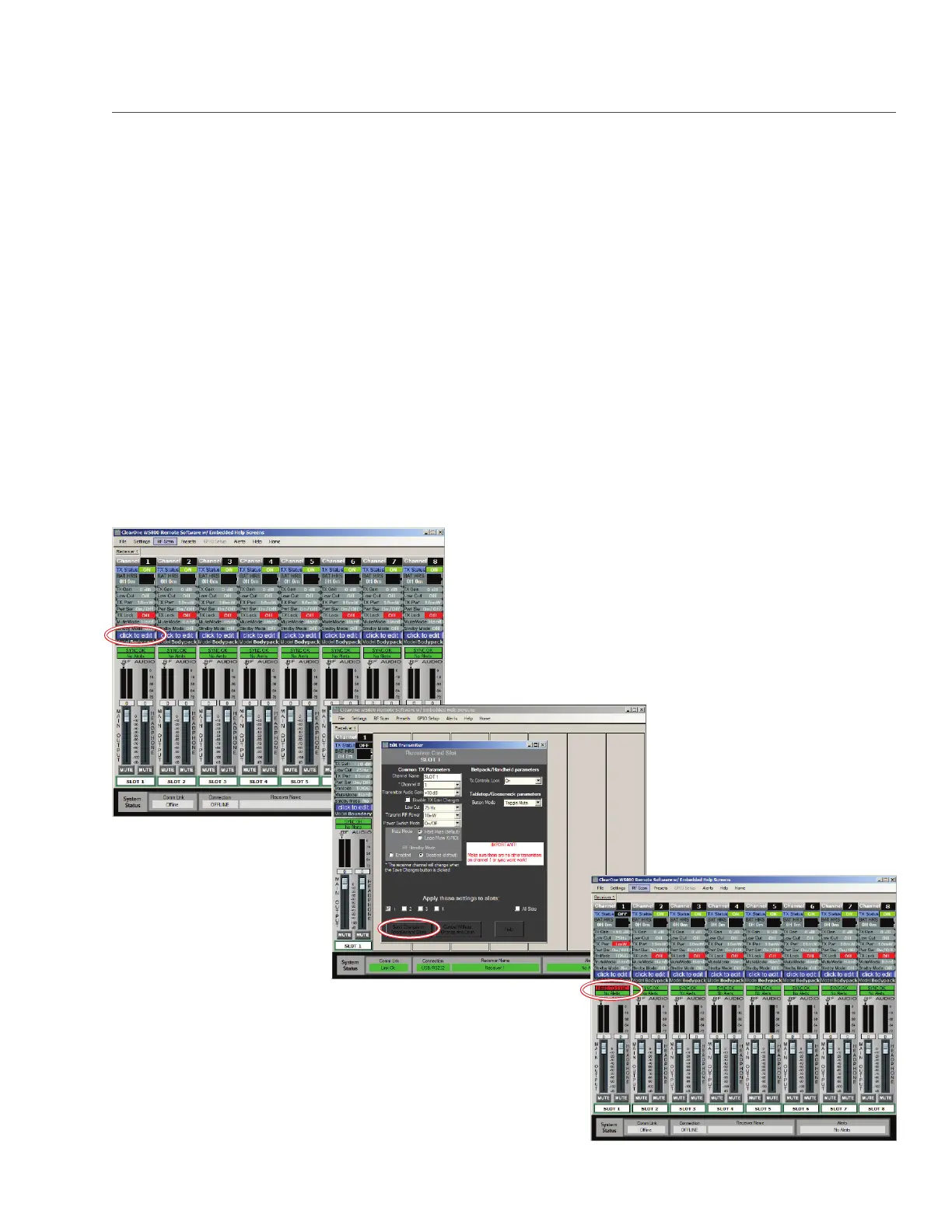
(screenshots of the previous software GUI and also screenshots of the new GUI are shown below)
Open The Channel Edit Window:
1. The [Click to Edit] function opens the edit window of the channel you wish to edit.
2. Select the functions you want to edit and enter the parameter. (The various functions are described below.)
Click [OK] to save the changes and close the Channel Edit window.
3. You will notice that the [Needs to Sync] alert is lit. This indicates that one or more parameters are in queue
in the receiver ready to be downloaded and implemented with the next transmitter Sync of the channel.
1)
2)
Click to Edit the
channel’s parameters.
The “Need To Sync” alert is lit. Sync the transmitter
to apply the selected parameters.
3)
Clearone WS800 Remote Software (old):


 To Next Page