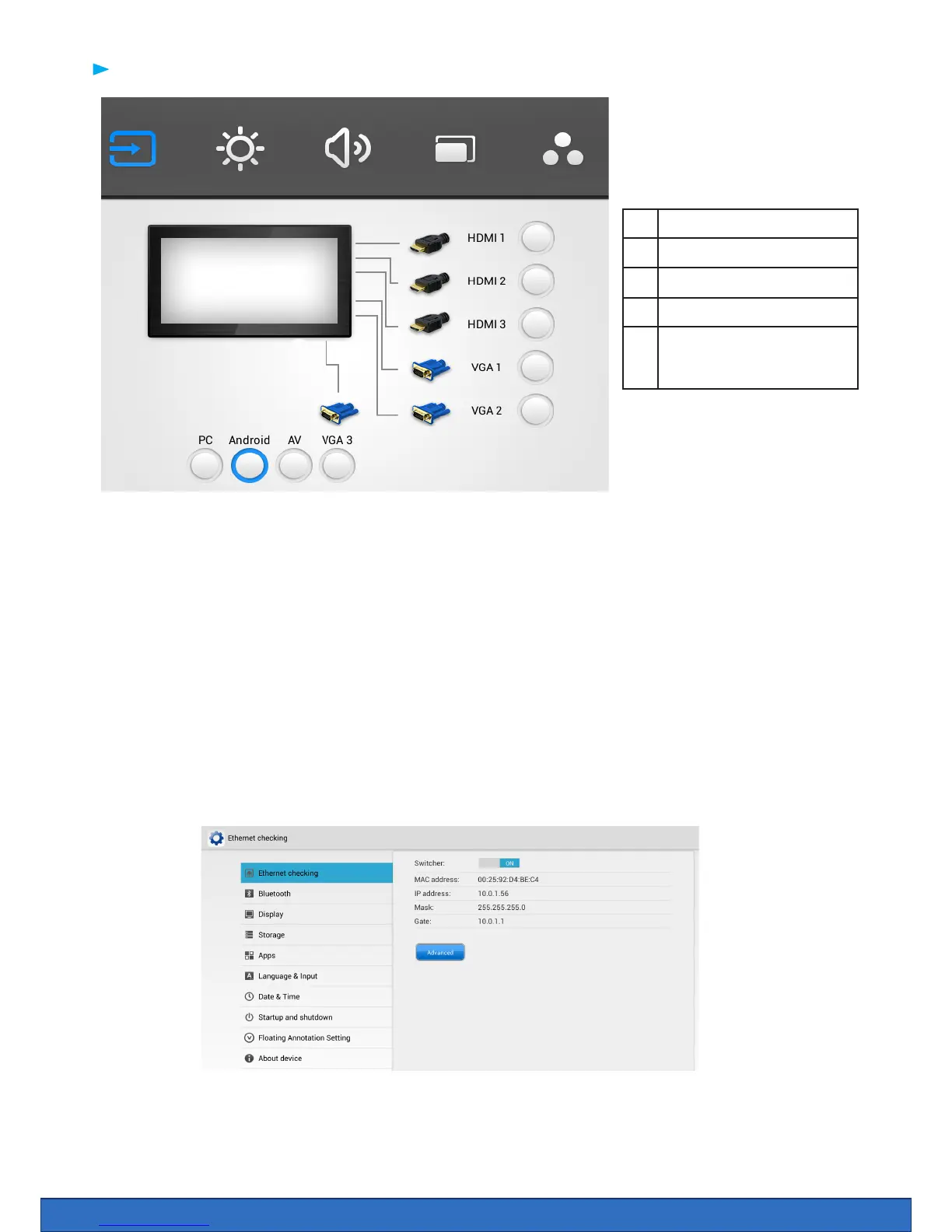
The on screen menu can be accessed by pressing the menu button on the main button panel, or can be
summoned by gesture control. To open the on screen menu place one nger at the bottom of the screen
in the middle and drag upwards.
From the on screen menu you can select Inputs such as Android, IPC, HDMi and VGA.
Any input highlighted in yellow is the input currently selected.
More advanced settings
Select apps then settings from the home page.
Here you can hook up the screen with wi, connect bluetooth keyboard and mouse to ne-tune the
sound and display settings. Time and date are also available here. If you have installed the app for other
keyboards other than English you can choose it here. Selecting apps you will nd the all apps that are
installed on the screen.
1 Input Selection
2 Brightness
3 Volume
4 Image Position
5 Advanced Screen bright-
ness, sharpness,
contrast + colour temp.
2 3 4 5
1
The on screen menu
Android Settings
You can nd all android system settings by using the settings icon on the apps page.


 To Next Page