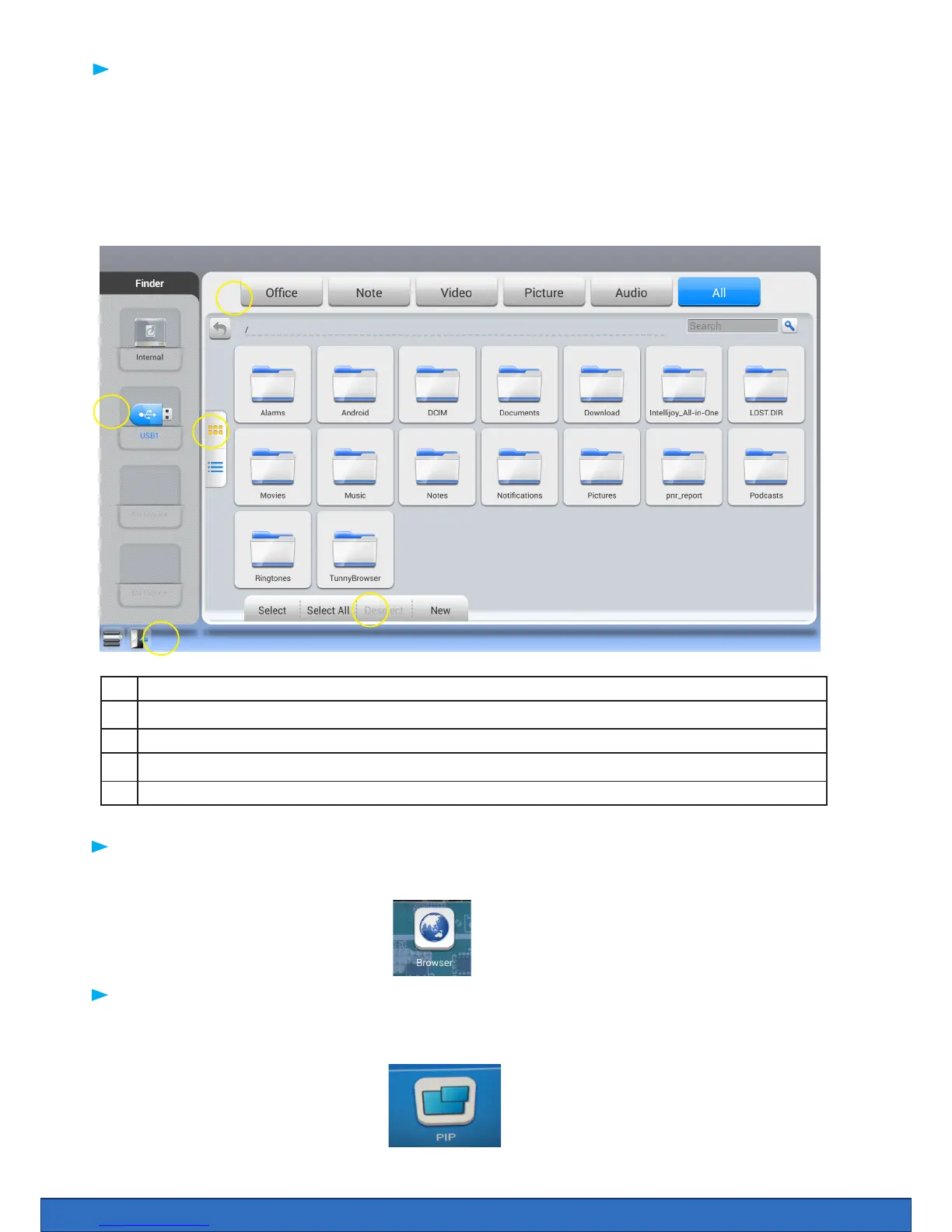
Finder is the le browser for the Clevertouch Plus. Here you can access les stored on the internal
storage or the connected USB stick.
The les can be sorted into le types. If you have images saved you can start a slide show on the
sceen. If you have an app that can handle, for example, PowePoint or Word, then you can access these
les in the Clever Finder.
1 Exit / Quit Clever Finder
2 Sort by le types - click on picture to display all pictures on the USB memory
3 Managing les - you can copy, delete, and move les.
4 Display Files - select how you want the les to be displayed, list or icons
5 Inserted USB stick - select to access
The Integrated web browser enables the user to visit web addresses. In the browsers settings you can
add proxy information.
Picture in Picture enables you to display a live image from another input. This could be the built in PC,
a laptop or the android screen if you are on PC mode.
1
2
3
4
5
Finder
Browser
Picture in Picture (PIP)


 To Next Page