Clickfree Backup Drive for Macintosh: User Guide Restoring my content
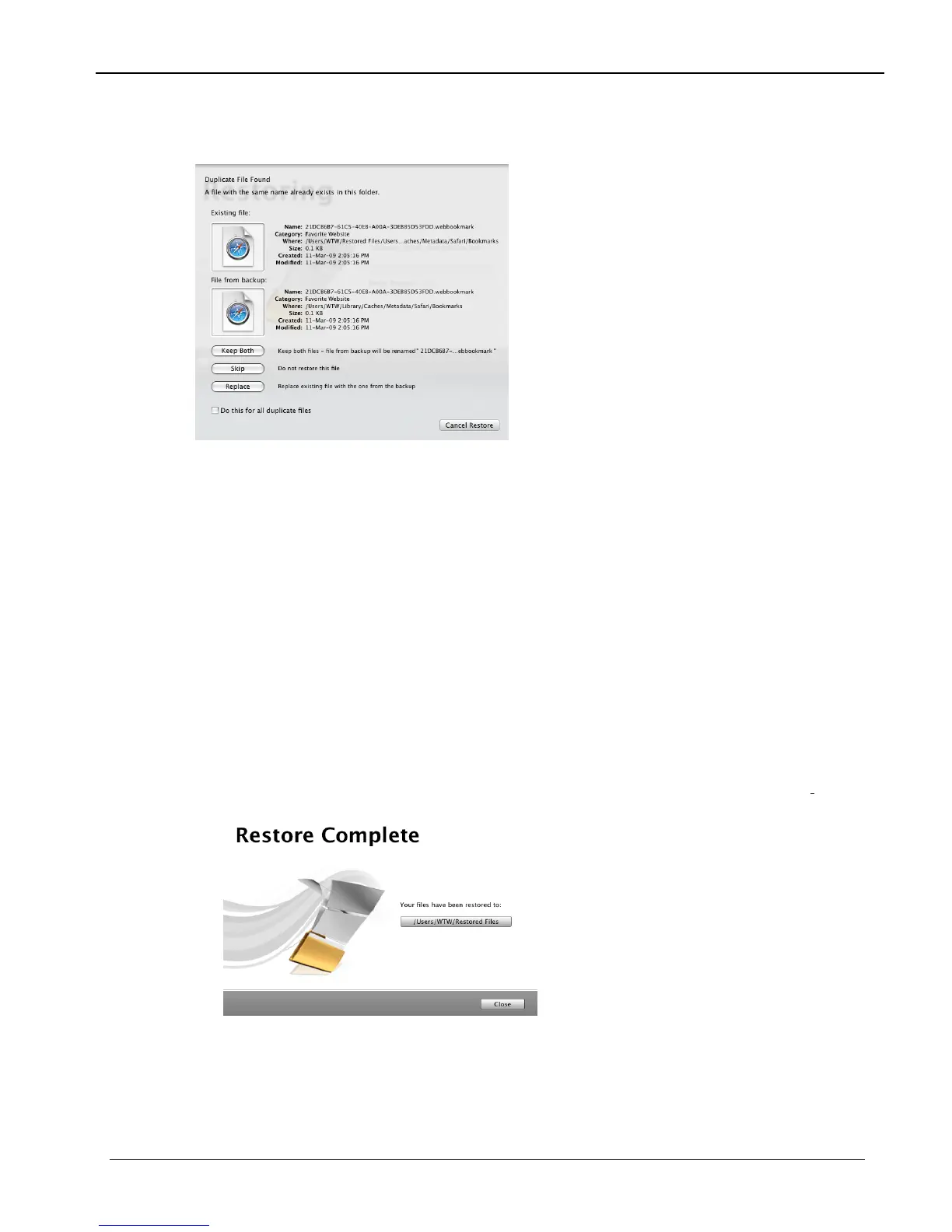
Before it overwrites an existing file on your computer with one of the same name from
the backed-up files,
Clickfree asks if you want to replace the existing file with the same-
name file from the backup:
9. You can choose to:
• Keep both copies of this one file – click
Keep Both. Clickfree renames the backed-
up file by adding ‘ copy’ to the end of the file name, then restores the renamed file.
• Keep both copies of all same-name files – check
Do this for all duplicate files and
click
Keep Both. Clickfree, without asking you, renames the remaining backed-up
files by adding ‘ copy’ to the ends of the file names, then restores the renamed files.
• Not replace this one file – click
Skip
• Not replace any same-name files – check
Do this for all duplicate files and click
Skip. Clickfree skips all remaining same-name files without asking you.
• Replace just this file – click
Replace
• Replace all same-name files – check
Do this for all duplicate files and click Replace.
Clickfree replaces all remaining same-name files without asking you.
If two files have the same size (KB) and same date/time modified, it is likely to be
safe to skip.
When all of your content has been restored,
Clickfree tells you that it is done.
10. To open a Finder window at the restore folder, click the button below
Your files have
been restored to
.
Copyright © 2009 Storage Appliance Corporation. 23



 To Next Page