Thermostat Setup and Diagnostics (T5)
One, two or three zones may be set to “On”. Match the existing zone
configuration.
• Options are “Off”, “Rem” or “Int” (Zone 1 only).
• The climote HUB has an internal thermostat which may only be configured for
Zone 1 (select “Int”).
• Zones 1, 2 and 3 support a remote thermostat (select “Rem”).
• Leave all zones with no thermostat set to “Off”.
Thermostats may be paired automatically (see (T4)) or manually. For manual
pairing, select “Edit” rather than “Search” and use the Scroll Wheel to match the
climote DEGREE serial number that is being paired. Press “OK” when complete.
If the auto pairing fails:
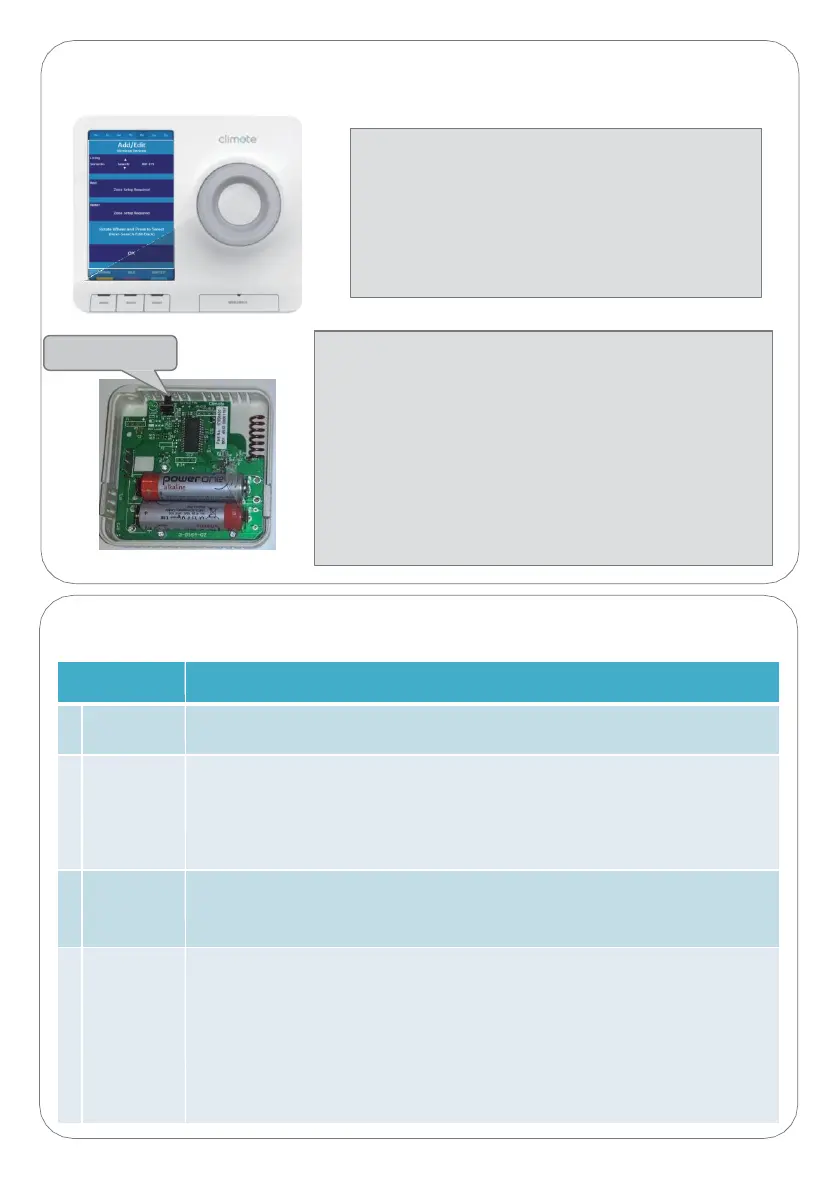
1. Check the climote DEGREE has power and is functioning. Press the Reset
button and observe the LED. 2 or 3 flashes show batteries are OK.
2. Repeat the auto pairing process in (3). Check whether the climote HUB is
receiving data from the climote DEGREE. If in doubt, try manual pairing.
3. Check signal level is greater than 10%. If not, look for an alternative location
for climote DEGREE.
4. If problems persist, contact climote.
1 . Enable Pairing Mode
From the Commission Device menu, select :
1.
Add/Edit Wireless devices.
2.
From the Add/Edit Wireless Devices menu,
choose which Zone to add device to.
3.
Select “Search”.
4.
Press Scroll Wheel to enter Search Mode.
2. Pair climote Degree (see Setup (T5))
1.
On climote DEGREE press the Reset button, pairing
will commence automatically.
2.
Return to the climote HUB and observe progress /
confirm completion.
3.
Pair additional zones as required.
4.
Finally, select “OK” using Scroll Wheel.
5.
Keep pressing “Exit” until you reach the climote
Dashboard. Zones will display “- -
o
C” until
temperature readings are received (1 – 2 minutes).


 To Next Page