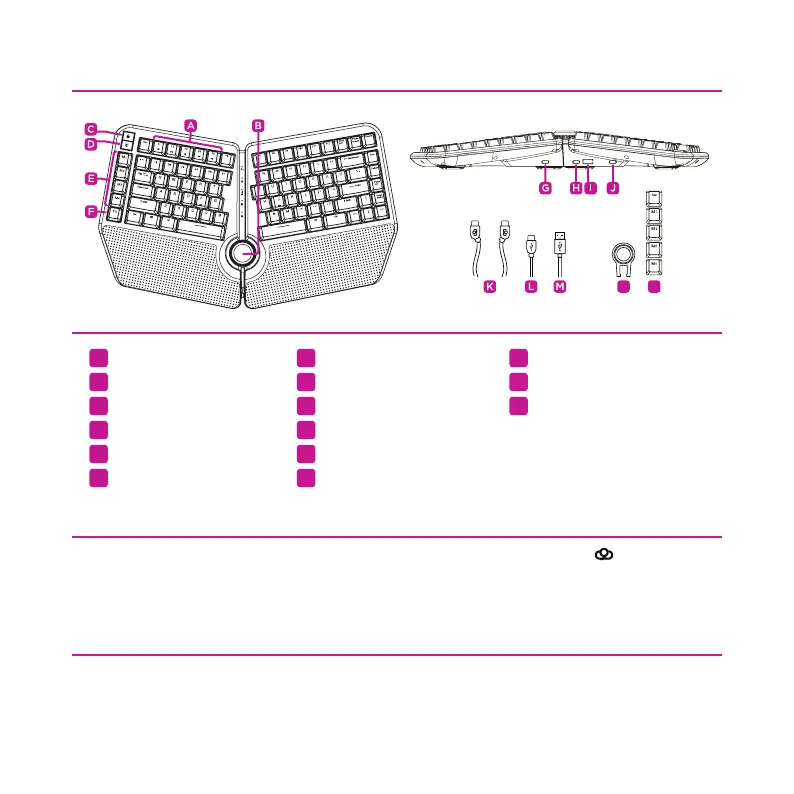
KEYBOARD LAYOUT
SETTING UP YOUR KEYBOARD
BACKLIGHTING EFFECTS
Media Hotkeys
Smart Control Wheel
Windows® Lockout Key
Backlighting Key
Macro Keys
Fn Key
Keyboard Interface (R)
Keyboard Interface (L)
USB Pass-Through Port
Keyboard Port
Linking Cable
Keyboard Cable (keyboard end)
Keyboard Cable (computer end)
Keycap Puller
Extra Esc & Macro Keycaps
1) Connect the linking cable (K) to each of the keyboard interface ports (G,H). (Note: “ ” logo faces up.)
2) Connect the keyboard cable end (L) to the keyboard port (J). Connect the other end of the cable (M) to a
free USB-A port on your Windows® PC or Apple Mac®.
Keyboard backlighting eects can be changed by pressing the backlighting key (D).
All backlighting can be turned on/o by pressing the Fn key (F) + backlighting key (D).
Smart Control Wheel (B) backlighting can be turned on/o by pressing the Fn key (F) + “Q” key.
A
B
C
D
E
F
G
H
I
J
K
L
M
N
O
N O
ENGLISH



 To Next Page