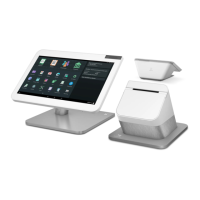
Device Management
NOTE
The Devices section in the Setup app can only be viewed by the account owner. You must be
logged into the Web Dashboard with the email assigned to the owner of this account.
Add or change your device name
You can use the Setup app to give your Clover device a name, or edit an existing name.
This is helpful if you have multiple Clover devices and use them for different purposes.
The names will show up in the Reporting app , making it easier to track down orders
and payments by device.
For example, a fast food restaurant might name their devices “Counter” and “Drive-Thru.”
NOTE
You can only access Setup app > Devices on Web Dashboard if you are the account
owner. You must log into Web Dashboard using the email assigned to the account owner.
To change your device name:
1. Open Setup app
2. Tap Devices
3. Tap the device you want to edit
4. Enter your desired name in the Name field
P2PE Implementation Manual for PCI P2PE v2.0 Clover Network, Inc. April 2018
© 2018 Clover Network, Inc. All Rights Reserved. Page 48


 To Next Page