5
Set up Station Printer & Admin Account
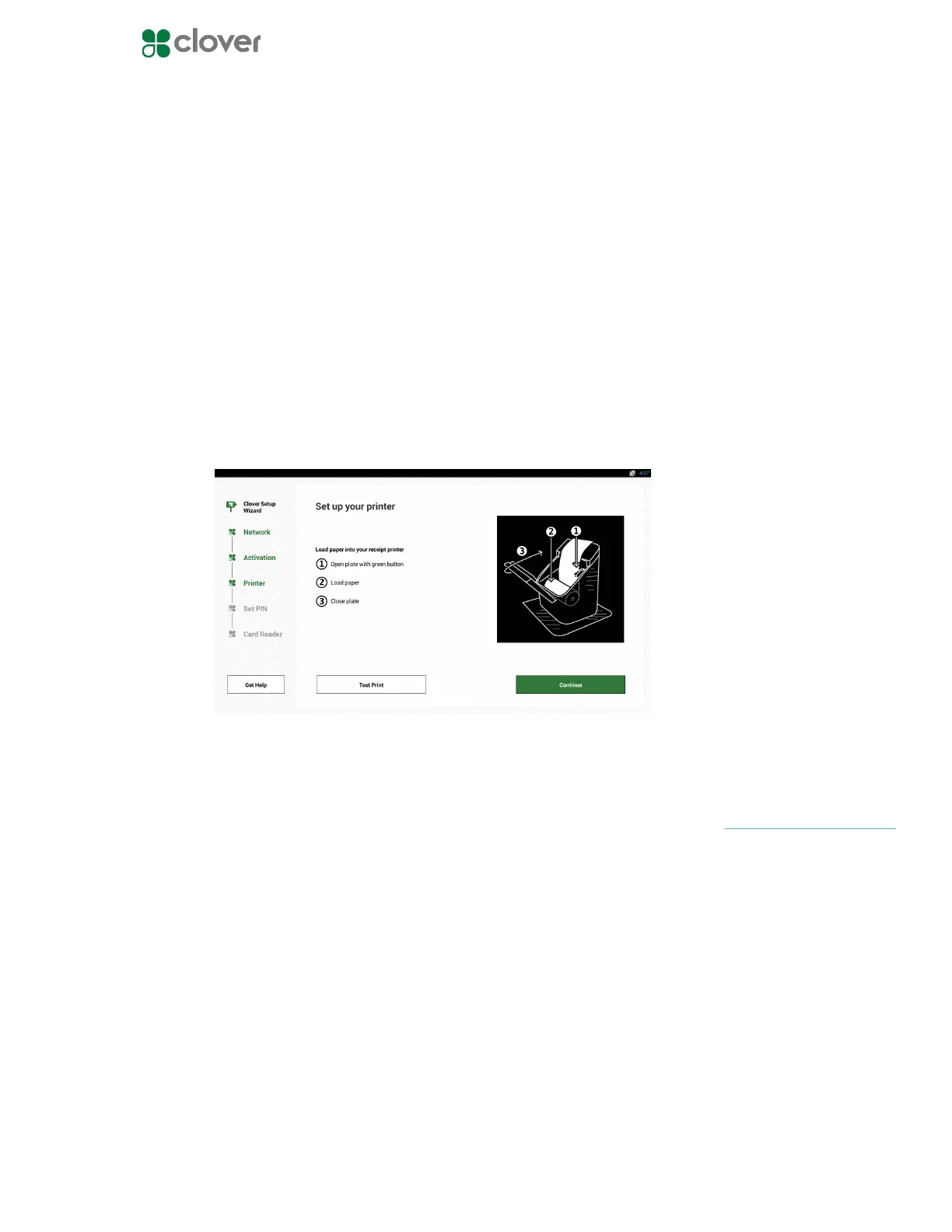
Insert paper roll into printer
1. To insert receipt paper into the Station Printer, pull open the front
panel of the Clover Station Printer
2. Push the green button to open the printer plate and pull the plate
back until it sticks to the front panel
3. Insert the paper roll so that the paper is sticking out of the back-
side of the roll
4. Pull the paper back and close the front panel, pushing until you
hear a click
• When closed correctly, the Printer will automatically cut the
extra receipt paper
• If the Printer does not cut the extra paper, press down on the
front panel and ensure that it is completely closed
Set up your Admin Account
If you’re activating your rst Clover device, you’ll be prompted to create
an Admin PIN.
1. Enter a 4 or 6-digit PIN that you would like to use to access your
Clover devices as the owner/admin
2. Re-enter that 4 or 6-digit PIN to conrm
You can change this PIN in the
future in the Employees app
NOTE



 To Next Page