7
Set Employee PINs & Take Transactions
A PIN allows you to provide dierent permissions levels to
dierent employees, as well as track their activities.
You may choose to operate without a PIN, however the PIN-less login
does not allow for advanced functionality associated with an owner.
To Set Up or Change a PIN
1. Tap the Employees app from the homescreen of your Clover device.
2. Tap the Employee name.
3. Tap the Edit button.
4. Type in either a four or six digit PIN.
5. Tap Set Employee PIN when done.
6. Repeat steps for any additional employees.
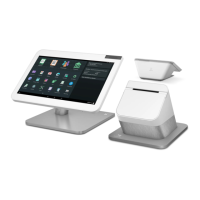
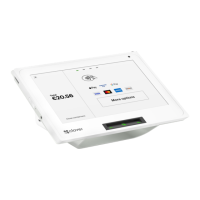
Taking Transactions on Clover Station
1. Open the Register or Manual Transaction app.
2. Enter the sale amount in Sale app or select items in Register app
3. Tap Charge in Sale app or Pay in Register app
4. Swipe magnetic stripe card or take a cash or other payment
5. Ask the customer to sign as necessary and enter a tip if enabled
6. Select your receipt option: Print, Email, or Text
7. Tap Done
You can change employee PIN
length to either 4 or 6 digits
in the Employees app’s Setup
tab in the Web Dashboard.
NOTE
Apple Pay, Android Pay, EMV
chip-card insert and chip-
card contactless payments
can be taken on a tethered
Station-Mini solution.
NOTE



 To Previous Page