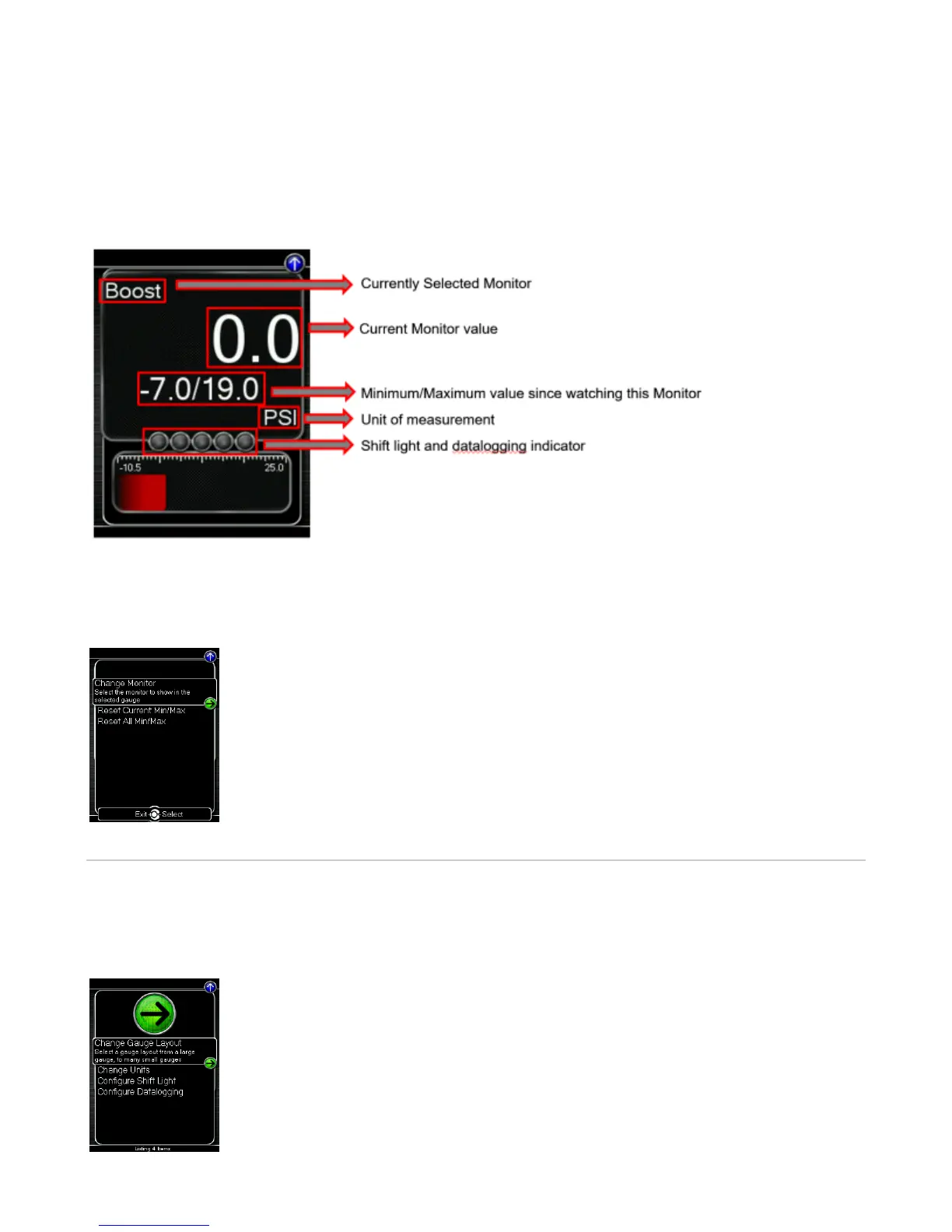
while in the Gauges function. While the Accessport is recording a datalog, a single
blue light will appear and oscillate through the shift light. To stop datalogging, press
the button again. To view the results of your datalog sessions, simply connect[OK]
the Accessport to your PC and retrieve the results using the AP Manager software.
Data Log recordings are stored in a .csv (Comma Separated Values) format and are
easily viewed using any spreadsheet application.
When you first select the Gauges function you will be defaulted to the Change Gauge
list so you can select which layout you prefer. Layout
Press the or button to select the header. Then press the button to highlight the monitor you would like to interact with[Up] [Down] [Down]
and press . You will then be presented with the following options.[OK]
Change Monitor – Select the monitor that will be shown in the selected gauge
Note: While in the Change Monitor list, you can press to find a Sort Monitors[UP]
option. This option will sort all monitors in reverse alphabetical order.
Reset Current Min/Max – Reset the minimum and maximum values of the selected
gauge
Reset All Min/Max – Reset the minimum and maximum values of all gauges
Setup
To enter the Setup function, press the [Up] button to select the header. Now press the
[Up] key to highlight the arrow button next to Setup and press [OK] to view the
sub-menu.
Change Gauge Layout – Select a gauge layout from a single large gauge, to many
small gauges
Change Units – Set the unit scheme
Configure Shift Light – Adjust the RPM of the Shift Light
Configure Datalogging – Select which monitors to datalog


 To Next Page