Page 12
Music Mode
If your music fi les contain ID3 song information tags,
you will be able to view your tracks by Artist, Album,
or Genre. To view all fi les (including those that do not
contain ID3 information), select “All Songs” or use the
“Browser” option.
If music is already playing, you will have the additional
option to return to the Now Playing screen.
Lyric display requires a “.LRC” lyric fi le which may be
found on the internet or may be created with a Lyric
fi le editor. Lyric fi les can contain synchronized timing
information as well as lyric information.
Lyric fi les must have the same name as its correspond-
ing music fi le (e.g., “SongTitle1.lrc” and “SongTitle1.
mp3”) and must be placed in the same directory.
Using the Quick Play List
To create a quick Play List that contains your
favorite songs:
1. Select “Browser” from the Music Browser screen.
2. Use the Browser controls to select a song to add.
3. Press and hold <ENTER>. The screen will
display “Add to List”.
4. Press <ENTER> to fi nish adding the song to
the Play List.
This quick Play List can be played from the Quick Op-
tion menu of the Now Playing screen (see page 15 for
more details).
.
Page 33
Macintosh OS X
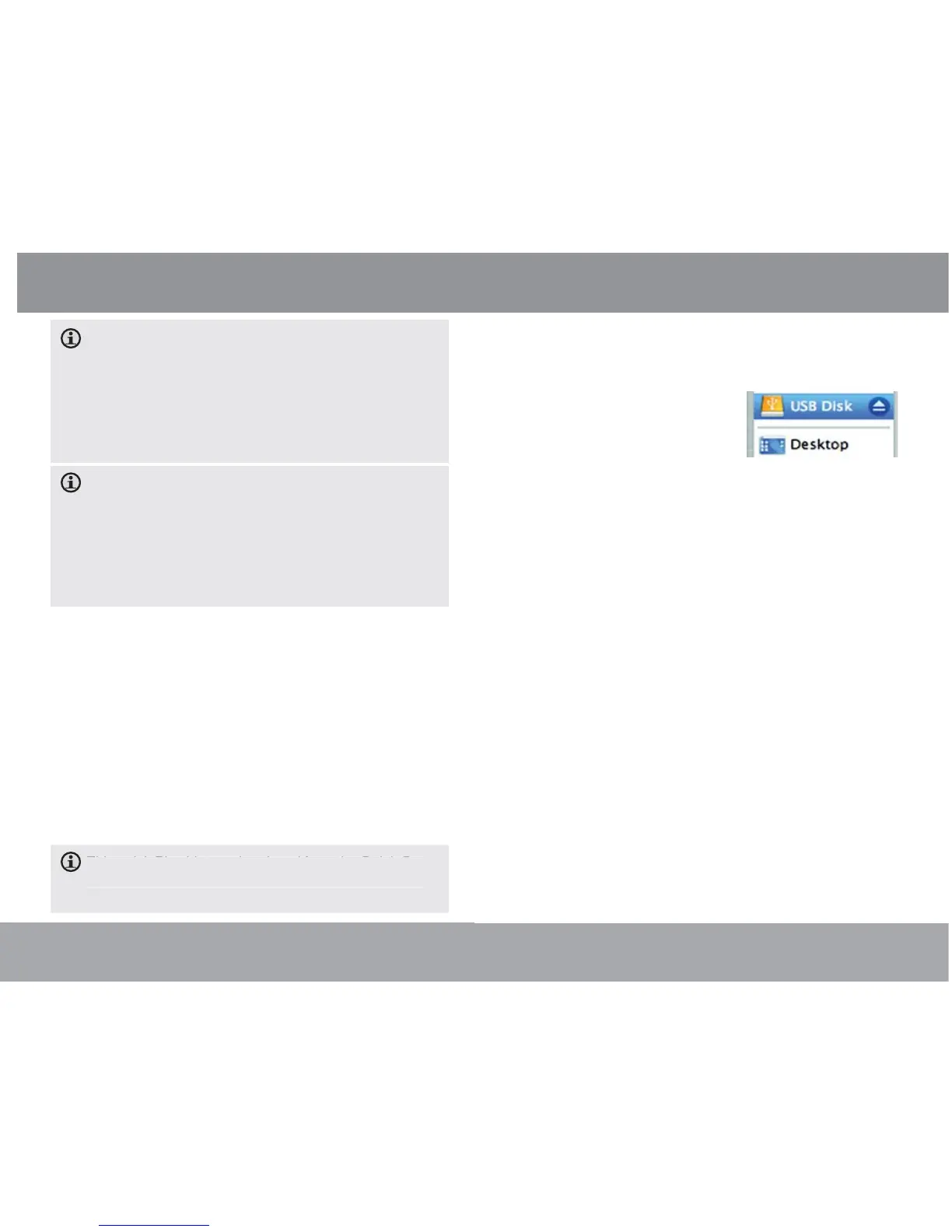
1. On the left side of the Finder Window, identify
the appropriate Removable Disk icon.
2. Click on the “Eject” ar-
row on the right of the
Removable Disk icon.
3. Disconnect the USB
cable from the player
and your computer.
Transferring Files to the Player



 To Next Page