Page 16
Browse for and view your photo fi les (JPG and
BMP).
For more information about how to get pictures onto
your player, please refer to the section “Transferring
Files to the Player”.
Picture Browser Controls
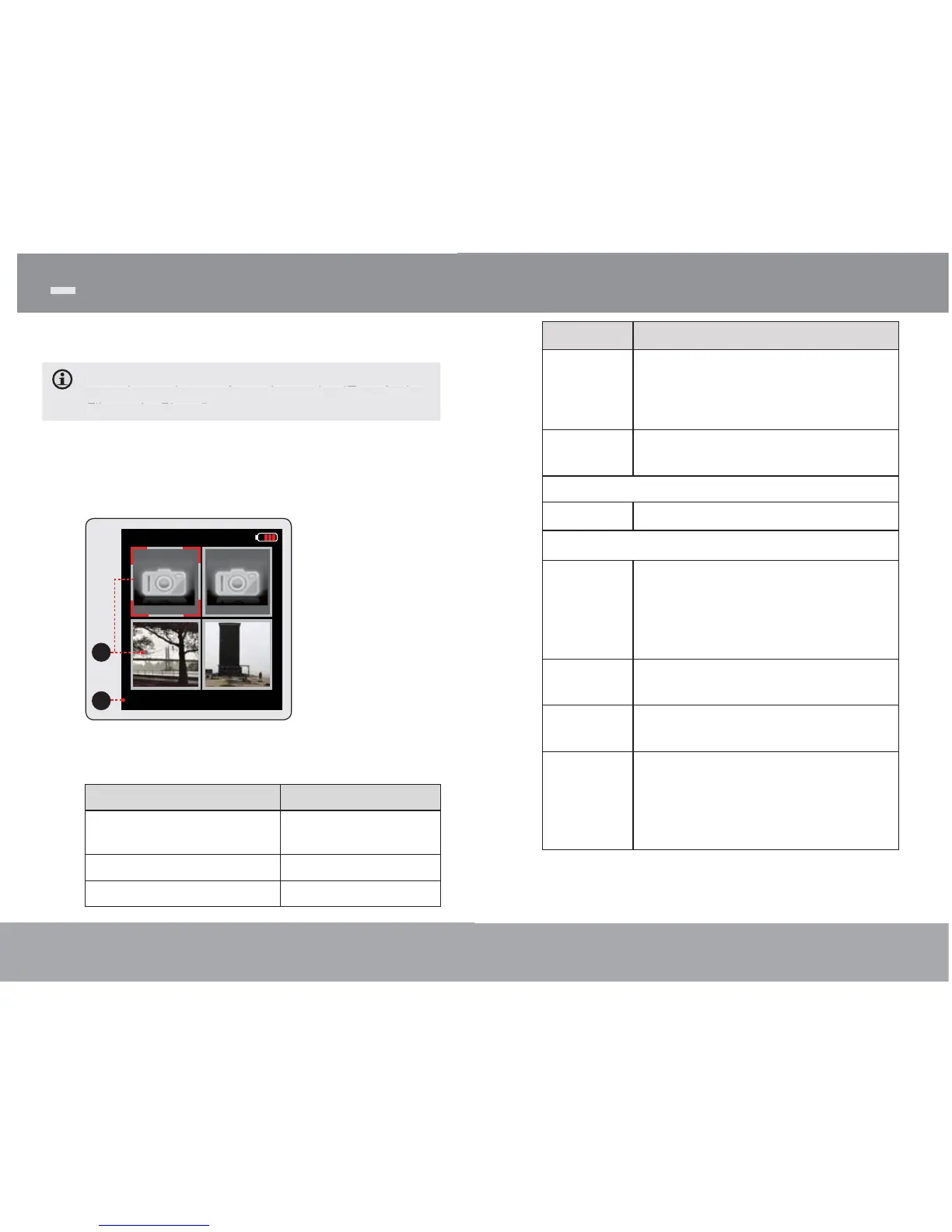
When you choose PICTURES mode from the Main
menu, you will see the Picture Browser screen. Your
pictures will be displayed as thumbnail images.
Use the Picture Browser to fi nd all picture fi les
loaded on your player.
Function Key Action
To browse through the pictures
& folders
Press <UP>, <DOWN>,
<LEFT>, <RIGHT>
To select/view an item Press <ENTER>
To return to the previous screen Press <MENU>
Pictures Mode
For more in
1. Picture
2. N a m e o f t h e
selected picture
Page 29
Item Description
Backlight Adjust the duration of time (in seconds)
that the backlight will remain on after a
key press. A setting of “On” will keep the
backlight on continuously.
Brightness Adjust the contrast of LCD display.
Record(Optional)
-- Set the quality of the recording.
Sys Tools
Format It may become necessary to format your
player if data or fi les become corrupt. You
may choose either Quick or Complete
formatting. A Complete format will take more
time.
Reset Restore all of the player's settings to their
factory-default state.
Sys Info View Firmware & Memory Usage informa-
tion.
Sort Sort all music that loaded on your player. Se-
lect “Force Sort” to update the music library
immediately. This process may take several
minutes if you have transferred music fi les to
the player recently.
Settings Mode



 To Next Page