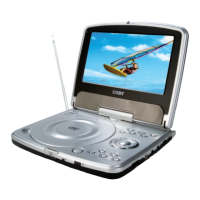
DVD/CD FUNCTION
LCD Mode
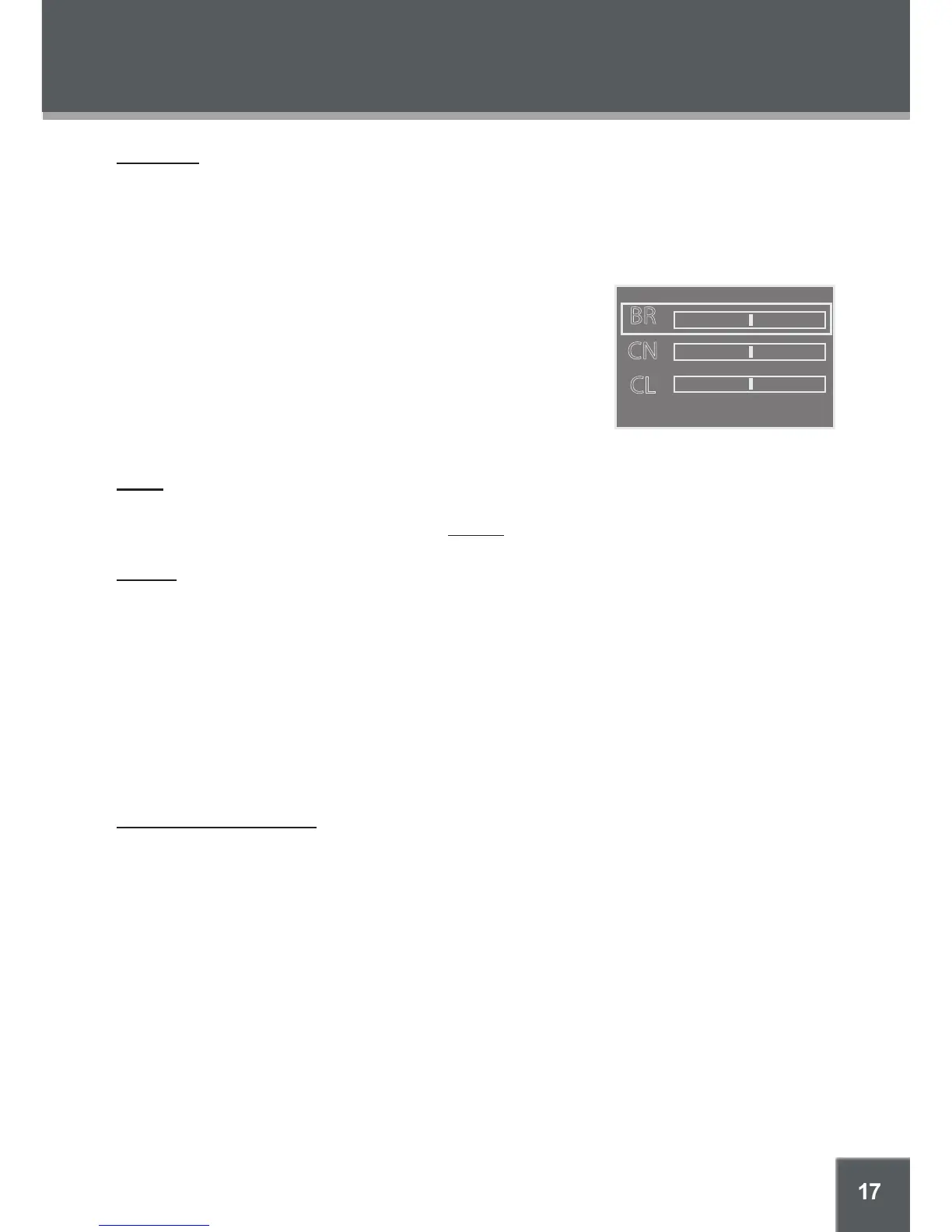
Press the SETUP button once to adjust the brightness, contrast, and color of the LCD screen.
Press the up/down NAVIGATION keys to select the desired setting to adjust. From top to
bottom, the settings are: Screen, Brightness, Contrast, Color, and Reset.
Press the left/right NAVIGATION keys to adjust the selected setting.
Use the BR (BRIGHTNESS) adjustment to make the
screen brighter or darker.
Use the CN (CONTRAST) adjustment to display a
picture with higher or lower contrast.
Use the CL (COLOR) adjustment to display a picture
with higher or lower color saturation.
Select RESET and press ENTER to return the LCD
mode adjustments to their factory-default settings.
Setup
Press the SETUP button twice to enter the player’s setup menu. Enter the Setup menu to adjust
the player’s internal settings; please see the SETUP section for more details.
Display
Press the DISPLAY button:
1x: Title Elapsed time is shown on-screen;
2x: Title Remaining time is shown on-screen;
3x: Chapter Elapsed time is shown on-screen;
4x: Chapter Remaining time is shown on-screen;
5x: Status Information is show on-screen;
6x: Cancel on-screen display.
Ctrl/Clear (Control/Clear)
The CTRL/CLEAR button controls 2 functions: Control and Clear.
Control
Press the CTRL/CLEAR button to display the Control menu on-screen. Enter the Control menu to
display and change common playback control options.
Press CTRL/CLEAR
Press the up/down NAVIGATION keys to select a Control item: Title, Chapter, Audio Track,
Subtitle1, Subtitle2, Angle, or Repeat Mode.
Press the right NAVIGATION key to access a Control item’s submenu (if available). Press
the left NAVIGATION key to go back.
In the submenu, press the up/down NAVIGATION keys to select an item and press ENTER
to conrm.
1.
2.
•
•
•
•
•
•
•
•
•
•
1.
2.
3.
4.


 To Next Page