27
Applications menu
From the application menu you can also customize the main menu. Press the left
selection key to display the available options:
● Wallpapers: choose the wallpaper of the main menu among the available
backgrounds.
● Softkeys: select the application associated with the right soft key in the main
menu.
Under the application menu, use the arrow keys [ ] [ ] [ ] [ ] to select one of the
icons, and press [ ] button to access the application.
Settings
Select the icon from the applications menu, and press [ ] to access the
system settings menu. Use the [ ] [ ] arrow keys to select the network and Internet
settings, the connected devices, the battery, the screen, etc., and press [ ] to
access the configuration.
Alarm
Select the icon from the applications menu, and press [ ] to access the alarm
application. Press [ ] to activate or deactivate the selected alarm, or press the left
softkey to edit, delete or add new alarms.
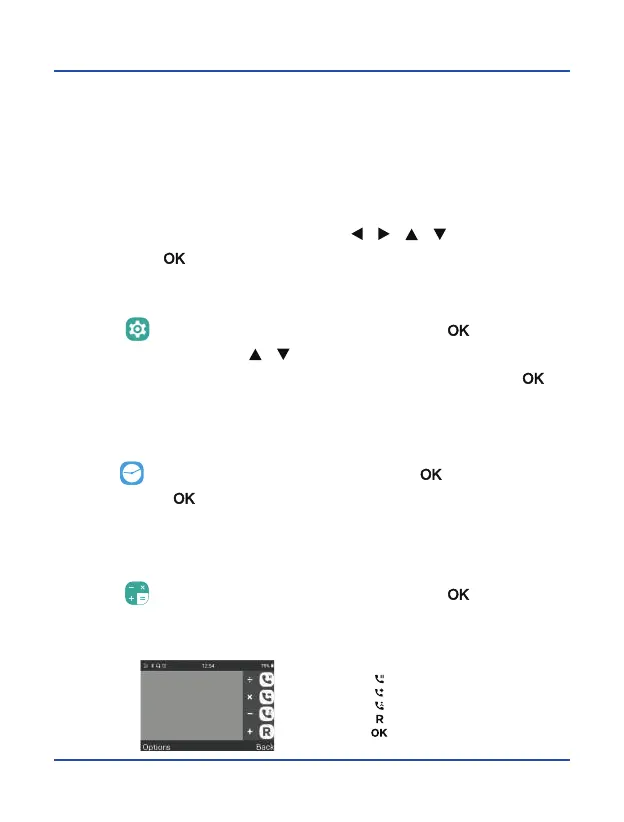
Calculator
Select the icon from the applications menu, and press [ ] to access the
calculator. Use the following keys on the right-hand side of the interface to perform the
different arithmetic operations.
[ ] Divide
[ ] Multiply
[ ] Subtract
[ ] Add
[ ] Equal to


 To Next Page