29
Applications menu
PC Suite
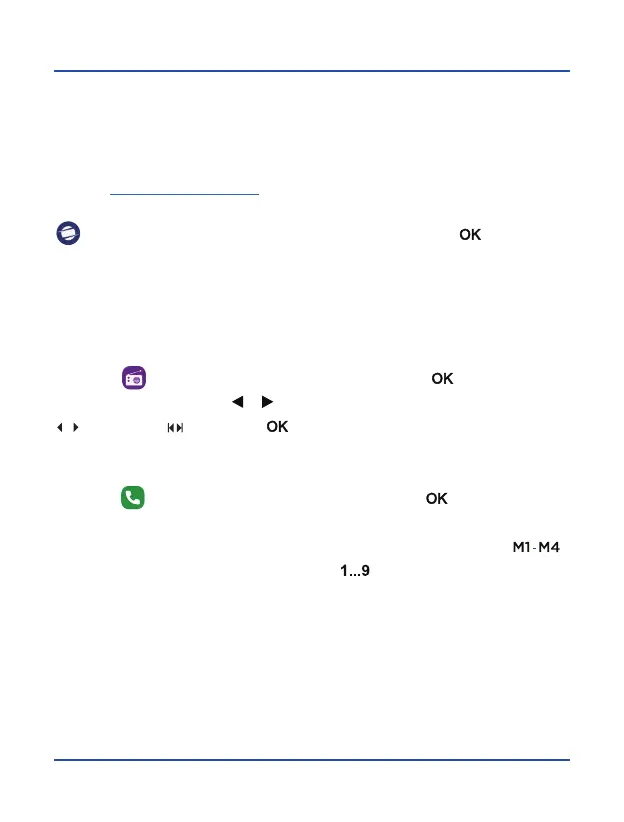
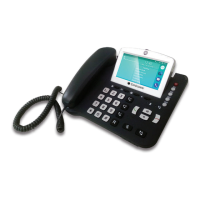
Your Co-Comm F740 terminal has a PC application that allows you to manage your
calls, messages, contacts, and so on, easily from your personal computer. You can
download the PC application for your Co-Comm F740 in the PC Suite section of this
Web site http://www.cocomm.es.
Install and execute the downloaded application on your personal computer. Select the
icon from the applications menu on the telephone, and press [ ] to access PC
Suite mode. Connect the USB cable between your terminal and your PC, then press
Options and select Activate PC Suite in the pop-up menu to connect your Co-Comm
F740 to the installed application on your PC.
FM Radio
Select the icon from the applications menu, and press [ ] to access the FM
Radio application. Use the [ ] [ ] arrow keys to select the search mode, manual
( ) or automatic ( ), then press [ ] to search for radio stations.
Telephone
Select the icon from the applications menu, and press [ ] to access the calls
menu. From that menu, you can make calls to a contact, dial a phone number or send
text messages. You can also assign phone numbers to the speed dial keys [ ],
as well as to buttons from the numeric keypad [ ]. Press the left softkey to display
the options menu and follow the instructions displayed on the screen.


 To Next Page