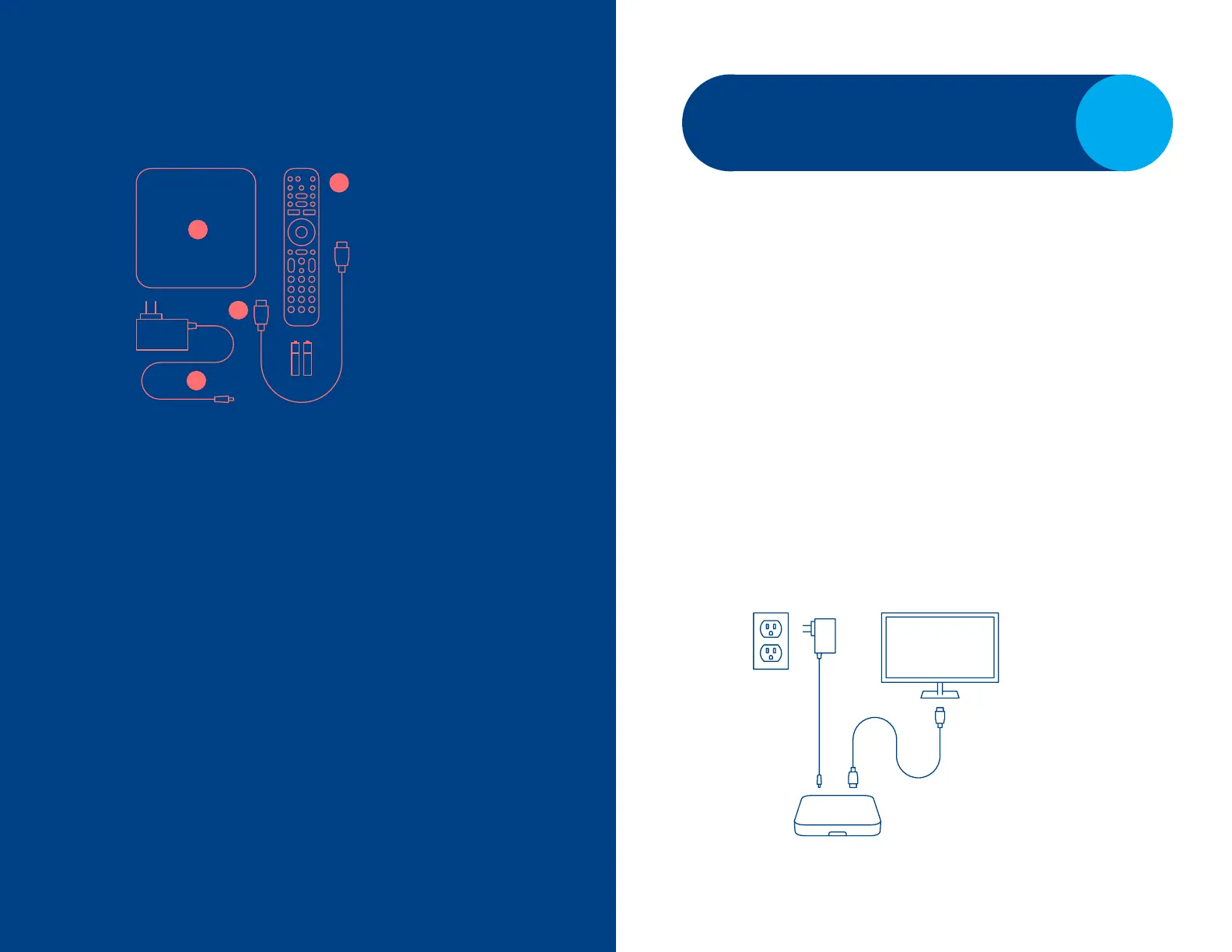
What you’ll nd in your box:
What you need before
geing started:
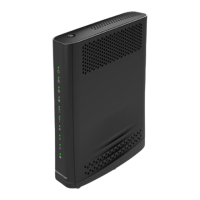
•• Your Cogeco Internet modem, already
installed and functional.
•• A My Account username and password. If you
still need to create a My Account prole with
Cogeco, visit cogeco.ca/myaccount.
•• Google account login information (email
address and password). Note: This is optional,
but required for voice search and access to the
Google Play Store.
•• The network name and password of your
Cogeco wireless home network.
•• An EPICO remote control (supplied by Cogeco).
•• An Android phone (optional).
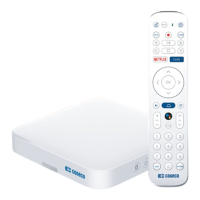
1. EPICO 4K Cloud PVR
2. EPICO remote with
baeries
3. HDMI cable
4. Power cord
1
Connect the EPICO 4K Cloud PVR and your
TV with the HDMI cable.
2
Connect the power cord and ensure that
both the TV and the PVR are powered on.
3
Set your TV to the HDMI input and
follow the self-install instructions on the
following pages.
1
2
3
4
Plugging in your
equipment.
1
Note: Your EPICO 4K Cloud
PVR can be physically
connected to the Internet,
o the Wi-Fi network, using
an Ethernet cable.


 To Next Page