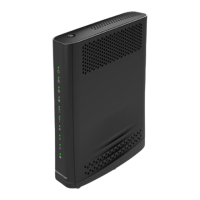
Now that your hardware is ready, it’s time to
congure and sign in to EPICO for the rst time,
on your TV.
1
Choose your preferred language.
2
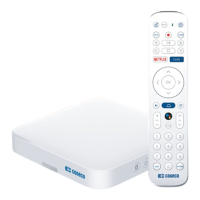
Pair your EPICO remote control with your EPICO
4K Cloud PVR. Select PAIR and follow the on-
screen instructions. Make sure to rmly press the
OK and 2 buons at the same time, and hold for
a few seconds to complete the pairing.
3
Connect your PVR to your Wi-Fi. This can be
done in one of two ways:
• • Sign in using your Android phone by
selecting CONTINUE and following the
on-screen instructions. Select SKIP if you
don’t have an Android phone or if you
don’t want to set up your EPICO service
using your Android phone.
OR
• • If you don’t have an Android phone, select
your Cogeco Wi-Fi network and log in with
your username and password on your TV.
• If you have access to both 2.4Ghz
and 5Ghz Wi-Fi networks, we strongly
recommend connecting to the 5Ghz
network to ensure optimal performance
of your EPICO service.
4
Pair your EPICO remote control with your TV. This
allows you to control your TV and the EPICO 4K
Cloud PVR with the same remote. Select BEGIN
and follow the on-screen instructions to complete
the process.
• • Select SKIP if you don’t want to pair your
remote with your TV. You can set up your
remote control later via the user interface:
Seings > Android TV Seings > Remotes &
accessories > choose your remote control >
choose TV > AVR Control
5
If required, use the buons to adjust your screen
to optimize the viewing area, then save and exit.
2
Set up your EPICO service.


 To Next Page
 Loading...