CHARGE AND ACTIVATE
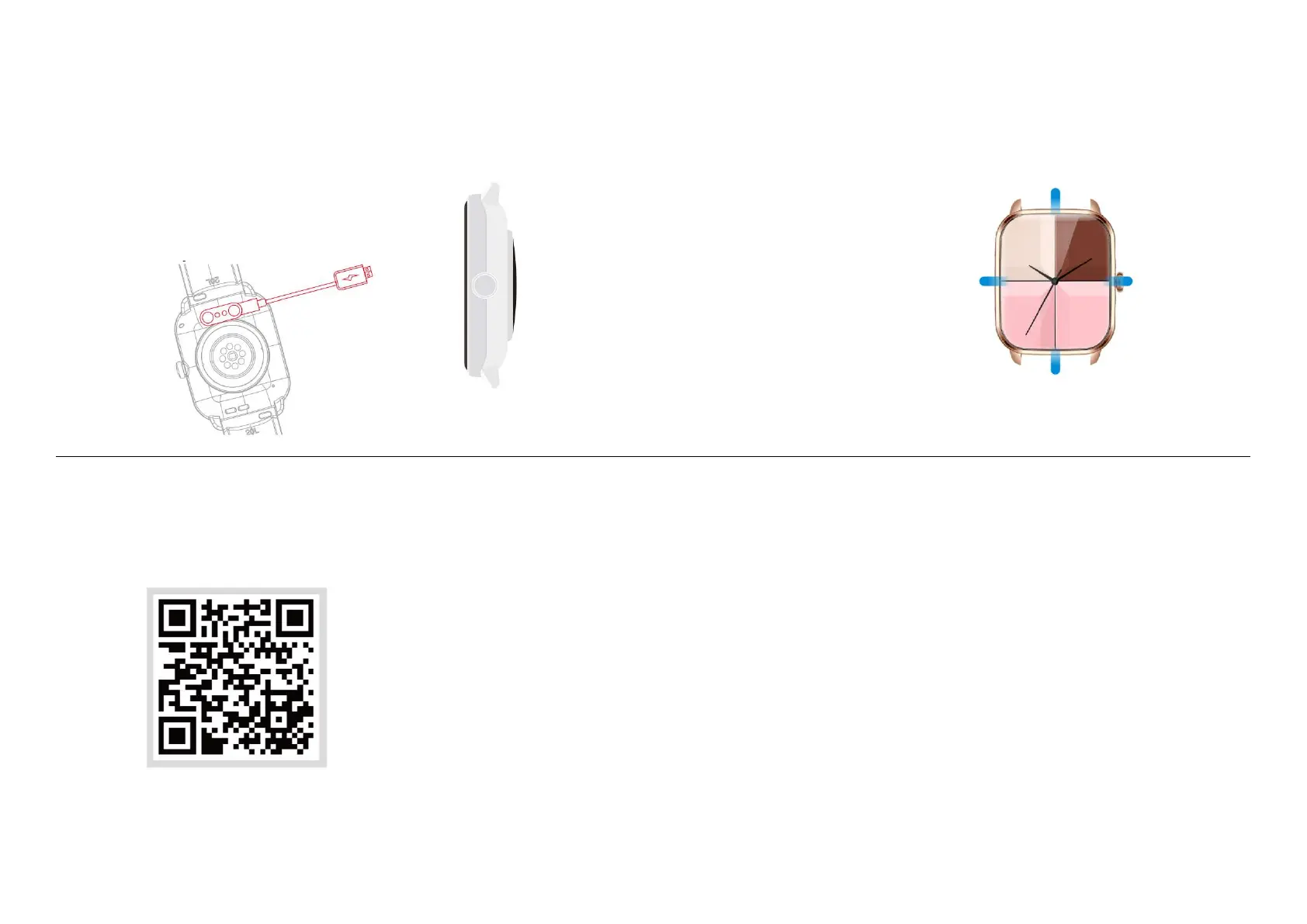
Align the magnetic charger with the magnetic hole on the
back of the watch until it reaches the watch screen. When
the charging prompt appears, please charge the watch in
time when the power is low. The backup is an all-in-one
machine, and the rear shell and battery cannot be removed.
BUTTONS AND TOUCH
1.Long press to turn on the watch when off
state.
2.In the power-on state, press and hold to
display the shutdown page, and draw the right
page to shut down.
3.Press once on the watch dial to enter the
menu, and press the button twice in quick
succession to switch the menu styles.
4.When on the other interfaces, press the
button to return to the watch dial interface.
Swipe rights:
Short cut keys
and weather
Swipe left:
Sports data
Swipe up: messages notification
Underscore: Control center
SMART WATCH APP DOWN-
LOAD AND CONNECTION
Scan the QR code above to download
1. Download the "FitCloudPro" APP on your mobile
phone and install it. You can scan the QR code in this
manual , or scan the QR code on your watch, or
directly search for "FitCloudPro" in the APP mall to
download.
1) Scan the QR code to connect: After the mobile phone turns on the
Bluetooth, enter the APP (Note: If the APP cannot be opened, please turn
on the positioning of your phone and then open the APP) Click on the
device -> Click on 'Add Device' -> Click on 'Scan QR Code Binding' (scan the
QR code on the watch).
2) Manual connection: After the mobile phone turns on Bluetooth, enter
the APP (Note: If the APP cannot be opened, please enable the mobile
phone positioning function and then open the APP) Click 'Device' -> Click
'Add Device' -> Click 'Search Device' (Find the corresponding item in
"Settings" -> "System" -> "System Information" in the watch sliding control
center Bluetooth name and MAC address of the device) -> Click 'Connect'.
3)Connect to Bluetooth call: In the initial state of the watch, the Bluetooth
call is turned off, and the call and music functions cannot be used at this
time. Slide down to open the 'Control Center', click the 'Headphone' icon,
turn on the audio mode, and then turn on the Bluetooth call in the mobile
phone system (when the mobile phone's Bluetooth is turned on/down),
find the corresponding Bluetooth name, and click 'Connect'. After the con-
nection is successful, the call and music functions can be used normally.
2. Connect the smart watch
1. Dial interface: Long press the screen to enter the dial
selection interface, swipe left or right to switch the dial, and
click once after confirming the dial.
(Note: The system presets 20+ watch dials, the last dial is
"customize", this watch dial will change with the watch dial
market updating of the APP port and the download settings
of the custom watch dial)
2. Menu interface: On the dial interface, press the button
on the side to enter the menu interface. After entering the
menu interface, press the button twice in quick succession
to enter the menu switching interface, and press it to return
to the main interface.
3. Function interface: Click the application icon on the menu
interface to enter the corresponding function interface,
swipe right to return, and press the side button to return to
the main watch dial interface.
INSTRUCTIONS FOR USE


 To Next Page
 Loading...