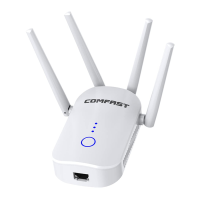
Relay installation steps
2.1 In factory mode, power on the device. If the white indicator turns
green, the system is successfully started. (During the power-on
process, a red light is normal.) Connect wifi "COMFAST_XXXX_2G"
or" COMFAST_XXXX_5G".
2.2 After the connection is successful, enter comfast.com or
192.168.10.1 in the browser to enter the management page using ip/
domain name; Enter your password in the password box on the first
login page and click "Set Password".
2.3. After you set the password for the first time, the trunk scan page is
automatically displayed. To set the trunk, select the SSID to be routed,
enter the password of the upper-level route and click Save Application
to complete the trunk, and reconnect to the wireless network. The
wireless password is the password of the upper-level route (After the
extended signal, "-2G/5G" will be added to the name of the upper-level
wifi, such as XXXX-2G/5G). After the relay is completed, the lan/wifi IP
address is assigned by the superior. If you want to enter the
management page after the relay is successful, connect the mobile
phone to the wireless wifi of the device (turn off mobile data), and enter
comfast.com in the browser to enter the management page.



 To Next Page