EasyManua.ls Logo

Commodore PC - 10 Debug

Commodore PC
414 pages
Print Icon
To Next Page IconTo Next Page
To Previous Page IconTo Previous Page
Loading...
The
Une
Editor
(Edlin)
135
n
INS
ins
^
Purpose:
Enters
insert
mode
or
replace
mode.
»)
Comments:
When
you
start
edlin,
you
are
automatically
in
replace
mode.
/■■v
The
first
time
you
press
the
ins
key,
edlin
enters
insert
mode.
In
insert
mode
the
cursor
in
the
template
does
not
move,
but
in
the
current
line
it
moves
as
you
insert
each
character.
When
you
fin-
^.
ish
inserting
characters
and
press
the
ins
key
again,
edlin
reenters
(
^
replace
mode
with
the
cursor
at
the
same
character
in
the
tem
plate
as
when
you
entered
insert
mode.
^.
In
insert
mode,
edlin
puts
characters
that
you
type
at
the
key-
f
'
board
into
the
template
and
in
front
of
the
cursor
on
the
current
line.
^-v
In
replace
mode,
edlin
replaces
characters
in
the
template
and
on
f
'
the
current
line
with
characters
that
you
type
at
the
keyboard.
Examples:
'
As
an
example
of
how
to
use
the
ins
key
with
edlin,
type
the
following
line:
(~*\
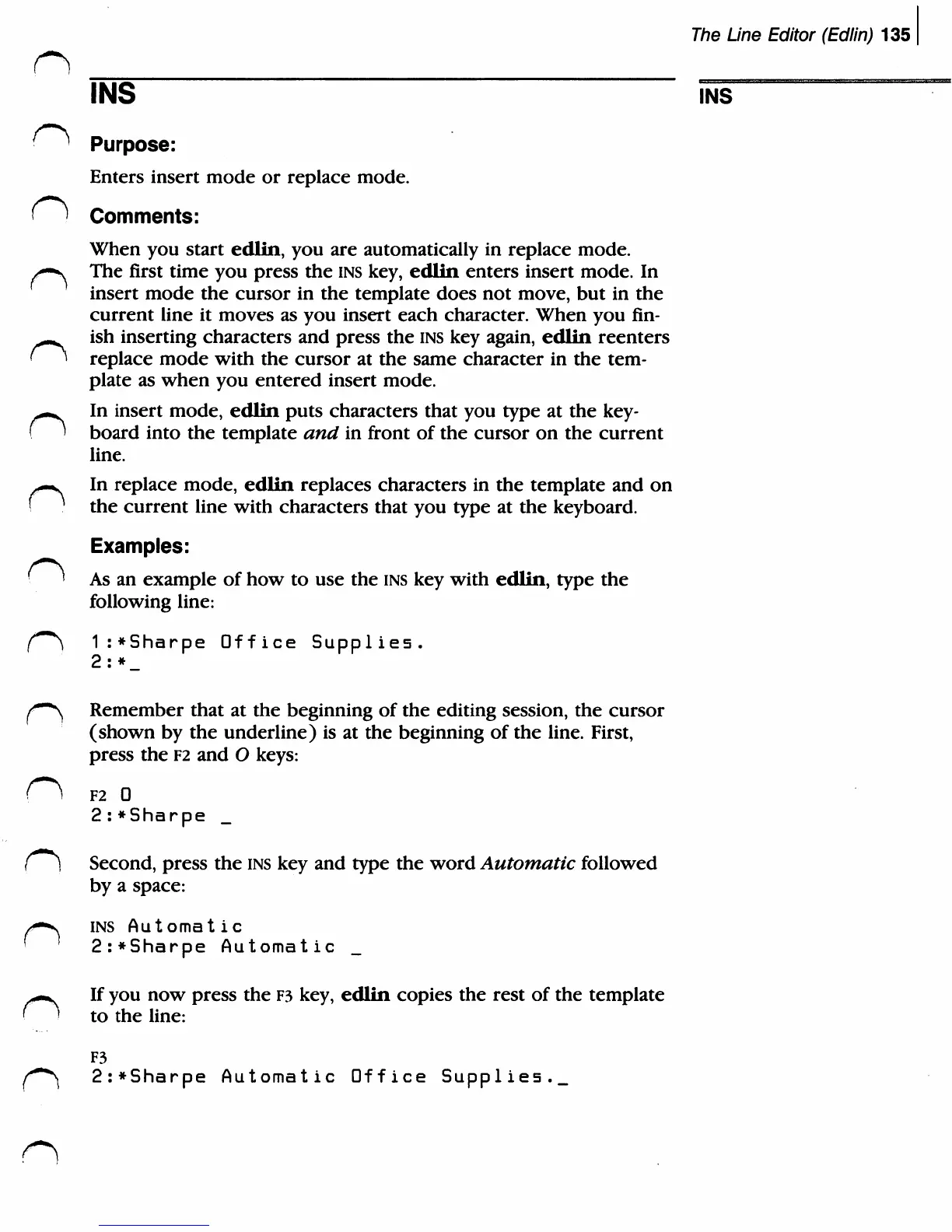
1:*Sharpe
Office
Supplies.
2:
*_
^—"N^
Remember
that
at
the
beginning
of
the
editing
session,
the
cursor
(shown
by
the
underline)
is
at
the
beginning
of the
line.
First,
press
the
F2
and
O
keys:
O
F2
0
2:*Sharpe
(]
Second,
press
the
ins
key
and
type
the
word
Automatic
followed
by
a
space:
/*-v
INS
Automatic
<
]
2:*Sharpe
Automatic
>*-v
If
you
now
press
the
F3
key,
edlin
copies
the
rest
of
the
template
' '
to
the
line:
F3
(***)
2:*Sharpe
Automatic
Office
Supplies...

Related product manuals