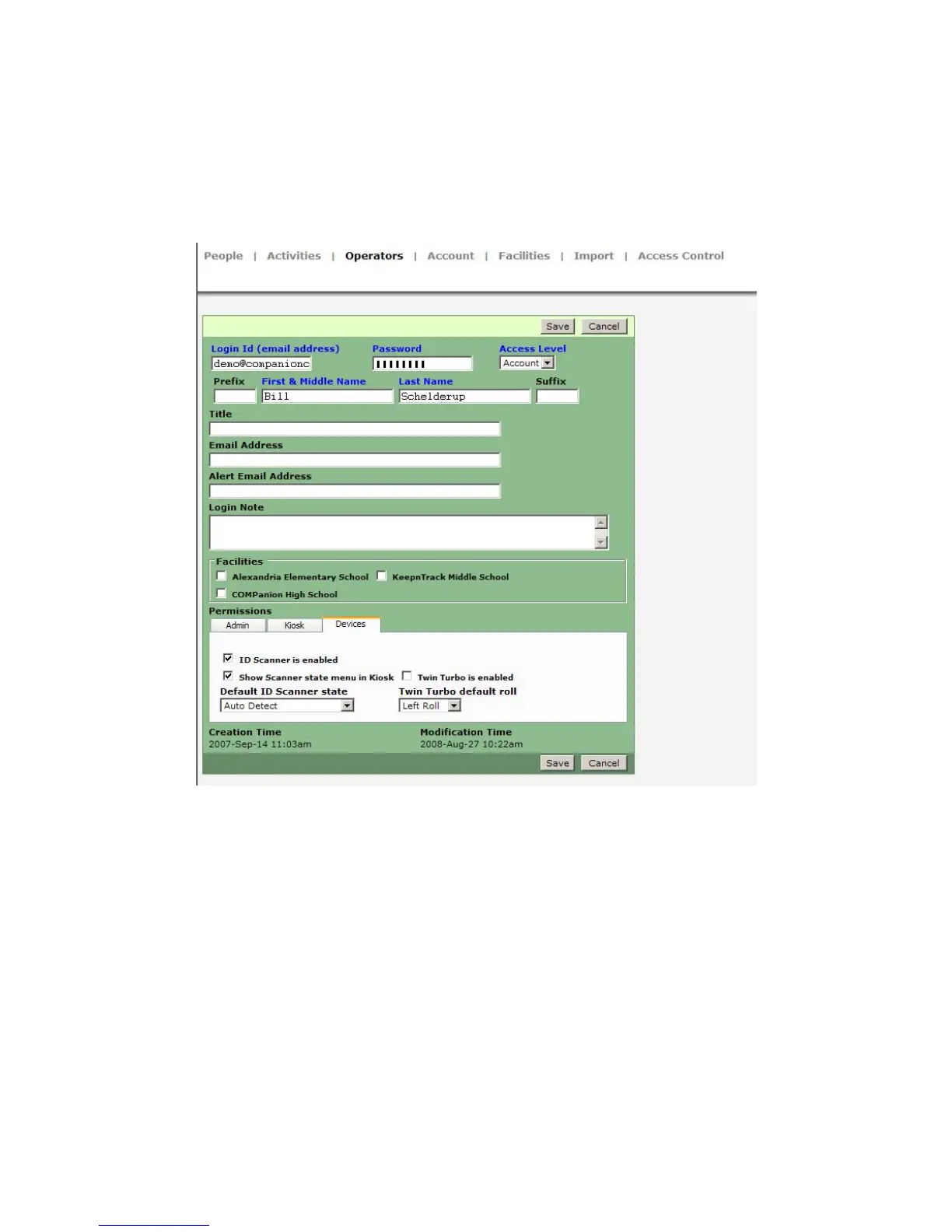
Once your device has been calibrated, you must ensure the ID Scanner is enabled for
all operators signing into the kiosk. Under the Operators permissions in the Operator
Control Panel in Administration select the Devices tab and ensure the option titled ID
Scanner is Enabled is selected (Image 22)
Image 22
You may now log into the KeepnTrack kiosk to perform sign-in and even sign-out
processes requiring id.
After selecting Sign In or Sign Out, place an ID in the scanner tray, squarely aligned
to the right, and click the Scan ID button (Image 23).
IG0069.2 — V6450 Driver’s License Optical Scanner Page 12 of 16



 To Next Page