17
iii. QUICK START-MAKING CONNECTIONS WITH BRIC-LINK
This secon skips over many of the details concerning the conguraon of remote connecons with BRIC-Link, and
focuses instead on the minimum informaon needed to establish a connecon. BRIC-Link connecons with the use
of the Switchboard server will be covered.
MORE ABOUT PROFILES
Refer to Page 31 for more informaon about creang proles on BRIC-Link. Proles, once created, can be assigned
to any remote connecon on the Connecons page. BRIC-Link ships with several popular proles pre-programmed
by default, and has the ability to create custom proles. For the purposes of this Quick Start, use the system default
prole, which won’t require changes to the factory default sengs. This factory-default prole uses the Opus mono
encoder in both direcons of the link.
LOGGING IN
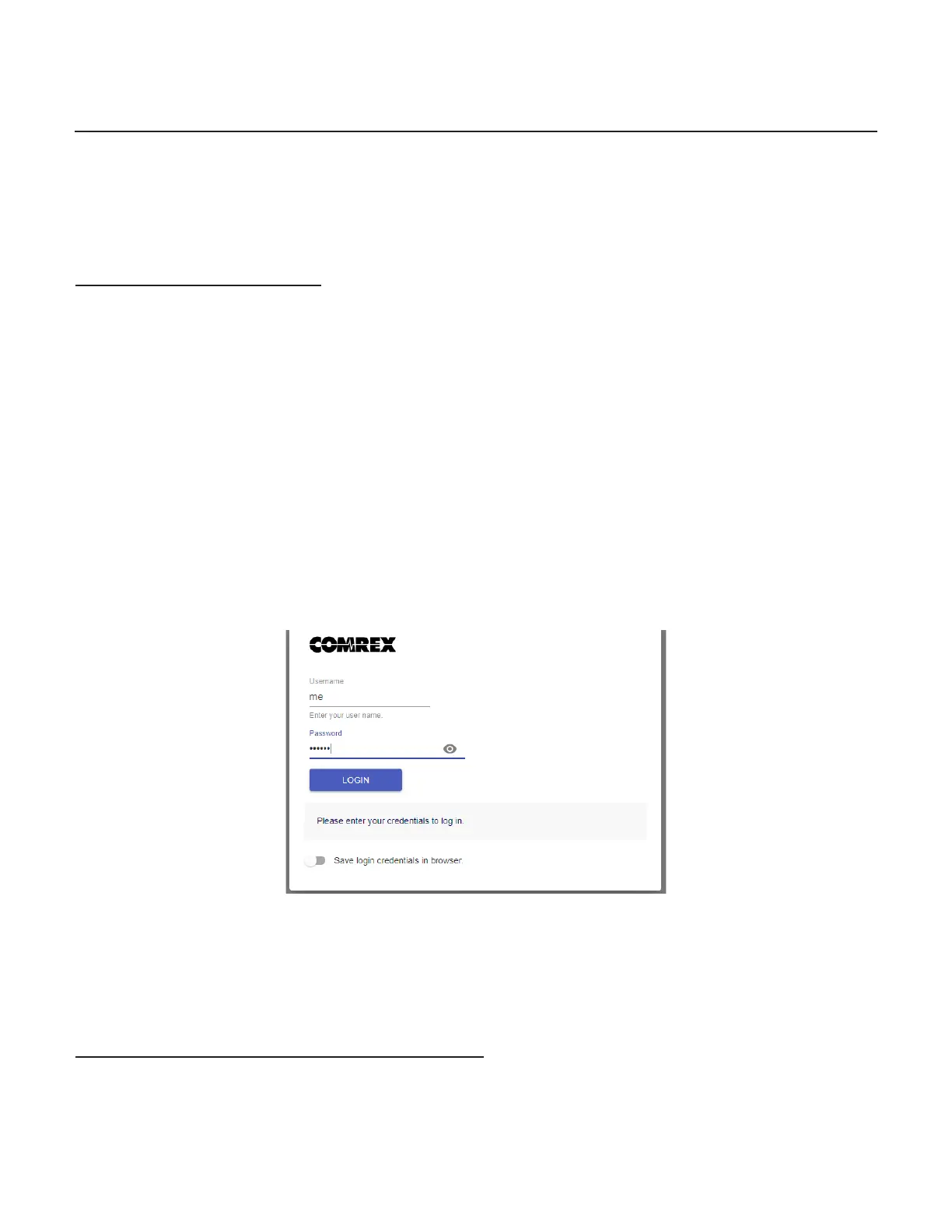
Aer determining the IP Address of the BRIC-Link, open any computer’s web browser on the same network as
BRIC-Link. Type the IP address in the browser URL to navigate to the BRIC-Link’s web interface. Log in to BRIC-Link
with any user name and, if it has not been changed, the default password “comrex” (lowercase).
FIGURE 3 WEB INTERFACE LOGIN
MAKING SWITCHBOARD CONNECTIONS
On the Web Interface, select the “Connecons” Tab. This Tab will populate with a list of available remote codecs to
call. When the BRIC-Link is “synced” with Switchboard, connecons to other codecs in a user’s Switchboard account
are simple. Go to the lisngs on the boom that appear with a “Gear” icon on the le side. Any units with a Green


 To Next Page
 Loading...