42
VI. NETWORK MANAGER
NETWORK MANAGER
Located in the three-line “hamburger menu” in the upper le hand side of the Web-Based Interface, the Network
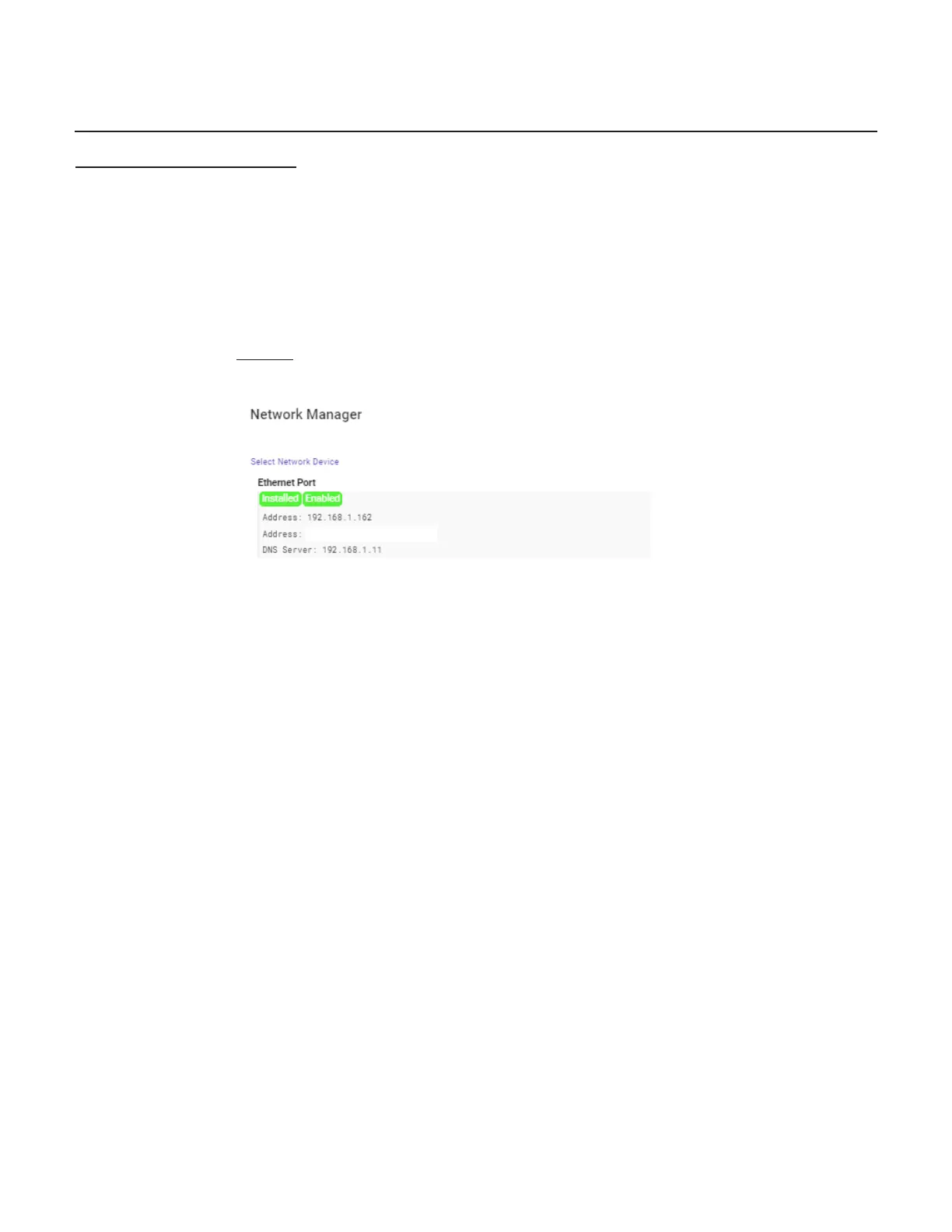
Manager allows conguraon to the network sengs for BRIC-Link. Selecng Network Manager will bring up the
screen shown in Figure 24. The available networking connecons from BRIC-Link are presented on the le-hand
side of the screen in the Select Network Device secon. This area will populate with the available Ethernet Port
used to make a Network connecon. Here the IP and SSID sengs for this network connecon can be congured.
Because there may be bandwidth, rewall, and/or security concerns involved when installing BRIC-Link on a
managed LAN, Comrex strongly recommends that users consult their IT manager in environments where these
concerns are present.
The primary ethernet port for BRIC-Link is congured for DHCP by default. In this conguraon, BRIC-Link will be
assigned an IP address from a pool of available IP addresses from the network router upon boong. If BRIC-Link
is connected to the Internet, it should display connecon informaon for the Ethernet Port, including IP and DNS
server addresses. (If it doesn’t display this informaon, conrm that the unit is connected to the Internet and that
the Ethernet Port is enabled.)
ETHERNET PORT SETTINGS
Select the top Ethernet Port (for the primary Internet) on the upper le of the screen in the Select Network Device
secon. The default conguraon for the Ethernet Port will display in the box as seen in Figure 25.
This port can be renamed, as well as enabled or disabled in these sengs. The Acve Network Locaon secon of
the device sengs will note which network conguraons the unit is using for the Ethernet Port. By default, the
Acve Network Locaon will be populated with the “Default” locaon. This “Default” locaon is congured for
DHCP and is inially enabled on all new units. See the next secon for a descripon of network “locaons”.


 To Next Page
 Loading...