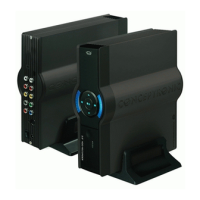
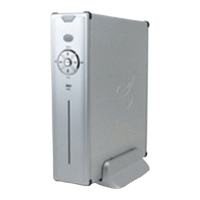
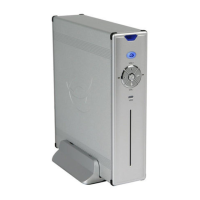
• Disconnect the CM3PVRD from your computer and connect it to your TV. Turn on the CM3PVRD.
• Select the ‘Movies’ [1] icon in the Main Menu with the ‘Navigation’ buttons (15) on the remote control,
and press the ‘Enter’ button (26
) on the remote control to open the ‘Movies’ Mode.
• Use the ‘Navigation’ buttons (15) and the ‘Enter’ button (26) on the remote control to navigate to the
‘VIDEO’ folder on the internal hard disk.
The DVD folder(in the example
: ‘Movie1’) will be shown in the file browser, indicated with a DVD Disc
icon.
• Select the DVD you want to play with the ‘Navigation’ buttons (15) on the remote control.
• Press the ‘Play/Pause’ button (17) on the remote control to start the playback of the selected DVD.
Note:
Do not use the ‘Enter’ button (26) to start. is will only show the files/subfolders and does not
start DVD Playback.
During DVD playback, you can use the following playback options on the remote control:
- Play/Pause (17) Play the selected DVD folder or pause the playback.
- Stop (24) Stop the playback of the DVD and return to the Movie browser.
- Navigation keys (15) Navigate through the DVD Menu.
- Enter (26) Confirm DVD Menu selection(s).
- Rewind (18) Fast Rewind.
- Fast Forward (23) Fast Forward.
- Previous (19) Previous Chapter.
- Next (22) Next Chapter.
- Sub-t (37) Change or turn off the subtitle of the DVD.
- Audio (4) Change the audio track of the DVD (when the DVD contains multiple
audio tracks).
- Menu (40) Return to the DVD Menu.
- Title (5) Return to the DVD Menu.


 To Next Page
 Loading...