USER MANUAL
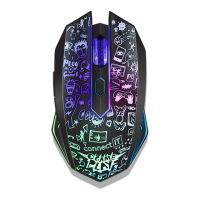
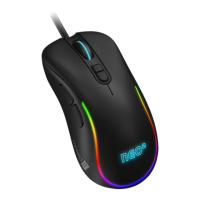
PROFESSIONAL GAMING MOUSE
CMO-3589 series
CONNECT IT® is a registered trade mark R202201-IM-CMO3589
EN
2
1
Technical specification
7 buttons including scroll wheel
14 RGB backlight modes
Backlight mode that responds to sounds from the computer
Ergonomic design for 3 gaming mouse grips (Claw/Fingertip/Palm)
SW for free
Instant 725 precise and sensitive optical sensor
Huano mechanical switches (5 million clicks lifetime)
17 levels of resolution from 200 to 7200 DPI
System requirements: Universal Windows and Mac OS compatibility (product features not supported by Mac OS may not work properly)
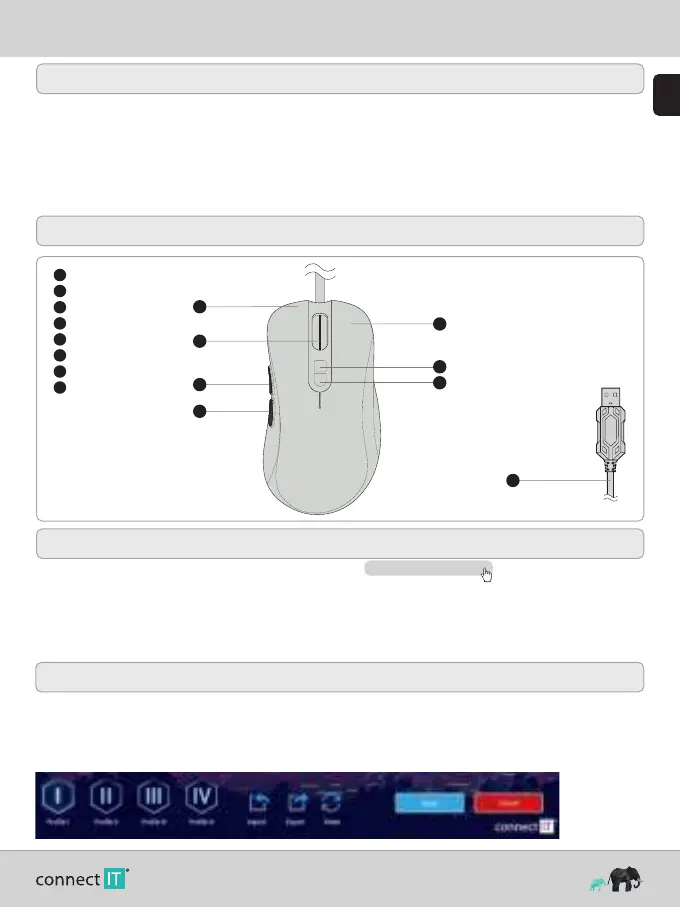
1
Left mouse button
2
Right mouse button
3
Scroll wheel
4
DPI - Toggle
5
RGB mode switching
6
Forward button
7
Back button
8
USB-A connector
2
Description of Each Part
1
2
3
6
7
4
5
125 Hz polling rate
20G acceleration
Gold-plated USB-A connector
150 cm premium braided cable
Easy Plug & Play installation
USB 2.0 backward compatible with USB 1.1
Dimensions: 121 x 65 x 39 mm
Weight: 105 g
8
3
Installation
Plug the gaming mouse into the computer and install the software that is available at www.connectit-europe.com .
1. Click on Next.
2. Select the destination folder and click Next to confirm. To select a different destination folder, click Browse, select another folder, and then click OK.
3. Press the Install button to start the program installation.
4. Click Finish to complete the installation.
4 Software
This mouse comes with user software where you can create macros, reconfigure mouse buttons, edit mouse properties, change mouse backlighting and all of
this can be stored in 4 different user profiles.
User profiles
The software has tabs for up to 4 user profiles. You can save individual profiles to disk (Export) or upload already created profiles (Import). Changes made to
the profile can be saved by clicking „Apply“; if you do not wish to save the changes, click „Cancel“.


 To Next Page