USER MANUAL
PROFESSIONAL GAMING MOUSE
CMO-3589 series
CONNECT IT® is a registered trade mark R202201-IM-CMO3589
EN
4
How to create a macro:
1. Right-click in the left column labeled “Macro List”. You will need to create a new macro group first.
2. Rename the macro group as needed. Right-click on the macro group and then left-click on “Add new macro” in the software.
3. Rename the macro and when you are ready to load the macro, left-click on ( ).
4. Press the desired keys and stop recording the macro with the symbol ( ).
5. In the right column „Macro content“ you will see what you have uploaded and here you can adjust the delay.
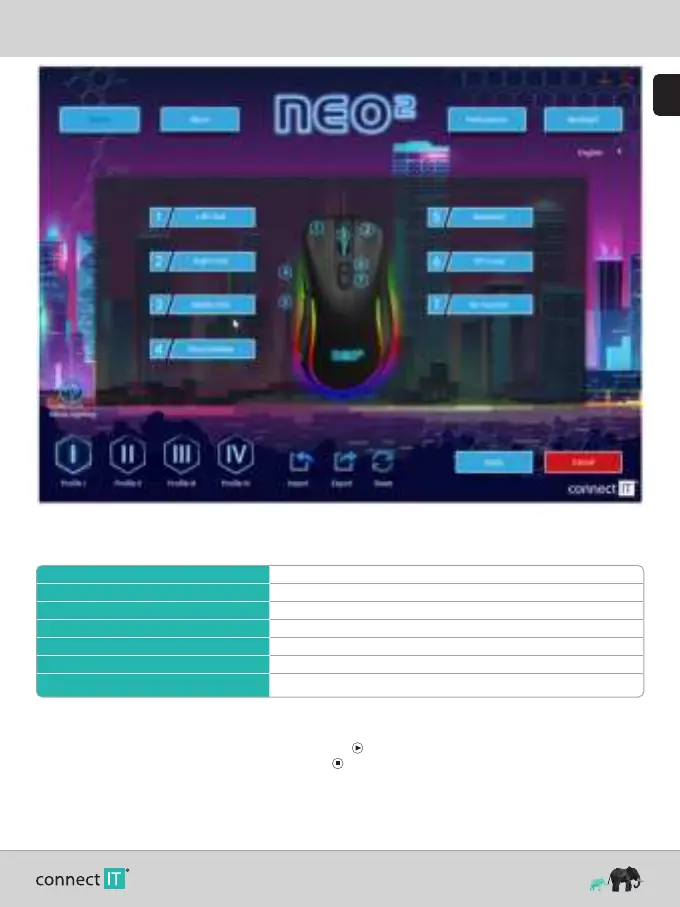
6. You can assign the macro you have created to individual buttons in the „Button settings“ section.
New macro group Creates a group for macros arrangement.
Add a new macro Creates an “empty” macro to record into.
Delete Deletes the selected macro or group of macros.
Reset all macro groups Deletes all macro groups at once.
Rename Renames the selected macro or group of macros.
Import macro group Imports a group of saved macros from your storage.
Export macro group Exports a group of macros from the software to your storage.
Macro
Each of the buttons can be assigned macros, which you can create beforehand in the „Macro“ tab. When selecting a macro, you first select the „Macro group“
and then select the macro you want to use.
You can create macros in this section. Right-click in the column labeled „Macro list“ to open a table with the following selection:


 To Next Page