11
Package contents
• C4-Z2C ZigBee Contact Sensor
• Four wall mounting screws
• Four plastic dry wall anchors
• AA batteries (2)
Requirements
• Composer Pro 2.10.0 or higher
Features
The ZigBee Contact Sensor (Z2C) is a single device that
combines the features of:
• Remote contact sensors (up to four)
• Remote thermistors (one)
• Internal contact (internal magnetic reed switch)
• Internal thermistor and humidistat
Any of these inputs can be used to trigger and control automated
events—such as sending an e-mail or turning on a cabinet light
when its door is opened—throughout the Control4 system.
You can position this wireless device anywhere you need contact
connections or climate reporting.
As a contact sensor
The device contains five contacts: one internal contact and
connections for four wired contacts.
The internal contact is a magnetic reed switch. To use this internal
contact, the Z2C should be mounted so that the indention (along
the same edge as the identify button) comes in close proximity
to a mounted magnet (not included) in a fully closed state (door
is closed). When the door opens, the magnetic connection is lost,
and that state change is pushed to the system.
Wiring guide:
Contact 1 -> Pin C1
Contact 2 -> Pin C2
Contact 3 -> Pin C3
Contact 4 -> Pin C4
(All can use either of the Cm pins as Common)
As a thermistor and humidistat
The device contains an integrated thermistor and humidistat,
as well as a connection for an external thermistor, allowing it to
be used almost anywhere to report environmental conditions
or to inform the climate control system. The thermistor
senses temperatures from 32°F to 104°F (0°C to 40°C), and
the humidistat senses humidity from 5% to 90%. The device
checks the temperature and humidity every five minutes. If the
temperature has changed more than 0.9°F (0.5°C), the device
reports the new temperature and humidity values.
Notes:
• The humidity and internal and external temperature
outputs can be connected (bound) to the Control4
Wireless Thermostat by Aprilaire (C4-THERM).
• A value of -40° in the Remote Temperature field
could indicate either a negative temperature or that
no remote thermistor is connected.
• The integrated humidistat will return a zero value
after the device is rebooted until the actual humidity
value can be reported.
• See “Sample wiring configurations” below for an
example of an external thermistor connection.
• To display the temperature and/or humidity in
Navigator, add the “Temperature Display Driver
(OS 2.10+)” to the project and connect the driver’s
temperature driver to the Z2C.
• Given the variations in temperature and humidity
measurements and environments, it may be
necessary to independently test and verify the
local and remote temperature and humidity. The
properties Local Temperature Oset, Remote
Temperature Oset, and Local Humidity Oset can
be used for this purpose.
Important safety instructions
Caution! You should install this device in accordance
with all national and local electrical codes.
Caution! Improper use or installation of this device can
result in loss of and damage to property.
Important: This product is not intended for direct
connections to AC mains (120V/220V). Refer to the
specifications.
Important: You must operate this device in accordance
with the instructions and specifications in this
installation guide.
Important: Using this product in any manner other than
outlined in this document voids your warranty. Also,
Control4 is not responsible or otherwise liable in any
way for any damage resulting from the misuse of this
product. See
ctrl4.co/warranty
for details.
ZigBee Contact Sensor
Installation Guide

 Need help?
 General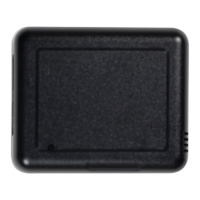

 To Next Page